第 34 課 - Group、Frame とクリップ
現在の Group / g は幾何的な境界(たとえば x/y/width/height)を持たない論理的なまとまりなので、子にクリップを適用しません。tldraw は Group と Frame の両方を Structural shapes として提供しています。
Group
Figma では、group は本質的にフォルダに似た「コンテナ」として働きます。詳しくは The difference between frames and groups を参照してください。
- 複数の要素を 1 つの単位として操作します(移動、拡大縮小など)。
- クリックすると既定でグループ全体が選択されます。グループのサイズは子要素から自動的に決まります。
- ダブルクリックでグループの中に入り、個々の要素を編集できます。
- グループ化/グループ解除
- コンテキストメニューとキーボードショートカットを使います。
- レイヤーパネルでドラッグ&ドロップします。
ドラッグ&ドロップでグループ化する
ドラッグ&ドロップによるグループ化を実装する前に、sortablejs を使って、同じ階層のリスト内で項目をドラッグ&ドロップで並べ替えできるようにできます。
import Sortable from 'sortablejs';

const lists = root.querySelectorAll<HTMLElement>('.layer-siblings');
lists.forEach((el) => {
    const parentId = el.dataset.layerParentId ?? '';
    const sortable = Sortable.create(el, {
        animation: 150,
        draggable: '.layer-branch',
        filter: '.layer-branch--locked', // 锁定图层无法拖拽
        preventOnFilter: false,
        group: {
            name: `layers-${parentId || 'root'}`,
            pull: true,
            put: true,
        },
        onEnd: (evt) => {
            if (evt.oldIndex === evt.newIndex) {
                return;
            }
            const to = evt.to as HTMLElement;
            const orderedIds = Array.from(to.children)
                .filter((c): c is HTMLElement =>
                    c.classList.contains('layer-branch'),
                )
                .map((c) => c.dataset.nodeId)
                .filter((id): id is string => !!id);
            // 所有兄弟节点重新排序,依次设置 zIndex
            this.applyLayerSiblingOrder(
                to.dataset.layerParentId ?? '',
                orderedIds,
            );
        },
    });
    this.sortableInstances.push(sortable);
});
ドラッグしてグループ化したり、グループを解除したりするには、グループをまたぐ操作が必要です。
ステンシルバッファ
tldraw では、クリップは CSS の clip-path で行い、親で getClipPath をオーバーライドして定義します。組み込みの Frame はこの方法で実装されています。Figma ではこのプロパティを clip content と呼びます。Frame properties in Figma を参照してください。
pencil.dev では、Frame は次のように定義されます。子要素を含められ、クリップ機能を持つ矩形です。
/** A frame is a rectangle that can have children. */
export interface Frame extends Rectangleish, CanHaveChildren, Layout {
    type: 'frame';
    /** Visually clip content that overflows the frame bounds. Default is false. */
    clip?: BooleanOrVariable;
    placeholder?: boolean;
    /** The presence of this property indicates that this frame is a "slot" - which means that it is intended be customized with children in instances of the parent component. Each element of the array is an ID of a "recommended" reusable component, one which fits semantically as a child here (e.g. inside a menu bar, the content slot would recommend IDs of various menu item components). */
    slot?: string[];
}
汎用性のため、どの図形でもクリップの親になれるようにします。図形の外にある子はクリップされ、親自身は fill/stroke を適用したまま通常どおり描画されます。プロパティは次のように宣言します。
{
    clipChildren: true;
}
次に、WebGL / WebGPU でこのクリップを実装する方法を見ます。
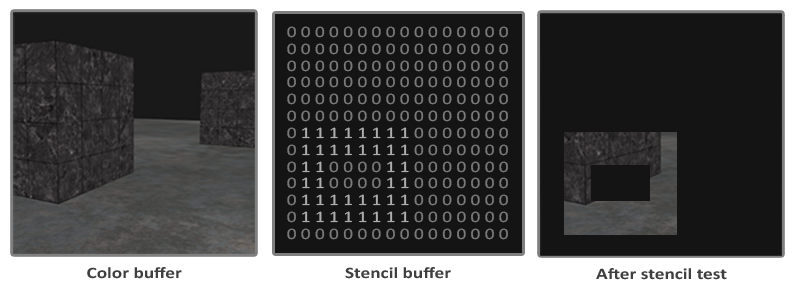
図形がクリップ用コンテナになると、RenderPass でステンシルバッファにも描画する必要があります。既定値は 0 です。
{
    stencilWrite: true, // enable writing to stencil buffer
    stencilFront: {
        compare: CompareFunction.ALWAYS,
        passOp: StencilOp.REPLACE,
    },
    stencilBack: {
        compare: CompareFunction.ALWAYS,
        passOp: StencilOp.REPLACE,
    }
}
続いて、子を描画するときに比較する参照値をステンシルバッファへ書き込みます。この値は [0-255] の範囲を取れ、上の図では 1 です。
renderPass.setStencilReference(STENCIL_CLIP_REF);クリップされる子を描画するときは、バッファの値がこの参照値と等しいかを調べます。値が 0 の領域は描かれないため、クリップになります。
{
    stencilFront: {
        compare: CompareFunction.EQUAL,
        passOp: StencilOp.KEEP,
    }
}
消しゴム効果
これで 第 25 課 - 非アトミックな消しゴム の残りの部分を実装できます。消しゴム効果はクリップの逆です。CSS の clip-path は「見える」領域を定義し、SVG の <clipPath> も同じです。どちらも「見えない」領域は定義できません。
SVG の <mask> ならできます。Clipping and masking in SVG を参照してください。WebGL / WebGPU では比較を反転するだけで済みます。
{
    stencilFront: {
        compare: CompareFunction.EQUAL,
        compare: CompareFunction.NOTEQUAL,
        passOp: StencilOp.KEEP,
    }
}そのため、clip モードと erase モードを区別するプロパティも必要です。
{
    clipChildren: true,
    clipMode: 'erase', // 'clip' | 'erase'
}
フラグメントシェーダーでステンシルバッファを使うときは、通常のアルファに基づく discard の処理を飛ばす必要があります。第 2 課 - SDF を参照してください。そうしないと fill='none' のとき正しい描画になりません。
// sdf.glsl
#ifdef USE_STENCIL
  // Stencil pass: discard by geometry (SDF distance), not alpha. Include the same
  // anti-alias band as the normal pass (fwidth(distance)) so the stencil boundary
  // matches the visible shape and avoids edge holes.
  float outerBoundary = (strokeAlignment < 1.5) ? 0.0 : strokeWidth;
  if (distance > outerBoundary)
    discard;
#else
  if (outputColor.a < epsilon)
    discard;
#endif
画像として書き出す
クリップされた要素を 1 つ画像として書き出すときは、その境界と親の境界の交差を、OffscreenCanvas へ描画するサイズ、または SVG 書き出し時の viewBox サイズにします。
const { minX, minY, maxX, maxY } =
    entity.read(ComputedBounds).renderWorldBounds;
const {
    minX: parentMinX,
    minY: parentMinY,
    maxX: parentMaxX,
    maxY: parentMaxY,
} = parentEntity.read(ComputedBounds).renderWorldBounds;
const isectMinX = Math.max(minX, parentMinX);
const isectMinY = Math.max(minY, parentMinY);
const isectMaxX = Math.min(maxX, parentMaxX);
const isectMaxY = Math.min(maxY, parentMaxY);
bounds.addFrame(isectMinX, isectMinY, isectMaxX, isectMaxY);
PNG の書き出し
注意点は 1 つで、クリップされた子だけを書き出すときでも、先に親を描画する必要があることです。
SVG の書き出し
まず clipMode='clip' の場合です。
クリップする親には対応する <g> があります。その clip-path が図形自身の定義を参照するように設定します。<clipPath> 自体は描画されません。
<g clip-path="url(#clip-path-frame-1)" transform="matrix(1,0,0,1,100,100)">
    <defs>
        <clipPath id="clip-path-frame-1">
            <ellipse
                id="node-frame-1"
                fill="green"
                cx="100"
                cy="100"
                rx="100"
                ry="100"
            />
        </clipPath>
    </defs>
    <ellipse
        id="node-frame-1"
        fill="green"
        cx="100"
        cy="100"
        rx="100"
        ry="100"
    />
    <rect
        id="node-rect-1"
        fill="red"
        width="100"
        height="100"
        transform="matrix(1,0,0,1,-50,-50)"
    />
</g>
clipMode='erase' のとき、SVG マスクの規則は次のとおりです。
- 白(輝度 1): マスクされた内容が見えます。
- 黒(輝度 0): マスクされた内容が隠れます。
まず大きな白い矩形を描き、次に消す図形を黒で描きます。
const $whiteRect = createSVGElement('rect');
$whiteRect.setAttribute('x', '-10000');
$whiteRect.setAttribute('y', '-10000');
$whiteRect.setAttribute('width', '20000');
$whiteRect.setAttribute('height', '20000');
$whiteRect.setAttribute('fill', 'white');
$clipPath.appendChild($whiteRect);

$parentNode.setAttribute('fill', 'black');
$parentNode.setAttribute('stroke', 'black');
得られる SVG の構造は次のとおりです。
<defs xmlns="http://www.w3.org/2000/svg">
    <mask id="mask-frame-1">
        <rect x="-10000" y="-10000" width="20000" height="20000" fill="white" />
        <rect fill="black" width="100" height="100" stroke="black" />
    </mask>
</defs>
画像を切り抜く
切り抜きは画像で最もよく使われます。詳しくは Crop an image と image cropping in excalidraw を参照してください。
エディタでは、切り抜きは通常、元の画像を残します。切り抜かれた領域は見た目だけ隠れ、切り抜き領域を後から調整しやすくなっています。
切り抜きは非破壊の操作です。切り抜かれた領域は削除されません。そのため、必要なら切り抜かれた領域を変更できます。
切り抜かれた領域の半透明効果
切り抜きモードに入ったあとでも、元の画像内容は表示したままにし、切り抜かれた領域は透明度で示します。この効果のために、もう一つのモード 'soft' を clipMode へ追加します。
実装の原理は次のとおりです。クリップされる図形を実際には 2 回描画します。1 回目のパス(compare: CompareFunction.EQUAL)は、前に説明した通常のクリップ部分を描画し、2 回目のパス(compare: CompareFunction.NOTEQUAL)は一定の透明度を適用します。
#ifdef USE_SOFT_CLIP_OUTSIDE
  outputColor *= 0.15;
#endif
インタラクションを追加する
次に、切り抜き領域を編集できるようインタラクションを追加します。切り抜きモードに入ったあと、操作できる部分は 2 つあります。
- 切り抜き領域を固定し、切り抜かれた図形をドラッグします。
- 切り抜き領域のサイズを調整します。
Figma のインタラクションデザインを参考にすると、図形を選択したあとコンテキストメニューから切り抜きモードに入れます。このとき、選択した要素のためのクリップ用の親要素が作られます。
const children = layersSelected.map((id) => this.api.getNodeById(id));
const bounds = this.api.getBounds(children);
const { minX, minY, maxX, maxY } = bounds;
// create a clip parent for all the selected nodes
const clipParent: RectSerializedNode = {
    id: uuidv4(),
    type: 'rect',
    clipMode: 'clip',
    x: minX,
    y: minY,
    width: maxX - minX,
    height: maxY - minY,
};

this.api.runAtNextTick(() => {
    this.api.updateNodes([clipParent]);
    // clipParent -> children
    children.forEach((child) => {
        this.api.reparentNode(child, clipParent);
    });
    this.api.setAppState({
        layersCropping: [clipParent.id],
        penbarSelected: Pen.SELECT,
    });
    this.api.record();
});