Lesson 39 - 3D Mesh Rendering
Before Lesson 30 - Post-processing and render graph, everything on the canvas went through the 2D pipeline: orthographic camera, SDFs, path triangulation fills, and so on. This lesson adds a 3D mesh branch without replacing that 2D renderer: vertices carry normals, perspective/orthographic projection, depth testing, and compositing with 2D layers on the same canvas.
Framer, Spline, Rive, and Bevy
The core ideas behind 2D/3D fusion in Framer and Spline can be summarized as two technical paths—each product picks a different architecture based on its positioning.
Framer’s 3D capability is essentially an enhanced wrapper around CSS 3D transforms, not a real 3D rendering pipeline. That means no external 3D model import (GLB/OBJ), no real lighting, shadows, or material system—3D effects are limited to simple cases like card flips and parallax layers. See: How to Turn 2D Elements into Interactive 3D Objects in Framer
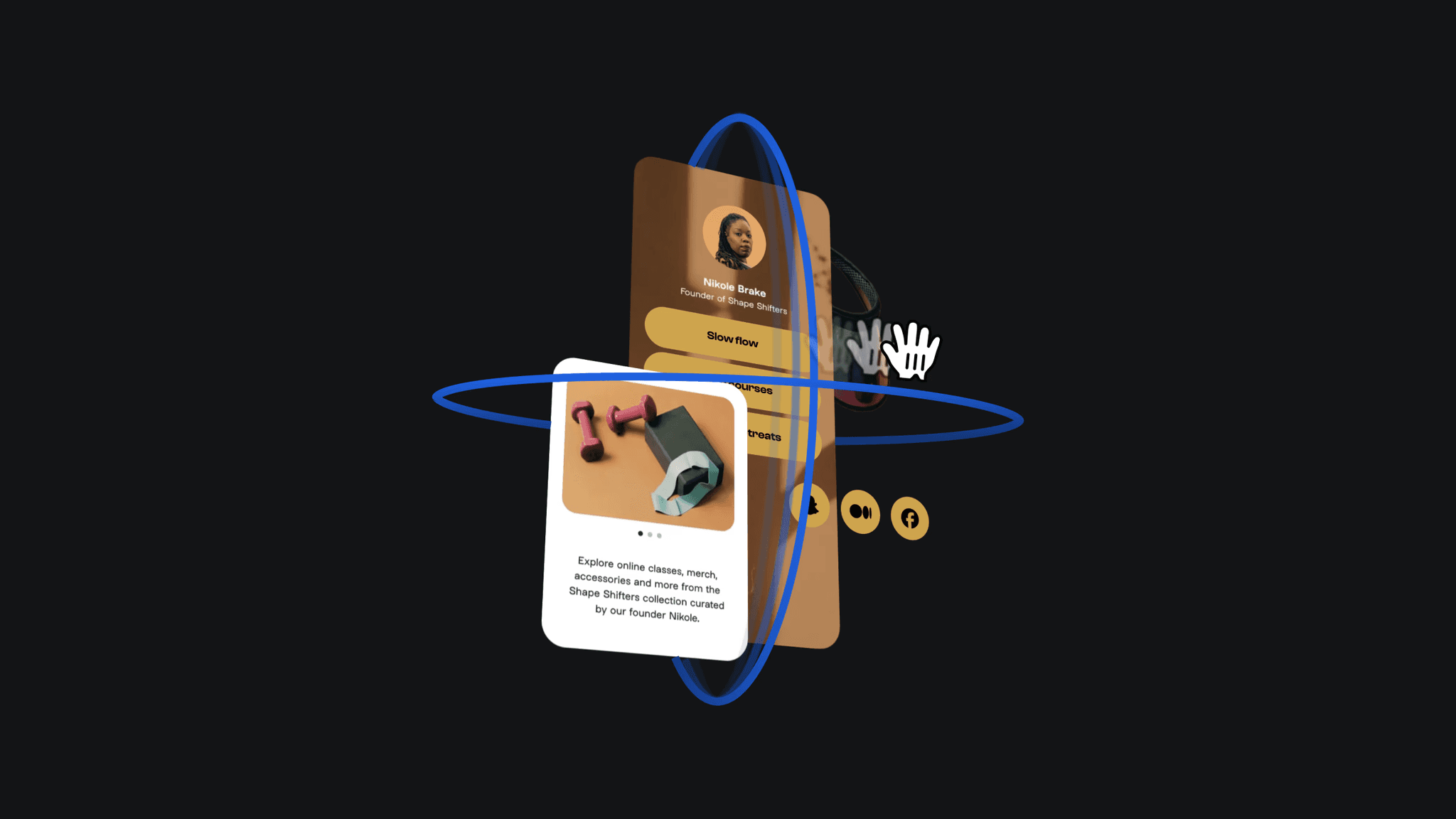
Spline is a true 3D editor whose architecture is closer to a game engine. Spline lets you create standalone UI Scenes (2D canvases) and use them as textures on UI Frame objects in a 3D scene. Working with 2D and 3D objects
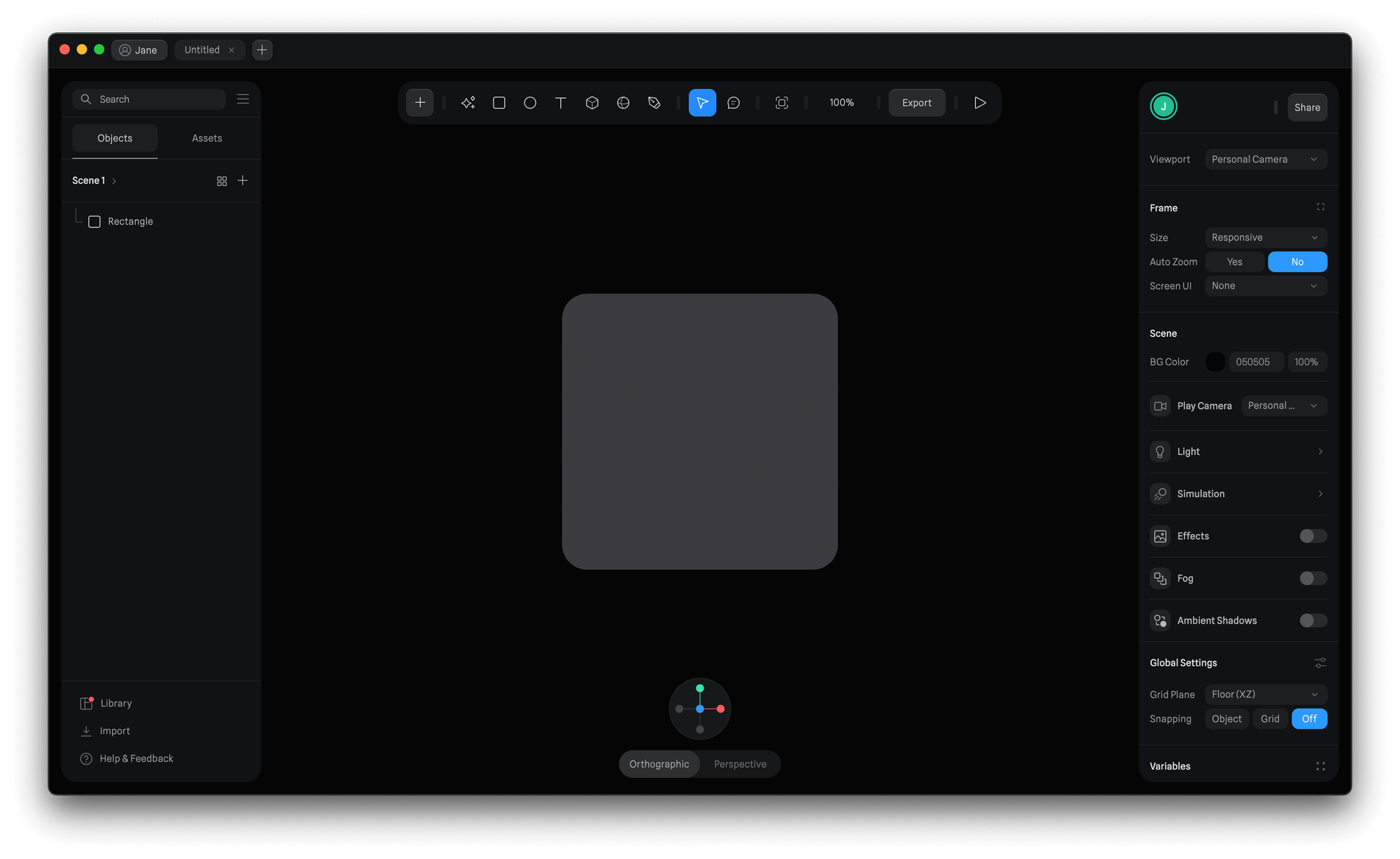
Rive is still fundamentally a 2D tool today. Its “3D feel” comes from 2.5D transforms, mesh deformation, and similar tricks—not a full 3D pipeline.
Our approach is closer to 2D Rendering in Bevy: 2D shapes live on the z = 0 plane and 3D models share the same world; when you pan/zoom the 2D camera, the 3D camera can optionally follow. See the implementation in PR #271.
Architecture overview
Same WebGL/WebGPU context
  └─ MeshPipeline render graph
       ├─ Pass: 3D (MeshPipeline3D.drawMeshes)
       ├─ Pass: 3D Gizmo (RenderGizmo3D.drawGizmos, on top of meshes)
       ├─ Pass: grid / 2D vector (existing BatchManager)
└─ Pass: post-processing → presentRenderer3DPlugin: registers 3D components and schedulesMeshPipeline3D(GPU cache),CameraSync(2D camera coupling),Pick3D(selection/drag), andRenderGizmo3D(transform gizmo drawing).MeshPipeline3D: does not present its own swapchain; insideMeshPipeline’s main pass it draws 3D first, then 2D, sharing color and depth attachments.- The existing
Mesh.tsis still 2D vector fill—do not confuse it with 3DMesh3D.
Plugin setup:
import {
    App,
    DefaultPlugins,
    DefaultRenderer3DPlugin,
} from '@infinite-canvas-tutorial/ecs';

const app = new App().addPlugins(...DefaultPlugins, DefaultRenderer3DPlugin);
app.run();
Core components
| Component | Role |
|---|---|
Camera3D | projection: 'perspective' | 'orthographic'; when linked, CameraSync follows 2D pan/zoom |
Mesh3D | positions, normals, optional indices (triangle mesh) |
Material3D | Metallic-roughness PBR: baseColor, metallic, roughness, and ambient strength; legacy fields remain for compatibility |
Light3D | ambient / directional / point / spot; see Scene lighting example |
Transform3D | translation, Euler rotation, scale |
Selected3D | 3D selection state: gizmo mode, active axis/plane, drag reference point, etc. (see 3D transform Gizmo) |
Mat4 | 4×4 matrix helpers (perspective / ortho / lookAt) |
Spawn entities via ECS commands.spawn, for example:
import {
    Camera3D,
    Mesh3D,
    Material3D,
    Transform3D,
} from '@infinite-canvas-tutorial/ecs';

commands.spawn(
    new Camera3D({
        eye: [3, 3, 5],
        center: [0, 0, 0],
        clearColor: true,
    }),
);

commands.spawn(
    new Mesh3D({ positions, normals, indices }),
    new Material3D({
        baseColor: [0.25, 0.55, 0.95, 1],
        ambient: 0.45,
        diffuse: 0.75,
        specular: 0.4,
        shininess: 48,
    }),
    new Transform3D({
        translation: [0, 0, 0],
        rotation: [0.3, 0.6, 0],
        scale: [1, 1, 1],
    }),
);
Unified 3D space (linked camera)
To pan/zoom the canvas and move 2D and 3D together, set linked: true on Camera3D.
Each frame, CameraSync reads 2D ComputedCamera (x, y, zoom) and writes the 3D camera’s eye / center / baseDistance:
- Zoom:
baseDistance = canvas.height / 2,eye.z = baseDistance / zoom, matching the visible height of 2Dmat3.projectionat z = 0 - Linked orthographic (
projection: 'orthographic'):eye = [x, -y, distance],center = [x, -y, 0](2D canvas Y is down, 3D world Y is up—flipped viacanvasWorldToWorld3D) - Linked perspective (
projection: 'perspective'):eye = [x, y, distance],center = [x, y, 0](same as 2D nodes—canvas coordinates, Y down)
Linked + orthographic
MeshPipeline3D uses the 2D viewProjectionMatrix directly (including Y flip, pan, and zoom), which keeps extrude3d and 2D rects strictly aligned.
The Cube (orthographic) example uses linked + orthographic (translation: [200, 100, 40]).
Linked + perspective
In perspective mode, screen position comes from the full 2D VP (pan, zoom, and Y flip match 2D); depth uses a perspective matrix on Transform3D.translation.z for foreshortening. The anchor is (x, y, z) from translation, so the object lands at the same (x, y) as in 2D.
Cube (perspective) uses the linked + perspective setup above; when you drag the canvas, the cube should pan and zoom with the 2D layers.
Raycast picking
3D selection and gizmo interaction are handled by the Pick3D system (also used from Select when the Select tool is active). On pointer down, the viewport pixel under the cursor is tested against gizmo handles and Mesh3D triangles. No GPU picking pass is used—everything runs on the CPU in ray-casting.ts and pick3d-probe.ts.
Pipeline
viewport (x, y)
  └─ buildPickSceneForViewport(camera, …)  →  Mesh3DPickScene (same matrices as rendering)
       └─ probePick3DAtViewport(…)
            ├─ 1. gizmo parts on Selected3D entities (screen-space / ray, per part)
└─ 2. all Mesh3D on this canvas → keep closest hit (smallest t)Priority: already-selected entities are probed for gizmo handles first; only if none hit does the probe test scene meshes. Among meshes, the hit with the smallest distance along the ray (or largest depth in linked perspective) wins.
Standard raycast (orthographic / free camera)
For non–linked-perspective modes, picking mirrors classic 3D editors:
screenToRay: viewport pixels → NDC → unproject near/far withinv(view × projection)to get a world-space ray.rayMeshIntersection: transform mesh vertices with the entity’s model matrix, then:- Broad phase: ray vs transformed AABB (slab method).
- Narrow phase: Möller–Trumbore ray–triangle test on each triangle; keep the closest
t.
// packages/ecs/src/utils/ray-casting.ts (simplified)
const invVP = computeInvViewProjection(projMatrix, viewMatrix);
const ray = screenToRay(vx, vy, width, height, invVP);
const hit = rayMeshIntersection(ray, positions, indices, modelMatrix);
// hit: { t, point, triangleIndex } | null
Linked orthographic (linked + orthographic) reuses the same path: MeshPipeline3D feeds the 2D viewProjectionMatrix into the pick scene, so clicks stay aligned with 2D rects and extrude3d.
Linked perspective: screen-space triangles
Linked perspective does not use a world ray for mesh hits. Screen position is driven by the full 2D VP; depth comes from a separate perspective matrix on translation.z. To match the vertex shader, pickMeshLinkedPerspective projects each triangle to viewport space with the same uniforms, then tests whether the cursor lies inside the 2D projected triangle (pointInTriangle2D) and picks the front-most depth at that pixel. Gizmo parts in this mode reuse the same helper (with optional Z screen bias for handles).
This keeps “what you see is what you pick” when panning/zooming the infinite canvas with a perspective cube.
Drag constraints
A gizmo press creates a GizmoSession with the initial pose and a fixed projection. For ordinary cameras, pointer movement intersects a ray with the active constraint plane. Linked cameras invert the displayed handle projection, including its Z screen offset. Translation follows the selected axis or plane; rotation follows the local ring axis. Invalid or degenerate samples leave the preview unchanged.
The session updates runtime components during movement. On release, a declarative source publishes one document edit and one undo entry. Escape, pointer cancellation or leaving the canvas restores the starting pose without recording an edit.
Changing the active camera, its projection/view, or the canvas size cancels a held gesture. External edits to the source's pose, geometry, or an ancestor's transform also cancel it: the runtime preview returns to the current document, so an old pointer release cannot overwrite an API edit or undo. Unrelated edits, such as names and colors, can merge with a drag that continues normally. Changes on another canvas do not interrupt it. Press a handle again to start in the new view.
Computed layout is also part of the gesture context. Yoga can change a source's position or size without changing those document fields; these changes, including ancestor transforms, cancel the preview. Cancellation preserves the new layout and restores only coordinates still owned by the preview. Escape on an otherwise unchanged layout returns to the computed starting position, even when it differs from the document. The session's own preview writes do not invalidate it.
GizmoSourceFrame snapshots local source/ancestor geometry, avoiding false interruptions from delayed world-matrix updates. While a pointer session owns the source preview, companion synchronization does not write that source again. Integrations that manipulate a companion directly retain their reverse sync.
Unchanged frames do not rewrite companion transforms or materials, and pose or material edits reuse generated CPU geometry. Geometry configuration changes invalidate that cache independently.
MeshPipeline3D also reuses GPU vertex, normal, UV, index and per-mesh uniform buffers during pose/material edits. Only Mesh3D writes invalidate geometry; when editing arrays directly, acquire the component with entity.write(Mesh3D) first. The cache consumes those writes after companion synchronization, retains them across skipped draws, and uploads the replacement once on the next draw. Meshes with identical geometry arrays share the uploaded geometry within one canvas, while each mesh keeps its own model uniform and draw bindings. An in-place geometry edit uploads a new generation; other instances retain their previous GPU snapshot until they are updated or removed. Each canvas owns its cache and scene uniforms. Removing a mesh or moving it to another canvas releases the old buffers, and disposing the canvas releases its resources before the device. Failed allocations are rolled back and can be retried without replacing the previous complete cache entry.
Model and normal matrices are recalculated only when the pose changes. Model uniform uploads also skip unchanged frames and camera-only changes; material edits and completed texture loads update the uniforms without rebuilding those matrices. In-place edits to transform/color arrays are compared by value.
Scene uniforms are cached per canvas. Camera and linked 2D view changes update scene matrices; light changes repack lighting without rebuilding those matrices. Unchanged draws reuse both the scene data and each mesh's draw bindings. Texture readiness or replacement, geometry rebuilds and GPU resource replacement invalidate the affected bindings. Bindings are released before the buffers and textures they reference. Failed scene uploads and binding allocations remain retryable.
The 3D layer list follows ECS geometry, metadata, scope and membership changes, instead of scanning every mesh each idle frame. Selection membership is tracked separately, so hovering gizmo handles does not rebuild the list. Layer entries retain stable entity references for later selection, including after undo/redo.
See 3D transform Gizmo for handle colors, axes, and the full pointer flow.
3D transform Gizmo
With the Select tool (penbarSelected === Pen.SELECT), clicking a 3D mesh adds Selected3D to the entity and draws translate handles at its center: red/green/blue arrows plus semi-transparent plane widgets. Dragging a handle writes back to Transform3D.translation. Similar to 2D Selected + RenderTransformer, but through a separate 3D pick and draw path.
Interaction flow
pointer down (Select tool)
  └─ Pick3D: probe gizmo first, then Mesh3D
       ├─ hit gizmo → capture pose/projection, create GizmoSession
       └─ hit mesh → select; miss → clear selection

pointer move (held)
  └─ GizmoSession.update → constrained runtime preview

pointer up
  └─ finish(true) → publish source pose once, record history

Escape / pointer cancel / leave
  └─ finish(false) → restore pose, clear gesture state
Coordinates and handle meaning
Consistent with Unified 3D space, the gizmo uses canvas coordinates (Y down), not Blender-style Y-up:
| Color | Axis | Direction (typical linked canvas view) | Drag updates |
|---|---|---|---|
| Red | +X | right | translation.x |
| Green | +Y | down | translation.y |
| Blue | +Z | depth (z+ into the screen) | translation.z |
Arrows: translate along a single axis.
Planes (
xy/xz/yzsemi-transparent squares): move two components at once (e.g.xy= X and Y only, not Z).Combined mode
transform(default, Spline-like): show translate arrows/planes and rotation rings at the same time; whichever handle you grab runs that operation (activePartKind:translate|rotate)—noW/Emode switch.Drag arrow / plane → updates
Transform3D.translation; drag ring → updatesTransform3D.rotation(local Euler angles, same as the mesh).Rings follow the object’s current orientation; arrows stay in canvas world axes (X right, Y down, Z depth).
Picking uses screen-space nearest hit; when overlapping, arrows are on top so translate wins.
scaleis reserved for later.
Editing extruded rectangles
A rect with extrude3d uses the same gizmo as a declarative mesh. Its serializable options now include elevation and a local 3D rotation:
const node: RectSerializedNode = {
    id: 'extruded-card',
    type: 'rect',
    zIndex: 0,
    x: 100,
    y: 80,
    width: 160,
    height: 100,
    extrude3d: { depth: 80, z: 20, rotation: [0.2, 0.3, 0] },
    fills: [{ type: 'solid', value: '#3377dd' }],
};- XY translation writes the source rectangle's
x/yin its parent's coordinates, including rotated, scaled or flipped parents. A singular parent transform rejects the preview because its inverse does not exist. - Z translation changes
extrude3d.z, preservingdepth. With zero 3D rotation,zis the front plane's elevation; the companion center is atz - depth / 2. - Ring rotation writes
extrude3d.rotation: XYZ Euler angles in radians, relative to the source's existing world-space 2D rotation. It leaves the source's 2Drotationintact. For an ordinary rotated shape, the companion composesRz(sourceAngle) × Rx(x) × Ry(y) × Rz(z).
Release commits once; cancellation restores the preview. Undo/redo and document reload restore the same pose. Disabling extrusion or replacing its companion interrupts the gesture and restores the current document instead of recreating an obsolete companion.
extrude3d: true still means a depth of 100, and a number still specifies depth. Object values default to depth 100, elevation 0 and rotation [0, 0, 0]. An update replaces the whole option value: omitted fields return to those defaults. There are no scale handles yet; use rectangle dimensions and depth to change size. Rect extrusion follows its local corners through rotation and scale. Rounded corners, reflections and shear from transformed parents are baked into the mesh, so their footprint remains aligned with the editable 2D source. A singular parent transform cannot produce a new mesh.
Extruding a closed Path
A closed Path with one solid fill can use the same extrude3d option. Its front and back faces follow the filled contours, including holes; editing d or fillRule rebuilds the mesh. Translation reuses it. Shear from transformed parents is baked into the mesh, so changes to that linear transform rebuild it.
const vector: PathSerializedNode = {
    id: 'extruded-vector',
    type: 'path',
    zIndex: 0,
    x: 100,
    y: 80,
    d: 'M100 80 L200 80 L200 180 L100 180 Z M125 105 L125 155 L175 155 L175 105 Z',
    fillRule: 'evenodd',
    fills: [{ type: 'solid', value: '#3377dd' }],
    extrude3d: { depth: 40, z: 0, sideColor: '#facc15' },
};
All subpaths must be closed. Open paths, stroke layers, multiple or non-solid fills, non-manifold contours and singular transforms remain visible in 2D. The Path keeps its original document node and supports gizmo edits, undo and reload.
Turning icons into 3D
In the App, select an Icon and open 3D → Convert icon to 3D. Choose a depth and a material preset (matte, glossy or metal). The conversion expands SVG strokes, including their caps and joins, into closed contours. Filled parts and holes become editable Paths inside one group. Select the group to change depth or material for all parts; select a Path to edit its outline or bevel. Undo restores the IconFont. The conversion is a snapshot of the icon geometry.
After registering an icon set with registerIconifyIconSet, code can use the same conversion:
const result = iconFontToExtrudedPaths(iconNode, {
    depth: 40,
    bevelSize: 2,
    metallic: 1,
    roughness: 0.25,
});
if (result) api.updateNodes([result.group, ...result.paths]);
metallic and roughness are PBR parameters between 0 and 1. These presets use the existing lighting pipeline. Transparent glass and refraction are not yet supported. SVG filters, gradients and unsupported paints may require manual outline cleanup before extrusion.
sideColor is an optional CSS color for the walls; the front and back keep the source fill. Omitting it makes all faces use the source fill color. The side color is a paint change, so editing it reuses the existing mesh geometry.
SVG <path>, <polygon>, <rect>, <circle> and <ellipse> elements, plus closed <polyline> elements, can be imported as filled extrusion sources with svgElementsToExtrudedNodes. The helper preserves other imported shapes in 2D; invalid depth is rejected instead of silently changing it to a default.
import { svgElementsToExtrudedNodes } from '@infinite-canvas-tutorial/ecs';

const svg = new DOMParser().parseFromString(source, 'image/svg+xml');
const nodes = svgElementsToExtrudedNodes(
    svg.documentElement as unknown as SVGSVGElement,
    40,
);
api.updateNodes(nodes);
In the online App, select a rectangle or Path to open the 3D control in the top toolbar. Enable extrusion, then edit its depth and bevel. The project menu also offers Import SVG as 3D, which centers the visible artwork on the canvas, even when it occupies only part of the SVG viewport, and retains unsupported layers in 2D. Use Export as → GLB (3D) to download all ready extruded meshes in the project. The App also lets you set a bevel profile (1–8 segments) and an optional hex side color; leave the side color blank to use the shape's fill. For a Path that cannot produce a mesh, the App disables the extrusion action and shows the closed outline, fill and stroke requirements.
The converter accepts closed contours with one solid fill. A solid SVG stroke on <path>, <line>, <polyline>, <polygon>, <rect>, <circle> or <ellipse> is expanded into a closed, editable Path. Stroke-only open lines and paths can therefore be extruded. When a shape has both fill and stroke, the stroke becomes a separate Path above the filled source; both retain the SVG group transform and can be exported to GLB. Round and square caps and round, bevel and miter joins are preserved. SVG's stroke="none" placeholder is ignored. The converter preserves fill-rule, including evenodd holes, and inherits paint and stroke width from SVG groups. Plain filled rectangles stay editable Rect nodes; rounded rectangles, ellipses and closed polylines become editable Paths. Inline style declarations for fill, stroke, opacity, fill rule and stroke geometry override presentation attributes. fill="currentColor" and stroke="currentColor" resolve against the nearest color on the shape, group, <use> instance or SVG root; absent color defaults to black. A stroke supplied through style can also be expanded. External CSS stylesheets are not parsed. For extrusion, rounded rectangles preserve independent SVG rx and ry values as elliptical corner arcs. A missing radius defaults to the other, and each radius is clamped to half of its corresponding dimension. The ordinary 2D Rect importer still stores a single corner radius. Resolvable positive-length SVG dash patterns, including odd-length patterns and stroke-dashoffset, are expanded into separate editable solid contours. A zero-length dash with a round cap creates an extruded dot. A non-scaling-stroke keeps its specified width through SVG group transforms and viewBox scaling: the importer projects the centerline first, then expands it into an editable 3D outline. This width is baked at import time, so subsequent editor zoom scales the 3D mesh normally. Non-scaling strokes under clip paths or sliced viewports, zero-length gaps, zero-length dashes with other caps, gradients, paint servers and unsupported SVG shapes remain in 2D. <pattern> fills with integer pixel tiles and patternUnits="userSpaceOnUse" are imported as repeating 2D fills. The tile can contain basic SVG shapes and local <use> references to those shapes. A local href on a pattern can inherit tile content and attributes from another pattern. Tile shapes can use local linear or radial gradients in their fill or stroke, including inherited gradients. An <image> in the tile can contain an embedded PNG, JPEG, WebP or AVIF data URL. The pattern stays editable as a 2D fill; its gradient stops and image content are embedded in the tile resource. External references, cyclic references, external images and other paint servers remain unsupported. Use the Gradient + image pattern sample button in the demo below to inspect both tile paints on the editor canvas. Numeric x and y pattern origins remain aligned when the same pattern fills shapes at different positions, including fills inherited from a group. Inherited pattern fills become editable fills on the individual child shapes. Supported patternTransform functions (matrix, translate, scale, rotate and skew) remain editable on the imported fill. As the canvas zooms in, SVG pattern tiles are redrawn from their vector source. The tile spacing stays fixed in canvas coordinates, with raster size capped at the texture limit. Circular <radialGradient> fills on rectangles are also retained in 2D when they use userSpaceOnUse, explicit numeric center and radius, and a centered focal point. Other self-contained radial gradients on rectangles, circles, ellipses, paths and polygons, including elliptical gradients, shifted focal points and gradient transforms, use a rasterized SVG image fill. The shape remains editable, while its gradient stops are baked into that image rather than separately editable paint controls. SVG image fills are redrawn from the vector source as you zoom in, up to the texture size limit, so their edges stay sharper at higher magnification. If a stroke cannot generate a valid closed mesh, its original 2D node is kept. Expanded stroke contours retain six decimal places while their coordinates are normalized, so very thin details do not collapse before the final mesh check. Local <use href="#id"> and legacy xlink:href references to supported shapes or groups create independent instances, including forward and repeated references. Instance pixel offsets, transform and inherited fill are applied before extrusion; each instance receives its own editable ID. Circular and unresolved references are skipped. <use> can also reference a <symbol> with a viewBox when the instance or symbol provides positive pixel width and height. Instance dimensions override the symbol's dimensions. The symbol's preserveAspectRatio supports meet alignments, none, and slice clipping of extruded outlines. Missing or invalid effective dimensions skip that symbol instance. External references are not imported yet. Nested <svg> elements with explicit positive pixel dimensions and a viewBox also create editable viewport groups. Their x/y, transform and preserveAspectRatio affect extruded children. A local <use> may reference one of these SVG elements and override its viewport dimensions independently. Nested SVG viewports clip generated extrusion outlines by default, including with slice; set overflow="visible" to retain overhanging geometry. Fully contained shapes keep their group relationship, so moving the viewport group also moves their 3D meshes. Shapes crossing an edge become clipped Paths. Local clip-path="url(#id)" and inline CSS clip-path now clip eligible 3D outlines too. A <clipPath> can contain Paths, polygons, polylines, rectangles, circles, ellipses, nested groups and local <use> references to those shapes. Its shapes form a union; clip-rule="evenodd" can cut holes. Clips on groups and repeated <use> instances follow their transforms, and multiple ancestor clips intersect with each other and with SVG viewports. clipPathUnits="objectBoundingBox" uses the bounds of a single shape or a group's supported child shapes, including their transforms. A clipped outline becomes an editable Path; an outline wholly inside its clip keeps its original node and group relationship. Unresolved or unsupported clip definitions stay in 2D. Masks, filters, text inside clip paths and external clip references are not converted to 3D. Elements with display="none" or inherited visibility="hidden" do not produce 3D meshes; a descendant can explicitly set visibility="visible". Pass the root <svg> to apply an explicit pixel width/height and viewBox, including preserveAspectRatio. Filled extrusions also preserve SVG skewX, skewY, and sheared matrix(...) transforms from nested groups. These outlines become editable Paths with sampled line segments when the combined transform contains shear. Plain viewBox scaling keeps rectangles and curved Paths editable in their original form. SVGs without explicit pixel viewport dimensions keep their viewBox coordinates. Unsupported 2D shapes still use the ordinary SVG importer, which does not preserve source shear.
With preserveAspectRatio="slice", filled extrusion outlines are clipped to the viewport, including holes and shapes split into separate islands. Shapes fully inside the viewport keep their Rect or curved Path form. Unsupported 2D shapes still follow the ordinary importer and are not clipped by this helper.
Choose Repeated use sample below to inspect two instances of the same definition with different fills, alongside an ordinary rectangle. Choose Symbol viewport sample to compare two viewport instances of one holed symbol. The first uses the symbol's dimensions; the second sets its own. Choose Nested SVG viewport sample to compare an inline SVG viewport and a second instance referenced with <use>; their extruded outlines are clipped to each viewport. Choose Paint style + currentColor sample to compare inherited and instance-specific colors, an inline fill override and a styled stroke. Choose Stroke caps + joins sample to compare round and square caps, a filled shape with a separate 3D outline, a non-scaling stroke under a group transform, an extruded dashed stroke and round dots. Choose Clip paths + repeated use sample to inspect two independently clipped instances with holes and a shape clipped by an object-bounds union. Choose Group bounds + clip use sample to inspect an object-bounds clip on a transformed group whose two windows reuse one local definition.
SVG preflight checks whether each contour can form a mesh. The resulting CPU geometry is kept in a recent cache of at most 256 meshes and 8 MiB of geometry arrays, so it can be reused when the asynchronous canvas update creates the 3D companions. Older entries are evicted; GPU geometry has its own per-canvas cache. Run pnpm bench:svg-import:browser to inspect import and edit timings for the repository's Ghostscript Tiger SVG and other representative artwork. You can also download that SVG and use Upload SVG above to inspect the editable layers and compare different zoom levels. When imported SVG layers overlap, their extruded front faces retain the SVG paint order, including layers inside nested groups. Later layers remain visible over earlier ones in the linked 3D view. GLB export lists the extrusion nodes in the same front-to-back traversal order, which our glTF importer retains. For opaque, flat extrusions on one plane, the export also separates overlapping layers in depth by at most 5% of the thinnest extrusion. This gives glTF viewers distinct depth-buffer values without moving the editable shapes in the canvas. Each nonintersecting stack is handled independently, so a distant 3D mesh does not disable the spacing. A stack whose projected bounds overlap a tilted or transparent extrusion, another elevation, or a standalone 3D mesh keeps its authored transforms. Extremely large or distant models can still lose small depth differences to the viewer's depth-buffer precision.

Set extrude3d.bevelSize (in canvas units) for a bevel on both ends of Path and Rect extrusions. The demo exposes this as Bevel. Holes, multiple islands and concave corners are supported when the inward offset preserves the filled topology. If contours collide or a narrow region collapses, the shape retains its sharp edges. Changing depth or size rebuilds the companion mesh while keeping the source editable. Shapes with more than 4096 vertices across their resolved fill boundaries also stay sharp to bound mesh work.
Set extrude3d.bevelSegments to 1 for a straight bevel (the default), or 2–8 for a rounded quarter-circle profile. More segments make the silhouette smoother and add mesh triangles. The demo's Bevel profile control lets you compare straight and rounded profiles on imported SVG shapes.
The example's Download GLB button exports the generated 3D meshes as a self-contained glTF binary file. Use api.exportGlb to download all ready extruded shapes, or pass nodes to export only a selection (including children of selected groups):
await api.exportGlb();
const glb = await api.exportGlb({
    nodes: [api.getNodeById('extruded-vector')!],
    download: false,
}); // Uint8Array
Export converts canvas Y-down coordinates to glTF Y-up coordinates and keeps the current 3D pose, solid fill and optional side color. It exports only ready mesh companions; unsupported 2D SVG shapes are not included. Base-color textures are embedded as PNG or JPEG (other decodable formats are converted to PNG). Texture URLs must allow CORS fetches. The synchronous api.export({ format: ExportFormat.GLB }) remains available for untextured exports. For lower-level mesh exports, call exportMeshesToGlb(sources, await loadGlbImages(sources)).
Use ViewBox + shear sample to inspect the transformed outline and its evenodd hole, then turn extrusion off to compare the 2D footprint. Use Slice clipping sample to see a hole, two separated pieces and a curved edge cut by the SVG viewport.
Loading canvas…
Lighting
Compare ambient, directional, point, and spot lights on a stationary cube, sphere, and cylinder. Switch lights, adjust intensity/range and the sphere's metallic/roughness values, enable studio environment lighting and cast shadows, or play the spotlight orbit. Point and spot lights can use the original smooth range falloff or opt into inverse-square falloff with a configurable reference distance. The renderer uses GGX direct lighting with sRGB-to-linear inputs and filmic tone mapping. An LDR panorama or Radiance HDR image provides spherical-harmonic diffuse lighting and prefiltered reflections with a split-sum BRDF lookup.
Up to two directional, point, or spot lights with castShadow: true cast shadows at once, filtered with 3 × 3 PCF. Each light can set shadowStrength (0–1), shadowSoftness (0–4 texels), shadowBiasScale (0–4), and shadowNormalBias (0–10 canvas units); defaults preserve the original appearance. Each mesh can independently opt out of casting or receiving via material3d.castShadow and material3d.receiveShadow (both default to true). Directional maps fit the current meshes; spot cones below 85° half-angle use one perspective map, while wider cones and point lights use six atlas faces. PCF taps at atlas-face seams sample the neighboring face rather than repeating the border texel. See the lighting example for controls, map sizes, and API details.
For self-lit surfaces, material3d.emissiveFactor and emissiveStrength control emission without adding a scene light. glTF KHR_materials_emissive_strength imports and exports with the material; try the cube emission slider in the lighting example.
For flat colors independent of illumination, material3d.unlit bypasses scene lights and tone mapping while retaining base-color texture and alpha. glTF KHR_materials_unlit is preserved on import and GLB export; compare it with emission using the cube toggle in the lighting example.
For textured cutouts and translucent surfaces, material3d.alphaMode offers mask and blend; see the 3D mesh transparency example for their shadow behavior and ordering limits.
WebGL1 fragment shaders require constant indices when reading uniform arrays. The renderer generates bounded lookups for light data and shadow matrices on WebGL1; WebGL2 and WebGPU retain native indexing. Material shading returns its color to main() so the WebGL1 output conversion also runs for unlit materials. Browser regressions force WebGL1 and check vertex colors, tangent-space normal maps, multiple lights, and directional/point shadows.
The cube is a rough dielectric with adjustable emission, the sphere is a metal, and the cylinder is a smooth dielectric. Toggle the sphere caster and floor receiver independently. Compare HDR and LDR panoramas on the sphere.
glTF model
Load an external glTF/GLB via declarative mesh3d geometry (geometry: { type: 'gltf', url: '…' }). The Khronos Duck sample uses a .gltf + .bin pair under /data/; meshes are centered and normalized to unit bounds, then scaled with scale3d.
glTF base-color factors use linear RGB, while ECS stores material base colors as sRGB. Import converts between them; GLB export converts back to linear RGB so material colors remain stable across a round-trip.
The importer also preserves glTF doubleSided, normalTexture, occlusionTexture, and authored TANGENT attributes. Normal maps alter the lighting normal; occlusion affects indirect light only. The interactive PBR model explains when normal mapping uses authored tangents or derives them from UVs.
glTF COLOR_0 vertex colors (float or normalized unsigned byte/short, RGB or RGBA) multiply the material base color in linear space. The interactive vertex-color model shows the result with and without scene lighting. Export preserves the colors as float RGBA.
The importer accepts triangle lists, triangle strips (mode: 5) and triangle fans (mode: 6), with or without indices. It converts them to triangle lists for rendering and GLB export. Mirrored node transforms also correct triangle winding so single-sided surfaces remain visible.
Sparse glTF accessors are supported for positions, normals, UVs, colors, tangents, and triangle indices. Missing base data starts at zero; sparse values replace only the listed elements. The imported mesh is exported as ordinary dense GLB buffers.
Further reading
- Working with 2D and 3D objects
- Bevy Core3dPlugin (plugin layering reference)