8강 - 성능 최적화
이번 강의에서는 다음 내용을 배웁니다.
- 드로우 콜이란 무엇인가
- 컬링으로 드로우 콜 줄이기
- 배치를 합쳐 드로우 콜 줄이기
- 공간 인덱싱으로 피킹 효율 높이기
- GPU 기반 색상 피킹
성능 최적화는 복잡하고 장기적인 작업이며, 저는 프로젝트 초기에 이 문제에 집중하는 편입니다. 앞서 SDF로 원을 그리는 방법을 배웠습니다. 이제 성능 테스트를 해서 원 1000개를 그려 보면, FPS는 약 35입니다.
$icCanvas = call(() => {
    return document.createElement('ic-canvas-lesson7');
});call(() => {
const { Canvas, Circle } = Lesson7;
const stats = new Stats();
stats.showPanel(0);
const $stats = stats.dom;
$stats.style.position = 'absolute';
$stats.style.left = '0px';
$stats.style.top = '0px';
$icCanvas.parentElement.style.position = 'relative';
$icCanvas.parentElement.appendChild($stats);
$icCanvas.addEventListener('ic-ready', (e) => {
const canvas = e.detail;
for (let i = 0; i < 100; i++) {
const circle = new Circle({
cx: Math.random() * 400,
cy: Math.random() * 200,
r: Math.random() * 20,
fill: 'red',
});
canvas.appendChild(circle);
}
});
$icCanvas.addEventListener('ic-frame', (e) => {
stats.update();
});
});FPS를 측정하기 위해 stats.js를 사용하고, 캔버스 왼쪽 위에 두는 패널을 만듭니다. 지금은 분명히 부드럽지 않습니다.
const stats = new Stats();
stats.showPanel(0); // Only show FPS panel

const animate = () => {
    // Trigger updating
    if (stats) {
        stats.update();
    }
    canvas.render();
    requestAnimationFrame(animate);
};
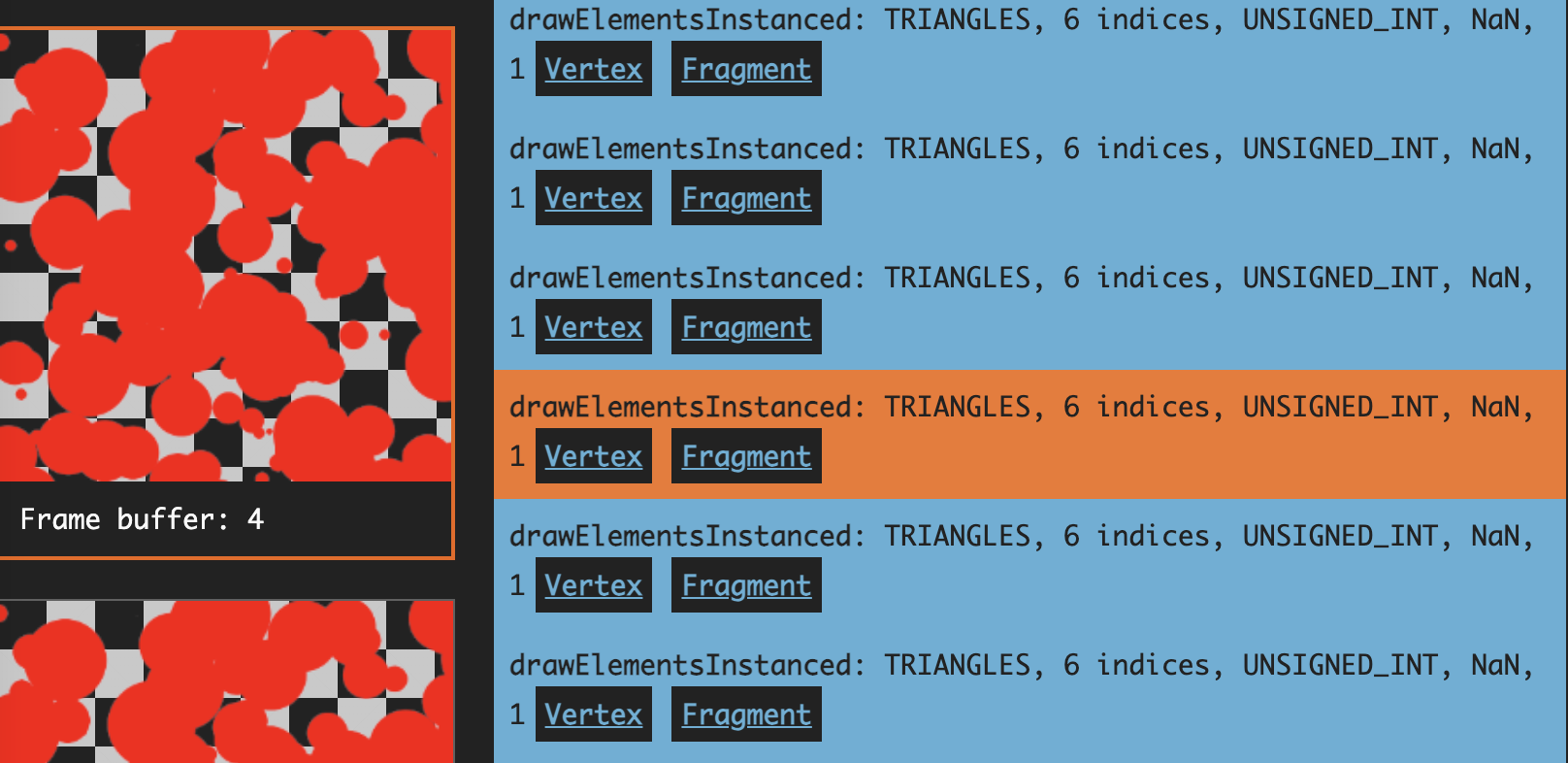
1강에서 소개한 Spector.js를 사용하면 그리기 명령이 매우 많다는 것을 볼 수 있습니다. drawElements 명령만 남기도록 걸러 보면, 사실 원 하나하나가 여러 WebGL 명령(버퍼 생성 등을 포함)에 대응합니다.
드로우 콜이란
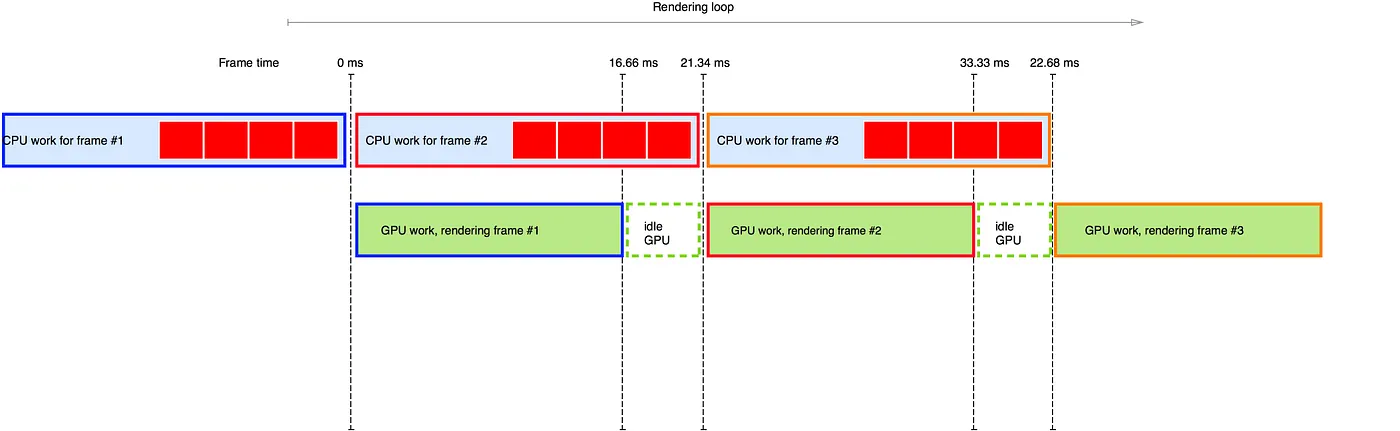
이러한 그리기 명령을 드로우 콜(Draw call)이라고 합니다. 아래 그림은 Draw calls in a nutshell에서 가져온 것으로, 드로우 콜 수가 늘어나면 성능에 영향을 주는 이유를 설명합니다. 드로우 콜은 모두 CPU에서 시작되므로, 수가 늘수록 CPU가 준비하는 시간도 길어집니다. GPU는 렌더링 자체는 빠르지만 기다려야 하고 유휴 시간이 많아지므로, 병목은 CPU에 있습니다.
그렇다면 드로우 콜은 어떻게 줄일까요? 보통 두 가지 방향이 있습니다.
- 뷰포트 컬링.
- 드로우 콜 배칭.
뷰포트 컬링
뷰포트 밖의 도형은 렌더링할 필요가 없습니다. 아래 그림은 Unreal의 How Culling Works에서 가져온 것으로, 신의 시점에서 카메라의 뷰 프러스텀(시야 원뿔) 밖에 있어 컬링된 빨간색 오브젝트를 보여 줍니다. 불필요한 드로우 콜이 크게 줄어드는 것을 알 수 있습니다.

3D 씬에는 카메라 뷰 프러스텀 컬링 알고리즘에 기반한 최적화가 많습니다. Efficient View Frustum Culling에서 여러 방법을 설명하는데, 예를 들어 씬 그래프 정보를 이용해, 어떤 도형이 이미 뷰 프러스텀 안에 완전히 들어 있으면 그 자식 노드는 검사하지 않을 수 있습니다.
렌더링 엔진에도 이에 해당하는 기능이 있습니다. 예를 들면 다음과 같습니다.
- Cesium Fast Hierarchical Culling
- Babylon.js Changing Mesh Culling Strategy
- pixi-cull
3D 씬에 비해 우리의 2D 캔버스는 구현이 훨씬 단순합니다. 그러면 도형이 뷰포트 안에 있는지는 어떻게 판단할까요? 여기서 바운딩 박스 개념이 필요합니다. 물론 바운딩 박스 대신, 3D 씬에서는 바운딩 스피어를 쓸 수도 있습니다.
축에 정렬된 바운딩 박스
축에 정렬된 바운딩 박스(Axis-Aligned Bounding Box, 줄여서 AABB)는 3D 그래픽스에서 흔히 쓰는 단순한 바운딩 박스로, 월드 좌표계의 축과 평행합니다. 다시 말해 변의 방향이 좌표축과 같습니다. 축에 정렬된 바운딩 박스는 보통 직육면체이며, 물체 하나 또는 물체 무리가 공간에서 차지하는 영역을 단순화한 상자로 나타냅니다. 우리의 2D 씬에서는 직사각형이며, 왼쪽 위 minX/Y와 오른쪽 아래 maxX/Y 좌표만 저장하면 됩니다.
export class AABB {
    minX: number;
    minY: number;
    maxX: number;
    maxY: number;
    matrix: Matrix;

    isEmpty() {
        return this.minX > this.maxX || this.minY > this.maxY;
    }
}
다음으로 도형의 바운딩 박스를 구하는 방법을 추가합니다. 원을 예로 들면 중심, 반지름, 선 두께를 함께 고려합니다. 여기서는 더티 플래그를 사용해, 관련 속성이 바뀔 때만 다시 계산합니다.
export class Circle extends Shape {
    getRenderBounds() {
        if (this.renderBoundsDirtyFlag) {
            const halfLineWidth = this.#strokeWidth / 2;
            this.renderBoundsDirtyFlag = false;
            this.renderBounds = new AABB(
                this.#cx - this.#r - halfLineWidth,
                this.#cy - this.#r - halfLineWidth,
                this.#cx + this.#r + halfLineWidth,
                this.#cy + this.#r + halfLineWidth,
            );
        }
        return this.renderBounds;
    }
}
컬링 플러그인 추가하기
컬링 플러그인을 추가합니다. 이 플러그인은 뷰포트에 해당하는 바운딩 박스를 저장하고, 이후 각 도형의 바운딩 박스와 교차시킵니다. 카메라 변환을 고려해, 월드 좌표계에서 뷰포트 네 꼭짓점의 좌표를 구한 뒤 바운딩 박스로 둘러쌉니다. 카메라가 바뀔 때마다 이 바운딩 박스를 갱신합니다.
export class Culling implements Plugin {
    #viewport: AABB = new AABB();

    private updateViewport() {
        const {
            camera,
            api: { viewport2Canvas },
        } = this.#context;
        const { width, height } = camera;

        // tl, tr, br, bl
        const tl = viewport2Canvas({
            x: 0,
            y: 0,
        });

        this.#viewport.minX = Math.min(tl.x, tr.x, br.x, bl.x);
        this.#viewport.minY = Math.min(tl.y, tr.y, br.y, bl.y);
        this.#viewport.maxX = Math.max(tl.x, tr.x, br.x, bl.x);
        this.#viewport.maxY = Math.max(tl.y, tr.y, br.y, bl.y);
    }
}
매 프레임이 시작될 때 씬 그래프를 순회하여, 도형의 바운딩 박스가 뷰포트와 교차하는지 판단합니다. 교차하지 않으면 culled를 true로 설정해 렌더링 중에 건너뜁니다.
hooks.beginFrame.tap(() => {
    const { minX, minY, maxX, maxY } = this.#viewport;

    traverse(root, (shape) => {
        if (shape.renderable && shape.cullable) {
            const bounds = shape.getBounds();
            shape.culled =
                bounds.minX >= maxX ||
                bounds.minY >= maxY ||
                bounds.maxX <= minX ||
                bounds.maxY <= minY;
        }

        return shape.culled;
    });
});
효과를 보면, 확대하거나 축소할 때 걸러진 도형의 수가 바뀌고, 걸러진 도형이 많을수록 FPS가 높아집니다.
$total = call(() => {
    return document.createElement('div');
});$culled = call(() => {
return document.createElement('div');
});$icCanvas2 = call(() => {
return document.createElement('ic-canvas-lesson8');
});call(() => {
const { Canvas, Circle } = Lesson8;
const stats = new Stats();
stats.showPanel(0);
const $stats = stats.dom;
$stats.style.position = 'absolute';
$stats.style.left = '0px';
$stats.style.top = '0px';
$icCanvas2.parentElement.style.position = 'relative';
$icCanvas2.parentElement.appendChild($stats);
const circles = [];
$icCanvas2.addEventListener('ic-ready', (e) => {
const canvas = e.detail;
for (let i = 0; i < 500; i++) {
const circle = new Circle({
cx: Math.random() * 1000,
cy: Math.random() * 1000,
r: Math.random() * 20,
fill: `rgb(${Math.floor(Math.random() * 255)},${Math.floor(
Math.random() * 255,
)},${Math.floor(Math.random() * 255)})`,
batchable: false,
// cullable: false,
});
canvas.appendChild(circle);
circles.push(circle);
}
});
$icCanvas2.addEventListener('ic-frame', (e) => {
stats.update();
const total = circles.length;
const culled = circles.filter((circle) => circle.culled).length;
$total.innerHTML = `total: ${total}`;
$culled.innerHTML = `culled: ${culled}`;
});
});뷰포트가 모든 도형을 담고 있으면 어떤 도형도 걸러 낼 수 없으므로, 다른 방법으로 드로우 콜을 줄여야 합니다.
배칭 렌더링
합칠 수 있는 드로우 콜은 비슷한 지오메트리, 같은 셰이더처럼 일정한 조건을 만족해야 합니다. Draw call batching - Unity는 두 가지 방법을 제시합니다.
- Static batching 정지한 오브젝트용입니다. 월드 좌표계로 변환하고, 공유 정점 배열을 사용합니다. 한 번 처리하면 개별 오브젝트에는 변환을 적용할 수 없습니다.
- Dynamic batching 움직이는 오브젝트용입니다. CPU 쪽에서 정점을 월드 좌표계로 변환하지만, 변환 자체에 비용이 있습니다.
Pixi.js에도 배칭 렌더링 시스템이 내장되어 있으며, 현재 개발 중인 V8까지 이어지고 있습니다. Inside PixiJS: Batch Rendering System.
먼저 렌더링 로직을 도형에서 분리합니다. 도형은 자신이 어떻게 렌더링되는지에 관여하지 않는 편이 맞습니다.
class Circle {
    render(device: Device, renderPass: RenderPass, uniformBuffer: Buffer) {}
}
이전에는 씬 그래프를 순회하면서 도형의 렌더링 로직을 곧바로 실행했습니다. 이제는 도형을 대기 중인 렌더 큐에 넣고, 합쳐진 뒤 함께 출력되기를 기다립니다.
hooks.render.tap((shape) => {
    shape.render();
    if (shape.renderable) {
        this.#batchManager.add(shape);
    }
});
이어서 Drawcall 클래스를 추상화하고, 앞서 구현한 SDF가 이 클래스를 상속하게 합니다. 이 클래스에는 다음 생명 주기가 있습니다.
export abstract class Drawcall {
    abstract createGeometry(): void;
    abstract createMaterial(uniformBuffer: Buffer): void;
    abstract render(renderPass: RenderPass): void;
    abstract destroy(): void;
}

export class SDF extends Drawcall {}
인스턴싱
비슷한 도형이 많을 때는 WebGL2 Optimization - Instanced Drawing으로 드로우 콜 수를 크게 줄일 수 있습니다. Three.js에서는 이것을 InstancedMesh라고 합니다. Babylon.js도 Instances를 제공하며, 변환 행렬이나 색처럼 인스턴스마다 다른 속성은 정점 배열로 넘길 수 있습니다.
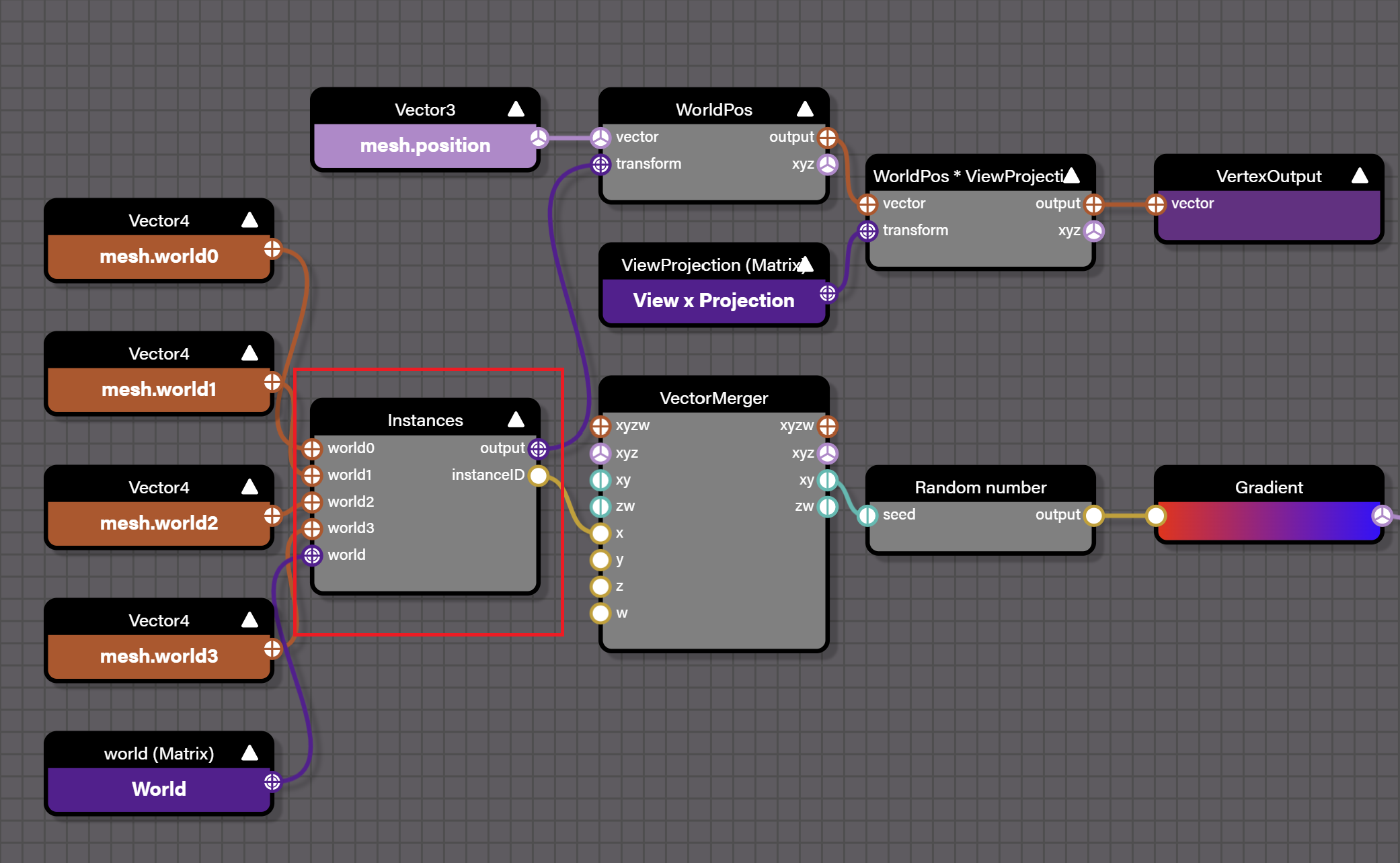
#ifdef INSTANCES
  attribute vec4 world0;
  attribute vec4 world1;
  attribute vec4 world2;
  attribute vec4 world3;

  finalWorld = mat4(world0, world1, world2, world3);
#endif
2D 씬만 다루므로, 변환 행렬은 성분 6개만 저장하면 됩니다.
#ifdef USE_INSTANCES
  layout(location = 14) in vec4 a_Abcd;
  layout(location = 15) in vec2 a_Txty;

  model = mat3(a_Abcd.x, a_Abcd.y, 0, a_Abcd.z, a_Abcd.w, 0, a_Txty.x, a_Txty.y, 1);
#endif
덧붙이면, 개별 인스턴스의 변환 행렬은 정점 데이터에 직접 넣는 것 외에 데이터 텍스처에 저장하고, 정점 배열의 인덱스로 참조할 수도 있습니다. Drawing Many different models in a single draw call
Drawcall에 instanced 플래그를 추가합니다.
export abstract class Drawcall {
    constructor(protected device: Device, protected instanced: boolean) {}
}
이 플래그에 따라 셰이더 헤더에 define 전처리 지시문을 추가합니다.
export class SDF extends Drawcall {
  createMaterial(uniformBuffer: Buffer): void {
    let defines = '';
    if (this.instanced) {
      defines += '#define USE_INSTANCES\n';
    }
  }
}
이렇게 하면 모델 변환 행렬을 attribute 또는 uniform에서 계산할 수 있습니다.
void main() {
  mat3 model;
  #ifdef USE_INSTANCES
    model = mat3(a_Abcd.x, a_Abcd.y, 0, a_Abcd.z, a_Abcd.w, 0, a_Txty.x, a_Txty.y, 1);
  #else
    model = u_ModelMatrix;
  #endif
}
이제 Spector.js로 보면, 뷰포트에 원이 1000개 있어도 드로우 콜 한 번으로 처리할 수 있습니다.

Drawcall 하나에 들어가는 인스턴스 최대 개수도 제한할 수 있습니다. 만들 때마다 검사하고, 한도를 넘으면 새로 만듭니다.
export abstract class Drawcall {
    protected maxInstances = Infinity;
    validate() {
        return this.count() <= this.maxInstances - 1;
    }
}
렌더링 순서
드로우 콜 하나로 여러 도형을 그리므로 그리는 순서에 주의해야 합니다. 인스턴스 배열에서 각 원소의 위치가 최종 그리기 순서와 반드시 같지는 않습니다. 그래서 실제로 그리기 전에 도형마다 값을 부여하고, 그 값을 [0, 1]로 정규화한 뒤 셰이더에 깊이 값으로 넘깁니다.
export class Renderer implements Plugin {
  apply(context: PluginContext) {
    hooks.render.tap((shape) => {
      shape.globalRenderOrder = this.#zIndexCounter++;
    });

    hooks.beginFrame.tap(() => {
      this.#zIndexCounter = 0;
    });
  }
}
이어서 Depth testing을 켭니다. 검사 방법은 이렇게 바꿉니다. 깊이 값이 현재 Depth buffer에 저장된 값([0, 1] 범위)보다 크면 기록합니다. WebGL의 기본값은 gl.LESS입니다. 이 장면에서는 ZIndex가 더 큰 도형이 더 작은 도형을 덮어씁니다.
export class SDF extends Drawcall {
    createMaterial(uniformBuffer: Buffer): void {
        this.#pipeline = this.device.createRenderPipeline({
            megaStateDescriptor: {
                depthWrite: true,
                depthCompare: CompareFunction.GREATER,
            },
        });
    }
}
마지막으로 RenderPass를 만들 때 Depth RenderTarget을 하나 더 만듭니다.
this.#renderPass = this.#device.createRenderPass({
    colorAttachment: [this.#renderTarget],
    colorResolveTo: [onscreenTexture],
    colorClearColor: [TransparentWhite],
    depthStencilAttachment: this.#depthRenderTarget,
    depthClearValue: 1,
});
동작을 확인해 보겠습니다. 컬링과 배칭 최적화를 동시에 켠 상태에서 원 5000개를 그립니다.
$icCanvas3 = call(() => {
    return document.createElement('ic-canvas-lesson8');
});$total2 = call(() => {
return document.createElement('div');
});$culled2 = call(() => {
return document.createElement('div');
});call(() => {
const { Canvas, Circle } = Lesson8;
const stats = new Stats();
stats.showPanel(0);
const $stats = stats.dom;
$stats.style.position = 'absolute';
$stats.style.left = '0px';
$stats.style.top = '0px';
$icCanvas3.parentElement.style.position = 'relative';
$icCanvas3.parentElement.appendChild($stats);
const circles = [];
$icCanvas3.addEventListener('ic-ready', (e) => {
const canvas = e.detail;
for (let i = 0; i < 5000; i++) {
const circle = new Circle({
cx: Math.random() * 1000,
cy: Math.random() * 1000,
r: Math.random() * 20,
fill: `rgb(${Math.floor(Math.random() * 255)},${Math.floor(
Math.random() * 255,
)},${Math.floor(Math.random() * 255)})`,
batchable: true,
cullable: true,
});
canvas.appendChild(circle);
circles.push(circle);
}
});
$icCanvas3.addEventListener('ic-frame', (e) => {
stats.update();
const total = circles.length;
const culled = circles.filter((circle) => circle.culled).length;
$total2.innerHTML = `total: ${total}`;
$culled2.innerHTML = `culled: ${culled}`;
});
});컬링 끄기
컬링을 켜면 어떤 상황에서는 오히려 성능 부담이 커질 수 있습니다.
피킹 성능 최적화
다음으로 각 Circle에 pointerenter/leave 이벤트 리스너를 붙여 피킹 성능을 측정합니다.
circle.addEventListener('pointerenter', () => {
    circle.fill = 'red';
});
circle.addEventListener('pointerleave', () => {
    circle.fill = fill;
});
Circle 20000개를 피킹하는 데 걸린 시간은 다음과 같습니다.
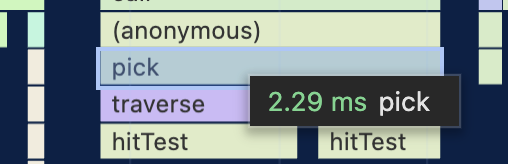
도형의 AABB는 뷰포트 기준 컬링에 쓸 수 있으며, 수학적 방법보다 더 빠르게 근사 판정을 할 수 있습니다.
공간 인덱싱 사용하기
공간 인덱스(Spatial Index)는 공간 데이터와 질의 연산을 효율적으로 다루기 위한 자료 구조이며, 지리 정보 시스템(GIS), 컴퓨터 그래픽스, 3D 게임 개발, 데이터베이스 기술에서 특히 쓰입니다. 공간 인덱스의 주된 목적은 대량의 데이터에서 특정 공간 객체를 찾을 때 필요한 계산량과 시간을 줄이는 것입니다. 공간 인덱스에는 쿼드트리(Quadtree), 옥트리(Octree), R-트리(R-tree), K-d 트리(K-d tree) 등 여러 자료 구조가 있으며, 구조마다 쓰이는 상황과 장점이 다릅니다.
PIXI.js 생태계에는 매 프레임 새로운 공간 인덱스를 만드는 pixi-spatial-hash 같은 라이브러리가 있습니다. 다만 지금은 유지보수가 부족한 것으로 보입니다.
일괄 삽입을 지원하는 rbush를 사용합니다. 일괄 삽입은 보통 하나씩 넣는 것보다 2–3배 빠르며, mapbox에서도 쓰입니다.
import RBush from 'rbush';
const rBushRoot = new RBush<RBushNodeAABB>();

export interface RBushNodeAABB {
    shape: Shape;
    minX: number;
    minY: number;
    maxX: number;
    maxY: number;
}
RBush 검색
RBush는 영역 질의 함수 search를 제공합니다. 질의 상자를 넘기면 맞은 도형 목록을 반환합니다.
export class Canvas {
    elementsFromBBox(
        minX: number,
        minY: number,
        maxX: number,
        maxY: number,
    ): Shape[] {
        const { rBushRoot } = this.#pluginContext;
        const rBushNodes = rBushRoot.search({ minX, minY, maxX, maxY });

        const hitTestList: Shape[] = [];
        rBushNodes.forEach(({ shape }) => {
            // Omit the process of handling the visibility and pointerEvents properties of shape.
        });
        // Sort by global render order.
        hitTestList.sort((a, b) => a.globalRenderOrder - b.globalRenderOrder);

        return hitTestList;
    }
}
피킹 플러그인에서는 위의 영역 조회를 사용합니다. 물론 AABB 대신 점을 넘깁니다.
export class Picker implements Plugin {
  apply(context: PluginContext) {
    hooks.pickSync.tap((result: PickingResult) => {
      const {
        position: { x, y },
      } = result;

      const picked: Shape[] = [root];
      elementsFromBBox(x, y, x, y).forEach((shape) => {
        if (this.hitTest(shape, x, y)) {
          picked.unshift(shape);
        }
      });
      result.picked = picked;
      return result;
    });
  }
}
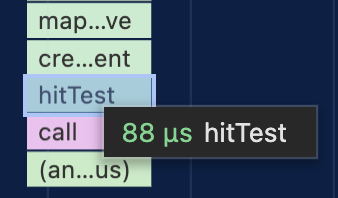
다시 측정해 보면, Circle 20,000개의 피킹 시간은 0.088ms가 되어 약 20배 개선됩니다.
GPU 기반 색상 피킹
앞의 피킹 절에서 수학 기반 피킹의 대안으로 GPU 기반 색상 피킹을 언급했습니다. deck.gl에서는 이것을 Color Picking이라고 합니다.