13강 - 패스 그리기와 스케치 스타일
이전 강의에서 폴리라인 그리기를 소개했습니다. Path의 스트로크 부분은 이론상 샘플링으로 폴리라인으로 바꿀 수 있으며, p5js - bezierDetail()이 그렇게 합니다. 매끄러운 효과를 내려면 샘플링 점을 더 넣어야 합니다. 채우기 부분은 아직 구현해야 합니다. 이번 강의에서는 다음을 다룹니다.
- SDF를 시험합니다
- 몇 가지 삼각화 방법으로 채우기를 그리고, 폴리라인으로 스트로크를 그립니다
- 손그림 도형을 몇 가지 그립니다
$icCanvas = call(() => {
    return document.createElement('ic-canvas-lesson13');
});call(() => {
const {
Canvas,
Path,
RoughCircle,
RoughRect,
deserializeNode,
fromSVGElement,
TesselationMethod,
} = Lesson13;
const stats = new Stats();
stats.showPanel(0);
const $stats = stats.dom;
$stats.style.position = 'absolute';
$stats.style.left = '0px';
$stats.style.top = '0px';
$icCanvas.parentElement.style.position = 'relative';
$icCanvas.parentElement.appendChild($stats);
$icCanvas.addEventListener('ic-ready', (e) => {
const canvas = e.detail;
const circle = new RoughCircle({
cx: 600,
cy: 100,
r: 50,
fill: 'black',
strokeWidth: 2,
stroke: 'red',
fillStyle: 'zigzag',
});
canvas.appendChild(circle);
const rect = new RoughRect({
x: 550,
y: 200,
fill: 'black',
strokeWidth: 2,
stroke: 'red',
fillStyle: 'dots',
});
rect.width = 100;
rect.height = 50;
canvas.appendChild(rect);
fetch(
'/Ghostscript_Tiger.svg',
// '/photo-camera.svg',
).then(async (res) => {
const svg = await res.text();
const $container = document.createElement('div');
$container.innerHTML = svg;
const $svg = $container.children[0];
for (const child of $svg.children) {
const group = await deserializeNode(fromSVGElement(child));
group.children.forEach((path) => {
path.cullable = false;
});
group.position.x = 100;
group.position.y = 75;
canvas.appendChild(group);
const group2 = await deserializeNode(fromSVGElement(child));
group2.children.forEach((path) => {
path.tessellationMethod = TesselationMethod.LIBTESS;
path.cullable = false;
});
group2.position.x = 300;
group2.position.y = 75;
canvas.appendChild(group2);
}
});
});
$icCanvas.addEventListener('ic-frame', (e) => {
stats.update();
});
});몇 가지 기본 개념
Polyline과의 차이
먼저 SVG에서 Paths의 정의를 분명히 합니다. 특히 MDN이 설명하는 <polyline>과의 차이입니다.
<path> 요소는 SVG 기본 도형 가운데 가장 강력한 요소입니다. 선, 곡선, 호 등을 만드는 데 쓸 수 있습니다.
<polyline>과 <path>는 비슷해 보이는 도형을 만들 수 있지만, <polyline>은 곡선을 흉내 내려면 짧은 직선이 많이 필요하고, 크기를 키우면 잘 맞지 않습니다.
따라서 <polyline>로 곡선을 나타내면 매끄럽지 않습니다. 아래 그림은 Draw arcs, arcs are not smooth ISSUE에서 가져왔습니다.

반대로 Path를 쓰면 d=“M 100 100 L 200 200 L 200 100” 같은 정의로 폴리라인을 만들 수 있습니다.
서브패스
선이나 곡선 같은 단순한 패스 외에, <path> 하나에는 일련의 선이나 곡선이 들어 있을 수 있으며, 이를 서브패스라고 합니다.
각 서브패스는 보통 M 또는 m인 moveto 명령으로 시작합니다. 이 명령은 선을 그리지 않고 그리기 도구를 좌표계의 새 위치로 옮기라고 알려 줍니다. 그 뒤에 선분(L 또는 l), 수평 선분(H 또는 h), 수직 선분(V 또는 v), 곡선(C, S, Q, T 등), 호(A 또는 a) 같은 그리기 명령이 이어질 수 있습니다.
SDF 사용
앞에서 SDF로 Circle, Ellipse, Rect를 그렸습니다. Path에도 같은 방법을 쓸 수 있습니까?
단순한 패스에는 가능해 보입니다. 예를 들어 이전 강의에서 원저자의 PPT가 언급한 shadertoy의 Quadratic Bezier - distance 2D가 있습니다. 베지어 곡선 하나에는 실제로 동작하지만, 복잡한 패스에는 쓸 수 없습니다. 프래그먼트 셰이더에서 지나치게 복잡한 수학 연산을 하면 성능도 떨어집니다.
Path2D
svg-path-sdf가 또 다른 방법을 제시합니다. 흥미롭게도 이 방법은 나중에 소개할 텍스트 그리기와 거의 같습니다. OB에 온라인 예가 있습니다. SDF Points with regl

Canvas2D API의 fill()과 stroke()는 Path2D를 인자로 받을 수 있고, Path2D는 SVG 패스 정의에서 바로 만들 수 있습니다. 그다음 Canvas2D API로 SDF를 만들어 텍스처로 넘깁니다. 만드는 방법은 tiny-sdf를 참고하면 됩니다. 텍스트 그리기를 소개할 때 더 자세히 이야기합니다.
// @see https://github.com/dy/svg-path-sdf/blob/master/index.js#L61C3-L63C31
var path2d = new Path2D(path);
ctx.fill(path2d);
ctx.stroke(path2d);

var data = bitmapSdf(ctx);
물론 Path2D는 브라우저 환경에서 기본으로 지원하는 API입니다. 서버 사이드 렌더링에서 쓰려면 폴리필이 필요하며, 자세한 내용은 여기에 있습니다. Support Path2D API
메시 사용
그래서 Path를 다루는 일반적인 방법은, 2D든 3D든, 삼각화입니다. 다음 예는 SVG loader in three.js에서 가져왔습니다. 먼저 SVG 텍스트를 ShapePath 묶음으로 바꾼 다음, ShapeGeometry 묶음을 만들어 렌더링합니다.
const shapes = SVGLoader.createShapes(path);
for (const shape of shapes) {
    const geometry = new THREE.ShapeGeometry(shape);
    const mesh = new THREE.Mesh(geometry, material);
    mesh.renderOrder = renderOrder++;

    group.add(mesh);
}
아래에서 우리 버전을 구현합니다.
- 패스 정의를 절대 명령으로 정규화합니다
- 곡선 위에서 샘플링합니다
- Polyline으로 스트로크를 그립니다
- earcut와 libtess 삼각화로 채우기를 그립니다
절대 명령으로 정규화
SVG 패스 명령에는 절대 명령과 상대 명령이 있습니다. 예를 들어 M 100 100 L 200 100은 M 100 100 l 100 0과 같습니다. 이후 처리를 쉽게 하려고, 상대 명령을 먼저 모두 절대 명령으로 바꿉니다. Canvas2D API도 lineTo와 비슷하게 이 방식을 씁니다. Three.js의 ShapePath 구현을 참고하며, 그 구현은 moveTo / lineTo / bezierCurveTo 같은 CanvasRenderingContext2D 메서드를 제공합니다.
import { path2Absolute } from '@antv/util';

const path = new ShapePath();
const commands = path2Absolute(d);
commands.forEach((command) => {
    const type = command[0];
    const data = command.slice(1);
    switch (type) {
        case 'M':
            path.moveTo();
        case 'L':
            path.lineTo();
        //...
    }
});ShapePath가 제공하는 메서드를 간단히 소개합니다. ShapePath는 패스 정의의 여러 명령에 대응하는 서브패스 묶음으로 이루어집니다. moveTo와 lineTo를 예로 들면, 전자는 새 서브패스를 만들고 시작점을 정하며, 후자는 다음 점까지 선을 잇습니다.
export class ShapePath {
    currentPath: Path | null;
    subPaths: Path[];

    moveTo(x: number, y: number) {
        this.currentPath = new Path();
        this.subPaths.push(this.currentPath);
        this.currentPath.moveTo(x, y);
        return this;
    }

    lineTo(x: number, y: number) {
        this.currentPath.lineTo(x, y);
        return this;
    }
}
각 서브패스의 구조는 다음과 같습니다.
export class Path extends CurvePath {}곡선 위 샘플링
직선과 베지어 곡선을 서로 다른 정밀도로 샘플링합니다. 이유는 분명합니다. 베지어 곡선은 샘플을 더 넣어야 선이 더 매끄러워지고, 직선은 샘플을 더 넣을 필요가 없습니다.
export class CurvePath extends Curve {
    getPoints(divisions = 12) {
        const resolution =
            curve instanceof EllipseCurve
                ? divisions * 2
                : curve instanceof LineCurve
                ? 1
                : divisions;
        const pts = curve.getPoints(resolution);
    }
}
확대·축소 시의 적응형 정밀도
위의 고정 분할 수는 기본 알고리즘을 설명합니다. 현재 core와 ecs의 Path 렌더러는 화면상의 크기에 따라 2차·3차 베지어와 타원 호를 평탄화합니다. 목표 오차는 물리 픽셀 0.25이며, 카메라 확대·축소, 디바이스 픽셀 비율, 부모 변환, 내보내기에 쓰는 렌더 패스를 반영합니다. 굵은 스트로크는 접선 변화도 제한하며, 끝점 캡의 방향도 포함됩니다. Path의 스트로크 커버리지는 물리 픽셀을 쓰므로, 안티앨리어싱 가장자리는 확대에 따라 굵어지지 않습니다.
정밀도는 2의 거듭제곱으로 올림합니다. 확대할 때는 현재 단계가 부족해지는 즉시 더 잘게 나눕니다. 축소할 때는 경계 근처에서 반복해서 다시 만들지 않도록 히스테리시스를 한 단계 더 둡니다. 각 드로우 콜은 Path마다 샘플링한 점 집합을 최대 4개까지 유지합니다. 같은 단계 안에서의 이동과 확대·축소는 GPU 지오메트리를 재사용합니다. d가 바뀌면 그 샘플은 무효가 됩니다.
지오메트리 바운드는 렌더 정밀도와 별개로, 원래 곡선의 극값에서 나옵니다. Path.points, ECS의 ComputedPoints, 곡선 길이와 패스 위 텍스트 계산은 뷰에 의존하지 않는 동작을 유지합니다. 따라서 확대·축소를 바꿔도 선택 범위는 움직이지 않고 텍스트는 다시 흐르지 않습니다. 사용자 정의 ECS 바운드 제공자도 계속 지원됩니다.
세분은 SVG 명령마다 재귀 16단계 또는 4096개 구간에서 멈춥니다. 극단적인 확대에서는 이 작업량 한계 때문에 목표 오차가 느슨해질 수 있습니다. 이 변경은 일반적인 Path에 적용됩니다. Rough 패스, VectorNetwork 샘플링, 과거의 강의 패키지는 기존의 샘플링 전략을 유지합니다.
3차 베지어 곡선을 예로 들면, 정규화된 t가 주어졌을 때 샘플링 점은 그 정의에서 얻을 수 있습니다. Bézier_curve
export class CubicBezierCurve extends Curve {
    getPoint(t: number) {
        const point = vec2.create();
        const { v0, v1, v2, v3 } = this;

        vec2.set(
            point,
            CubicBezier(t, v0[0], v1[0], v2[0], v3[0]),
            CubicBezier(t, v0[1], v1[1], v2[1], v3[1]),
        );

        return point;
    }
}
원형 Path의 예입니다. 샘플링한 정점 목록은 다음과 같습니다.
points = call(() => {
    const { Path } = Lesson13;
    return new Path({
        d: 'M40,0A40,40 0 1,1 0,-40A40,40 0 0,1 40,0Z',
        fill: 'black',
        opacity: 0.5,
    }).points;
});
폴리라인으로 스트로크 그리기
이제 서브패스 위의 샘플링 점을 모두 얻었으므로, 채우기와 스트로크를 각각 그릴 수 있습니다. 채우기는 잠시 뒤에 다루고, 스트로크는 이전 강의에서 구현한 Polyline으로 바로 그릴 수 있습니다. 여러 구간이 있는 폴리라인은 마침 일련의 서브패스를 지원합니다.
SHAPE_DRAWCALL_CTORS.set(Path, [Mesh, SmoothPolyline]);earcut으로 삼각화
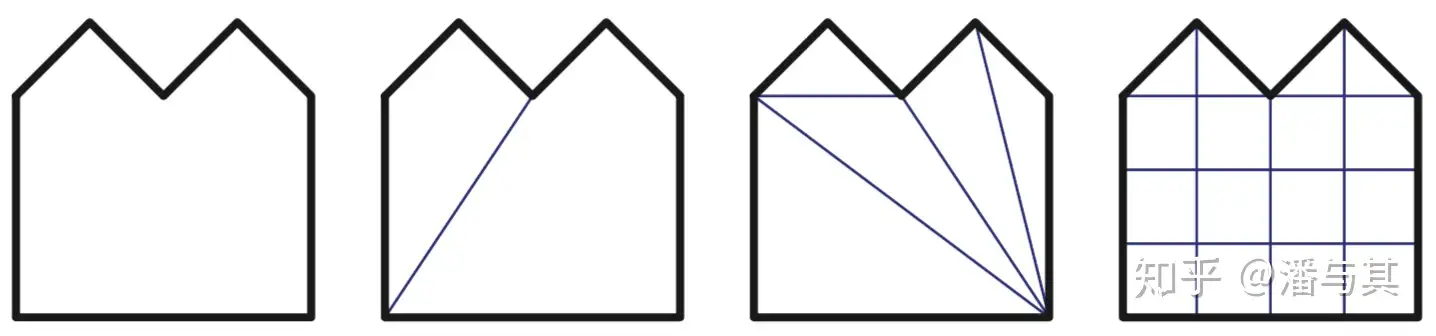
다각형을 어떻게 삼각형으로 나눌까요? 흔한 방법 하나는 ear clipping입니다. 이웃한 두 정점을 잇는 선이 다각형의 어떤 변과도 만나지 않으면, 그 정점은 ear입니다. 아래 그림의 왼쪽을 예로 듭니다. 이 기준에서는 v2, v4, v5가 ear입니다. 그런 다음 찾은 ear, 예를 들어 v4를 제거하고, 이웃인 v5와 v3을 이어서 판정합니다. 이때 v5가 ear를 이룹니다. 결국 모든 ear가 제거되고, 다각형은 삼각형으로 나뉩니다.
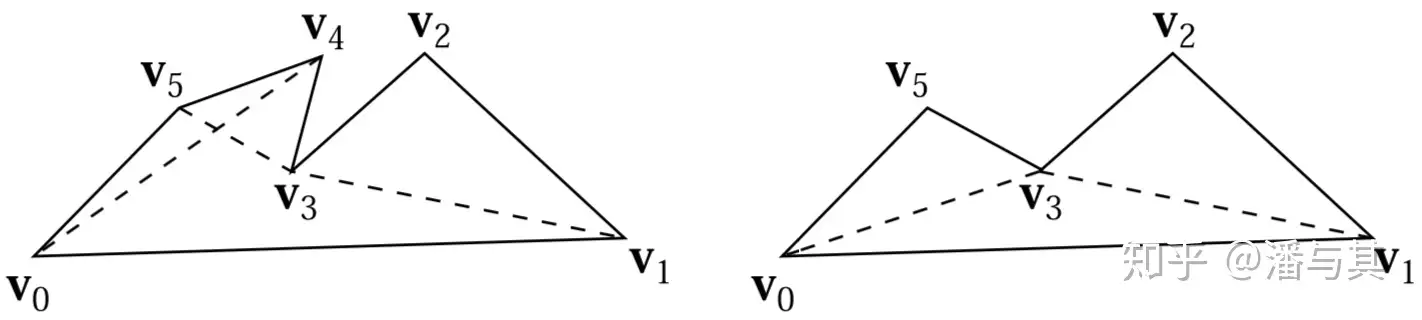
자세한 알고리즘은 논문 Triangulation By Ear Clipping에 있고, earcut이 JS 구현을 제공합니다.
function isEar(ear) {
    var a = ear.prev,
        b = ear,
        c = ear.next;

    if (area(a, b, c) >= 0) return false; // reflex, can't be an ear

    // now make sure we don't have other points inside the potential ear
    var p = ear.next.next;

    while (p !== ear.prev) {
        // If the poing is in triangle, it's not an ear.
        if (
            pointInTriangle(a.x, a.y, b.x, b.y, c.x, c.y, p.x, p.y) &&
            area(p.prev, p, p.next) >= 0
        )
            return false;
        p = p.next;
    }

    return true;
}earcut으로 삼각화합니다. 샘플링 점의 좌표를 넣어 인덱스 배열을 얻고, 오차까지 계산합니다. 나중에 다른 삼각화 방법과 비교하면 알 수 있듯이, earcut은 계산 속도를 크게 높이지만 정확도는 일부 잃습니다.
import earcut, { flatten, deviation } from 'earcut';

const { d } = path;
const { subPaths } = parsePath(d);
const points = subPaths
    .map((subPath) => subPath.getPoints().map((point) => [point[0], point[1]]))
    .flat(2); // [100, 100, 200, 200, 300, 100, 100, 100]

const { vertices, holes, dimensions } = flatten(points);
const indices = earcut(vertices, holes, dimensions); // [1, 3, 2]
const err = deviation(vertices, holes, dimensions, indices); // 0
그다음 gl.drawElements() 또는 passEncoder.drawIndexed()로 그립니다. 아래 그림에서 왼쪽 Path는 다음과 같이 정의됩니다. SDF로 그린 오른쪽 원과 비교하면 가장자리가 그다지 매끄럽지 않고, 카메라를 확대하면 더 분명해집니다.
const path = new Path({
    d: 'M40,0A40,40 0 1,1 0,-40A40,40 0 0,1 40,0Z',
    fill: 'black',
    opacity: 0.5,
});$icCanvas2 = call(() => {
return document.createElement('ic-canvas-lesson13');
});call(() => {
const { Canvas, Path, Circle } = Lesson13;
const stats = new Stats();
stats.showPanel(0);
const $stats = stats.dom;
$stats.style.position = 'absolute';
$stats.style.left = '0px';
$stats.style.top = '0px';
$icCanvas2.parentElement.style.position = 'relative';
$icCanvas2.parentElement.appendChild($stats);
$icCanvas2.addEventListener('ic-ready', (e) => {
const canvas = e.detail;
canvas.camera.zoom = 2;
const path = new Path({
d: 'M40,0A40,40 0 1,1 0,-40A40,40 0 0,1 40,0Z',
fill: 'black',
opacity: 0.5,
});
path.position.x = 100;
path.position.y = 100;
canvas.appendChild(path);
const circle = new Circle({
cx: 0,
cy: 0,
r: 40,
fill: 'black',
opacity: 0.5,
});
circle.position.x = 200;
circle.position.y = 100;
canvas.appendChild(circle);
});
$icCanvas2.addEventListener('ic-frame', (e) => {
stats.update();
});
});vello 같은 많은 2D 렌더링 엔진이 Path 렌더링을 시험하려고 Ghostscript Tiger.svg를 씁니다. 이 글 앞부분의 예에서도 볼 수 있습니다. 원본 SVG와 비교하면(구현한 내보내기 기능이 기억나십니까? 캔버스 오른쪽 위에 있습니다.) 빠진 부분이 있습니다.
다른 삼각화 기법
Pixi.js는 폴리곤 삼각화에 earcut을 씁니다. 다른 삼각화 라이브러리로는 cdt2d와 libtess.js가 있습니다. 후자는 성능은 낮지만 더 정확하며, holes가 많고 자기 교차가 있는 패스에서 특히 그렇습니다. earcut 문서에서도 이렇게 말하며, Ability to substitute earcut for libtess.js for a given Graphics object를 참고하세요.
자기 교차가 많은 매우 나쁜 데이터에서도 올바른 삼각화를 원하고 earcut의 정밀도가 부족하면 libtess.js를 살펴보세요.
Polygon Tesselation에서 earcut과 libtess.js의 효과를 비교합니다. 인덱스 배열을 반환하는 earcut과 달리, libtess.js는 저장소의 예처럼 정점 배열을 반환합니다. 그래서 인덱스 배열을 직접 만들어야 하지만, 이 작업은 매우 간단합니다. 정점 재사용을 고려하지 않아도 되므로 0부터 시작하는 증가 배열을 쓰면 됩니다.
export function triangulate(contours: [number, number][][]) {
    tessy.gluTessNormal(0, 0, 1);

    const triangleVerts = [];
    tessy.gluTessBeginPolygon(triangleVerts);
    // Omit...
    return triangleVerts;
}

triangulate(points); // [100, 0, 0, 100, 0, 0, 0, 100, 100, 0, 100, 100]
// indices: [0, 1, 2, 3, 4, 5]
글 앞부분의 “두 마리 호랑이” 예로 돌아가 비교할 수 있습니다. 왼쪽은 earcut으로 생성한 것이고, 오른쪽은 libtess.js로 생성한 것입니다. Path에 tessellationMethod 속성을 추가해서 두 삼각화 방법을 전환합니다.
export enum TesselationMethod {
    EARCUT,
    LIBTESS,
}
export interface PathAttributes extends ShapeAttributes {
    tessellationMethod?: TesselationMethod;
}
구멍 그리기
SVG의 기본 nonzero 규칙에서는 외곽선과 반대의 감는 방향으로 구멍을 정의할 수 있습니다. 예를 들어 아래 패스에서 외곽선은 시계 방향인 M0 0 L100 0 L100 100 L0 100 Z이고, 뒤따르는 구멍 두 개는 반시계 방향입니다.
M0 0 L100 0 L100 100 L0 100 Z M50 50 L50 75 L75 75 L75 50 Z M25 25 L25정의에서 시계 방향을 반대로 해도 됩니다. 예는 Draw a hollow circle in SVG입니다. 핵심은 구멍의 방향이 외곽선의 방향과 반대여야 한다는 점입니다.
채우기 규칙
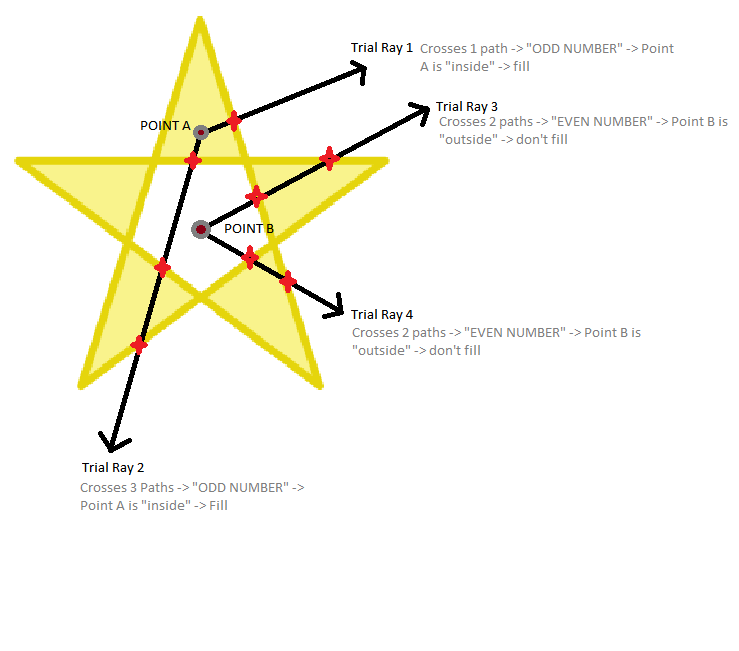
SVG의 fill-rule은 Path의 채우기 영역을 정하는 데 씁니다. 아래 예에서 왼쪽은 nonzero 규칙이고, 오른쪽은 evenodd 규칙입니다.
가운데 빈 영역의 한 점을 예로 들면, 광선이 도형과 짝수 번 만나므로 도형 밖으로 판정되어 채우지 않습니다. 자세한 내용은 how does fill-rule="evenodd" work on a star SVG를 참고하세요.
earcut은 자기 교차 패스를 지원하지 않으므로, 패스 삼각화에는 libtess.js를 씁니다.
tessy.gluTessProperty(
    libtess.gluEnum.GLU_TESS_WINDING_RULE,
    fillRule === 'evenodd'
        ? libtess.windingRule.GLU_TESS_WINDING_ODD
        : libtess.windingRule.GLU_TESS_WINDING_NONZERO,
);
ECS에서는 기본값 tessellationMethod: 'earcut'에서도 fillRule이 적용됩니다. 복합 패스와 evenodd 채우기는 입력 순서나 첫 윤곽의 방향에서 구멍을 추정하는 대신, 패스 전체의 와인딩이나 홀짝을 풀려고 자동으로 libtess를 씁니다. 구멍은 외곽선보다 앞에 올 수 있습니다. 중첩된 섬, 겹치는 윤곽, 중복된 윤곽도 필터에 쓰는 네이티브 Canvas 마스크와 같은 규칙을 따릅니다.
nonzero 윤곽 하나는 Earcut 빠른 경로를 유지합니다. 그런 윤곽의 일반적인 자기 교차에는 libtess를 명시적으로 고르세요. 복합 패스를 풀면 삼각화 비용이 늘 수 있습니다. 기존 지오메트리 캐시는 여전히 매 프레임 다시 만드는 일을 피합니다. 채우기 규칙이나 삼각화 옵션이 다른 Path는 채우기 메시를 공유하지 않습니다. Rough 페인트는 겹치는 브러시 알파를 유지하려고 별도의 삼각화 경로를 그대로 둡니다.
바운딩 박스와 피킹
바운딩 박스는 이전 강의의 폴리라인과 같은 방식으로 추정할 수 있습니다. 여기서는 점이 Path 안에 있는지를 판정하는 구현에 집중합니다.
네이티브 메서드 사용
CanvasRenderingContext2D는 바로 쓸 수 있는 isPointInPath와 isPointInStroke를 제공합니다. 앞에서 소개한 Path2D와 함께 쓰면 쉽게 판정할 수 있습니다.
const canvas = document.getElementById('canvas');
const ctx = canvas.getContext('2d');
const isPointInPath = ctx.isPointInPath(new Path2D(d), x, y);
앞에서 OffscreenCanvas를 소개했습니다. 메인 스레드의 렌더링과 무관한 피킹 판정 같은 계산에 특히 잘 맞습니다. PickingPlugin에서 초기화한 뒤 containsPoint를 넘겨, 구체적인 그래픽이 필요할 때 호출하게 합니다.
export class Picker implements Plugin {
    private ctx: OffscreenCanvasRenderingContext2D | CanvasRenderingContext2D;

    private hitTest(shape: Shape, wx: number, wy: number): boolean {
        if (shape.hitArea || shape.renderable) {
            shape.worldTransform.applyInverse(
                { x: wx, y: wy },
                tempLocalPosition,
            );
            const { x, y } = tempLocalPosition;

            return shape.containsPoint(x, y);
            return shape.containsPoint(x, y, this.ctx);
        }

        return false;
    }
}
기하 방법
Path의 각 서브패스는 어떤 점과의 위치 관계에 대해 기하 연산을 할 수 있습니다. 예를 들어 Pixi.js는 GraphicsContext - containsPoint를 구현합니다. 자세한 내용은 그 구현을 읽어 보세요.
손그림 스타일 그리기
excalidraw는 손그림 스타일 그리기에 rough를 씁니다. rough가 기본으로 제공하는 Canvas2D나 SVG 기반의 실제 그리기 기능은 필요하지 않으므로, RoughGenerator를 쓰는 편이 낫습니다.
손그림 패스 정의 생성
RoughGenerator는 흔한 도형의 생성 메서드를 제공합니다. 사각형을 예로 듭니다.
const generator = rough.generator();
const rect = generator.rectangle(0, 0, 100, 100);
입력 매개변수에 따라 서브패스와 비슷한 구조의 묶음을 만들어 주며, 이를 OpSet이라고 합니다. OpSet에는 move lineTo bcurveTo 연산자가 들어 있습니다. 이것을 절대 경로 명령으로 쉽게 바꾼 다음 샘플링하고, Polyline으로 이어서 그릴 수 있습니다.
import { AbsoluteArray } from '@antv/util';
import { OpSet } from 'roughjs/bin/core';

export function opSet2Absolute(set: OpSet) {
    const array = [];
    set.ops.forEach(({ op, data }) => {
        if (op === 'move') {
            array.push(['M', data[0], data[1]]);
        } else if (op === 'lineTo') {
            array.push(['L', data[0], data[1]]);
        } else if (op === 'bcurveTo') {
            array.push([
                'C',
                data[0],
                data[1],
                data[2],
                data[3],
                data[4],
                data[5],
            ]);
        }
    });
    return array as AbsoluteArray;
}
Rough Mixin
바운딩 박스 계산과 피킹에서는 손그림이 아닌 버전을 재사용하려고 합니다. 이유는 다음과 같습니다.
- 이런 스타일화 렌더링은 렌더링 효과에만 영향을 주어야 하며, 물리적 속성은 바꾸지 않습니다.
- 손그림 그래픽은 실제로 여러 Path 묶음으로 이루어지므로, 바운딩 박스를 정확히 계산하는 것은 성능 낭비입니다.
- 피킹할 때는 전체를 하나로 보아야 합니다. Path 단위로 판정하면 잘못된 결과가 나옵니다. 예를 들어 마우스가 그래픽 안에 떠 있어도 선 사이의 빈 곳에 있으면 그래픽 밖이라고 판정됩니다.
그래서 rough가 지원하는 seed roughness 등의 매개변수를 모두 가진 새 Mixin을 만들고, 이 매개변수가 바뀌면 즉시 다시 그립니다.
import { Drawable, Options } from 'roughjs/bin/core';
import { GConstructor } from '.';
import { parsePath } from '../../utils';

export interface IRough
    extends Omit<Options, 'stroke' | 'fill' | 'strokeWidth'> {
    /**
     * @see https://github.com/rough-stuff/rough/wiki#roughness
     */
    roughness: Options['roughness'];
}
export function Rough<TBase extends GConstructor>(Base: TBase) {
    abstract class Rough extends Base implements IRough {
        get roughness() {
            return this.#roughness;
        }
        set roughness(roughness: number) {
            if (this.#roughness !== roughness) {
                this.#roughness = roughness;
                this.renderDirtyFlag = true;
                this.generate();
            }
        }
    }
}
이렇게 하면 이미 지원하는 도형을 이것으로 감싸 손그림 효과를 얻을 수 있습니다. 사용 방법은 다음과 같으며, Rect를 상속하는 RoughRect를 예로 듭니다.
import { RectWrapper, RectAttributes } from './Rect';

export class RoughRect extends Rough(RectWrapper(Shape)) {}
fillStyle solid
fillStyle = 'solid'인 경우를 지원하려면 다음과 같이 합니다.
SHAPE_DRAWCALL_CTORS.set(RoughRect, [
    ShadowRect,
    Mesh, // fillStyle === 'solid'
    SmoothPolyline, // fill
    SmoothPolyline, // stroke
]);$icCanvas3 = call(() => {
return document.createElement('ic-canvas-lesson13');
});call(() => {
const { Canvas, RoughCircle } = Lesson13;
const stats = new Stats();
stats.showPanel(0);
const $stats = stats.dom;
$stats.style.position = 'absolute';
$stats.style.left = '0px';
$stats.style.top = '0px';
$icCanvas3.parentElement.style.position = 'relative';
$icCanvas3.parentElement.appendChild($stats);
const circle1 = new RoughCircle({
cx: 100,
cy: 100,
r: 50,
fill: 'black',
strokeWidth: 2,
stroke: 'red',
fillStyle: 'dots',
});
const circle2 = new RoughCircle({
cx: 200,
cy: 100,
r: 50,
fill: 'black',
strokeWidth: 2,
stroke: 'red',
fillStyle: 'hachure',
});
const circle3 = new RoughCircle({
cx: 300,
cy: 100,
r: 50,
fill: 'black',
strokeWidth: 2,
stroke: 'red',
fillStyle: 'zigzag',
});
const circle4 = new RoughCircle({
cx: 400,
cy: 100,
r: 50,
fill: 'black',
strokeWidth: 2,
stroke: 'red',
fillStyle: 'cross-hatch',
});
const circle5 = new RoughCircle({
cx: 500,
cy: 100,
r: 50,
fill: 'black',
strokeWidth: 2,
stroke: 'red',
fillStyle: 'solid',
});
const circle6 = new RoughCircle({
cx: 100,
cy: 200,
r: 50,
fill: 'black',
strokeWidth: 2,
stroke: 'red',
fillStyle: 'dashed',
});
const circle7 = new RoughCircle({
cx: 200,
cy: 200,
r: 50,
fill: 'black',
strokeWidth: 2,
stroke: 'red',
fillStyle: 'zigzag-line',
});
$icCanvas3.addEventListener('ic-ready', (e) => {
const canvas = e.detail;
canvas.appendChild(circle1);
canvas.appendChild(circle2);
canvas.appendChild(circle3);
canvas.appendChild(circle4);
canvas.appendChild(circle5);
canvas.appendChild(circle6);
canvas.appendChild(circle7);
});
$icCanvas3.addEventListener('ic-frame', (e) => {
stats.update();
});
});SVG 내보내기
보다시피 rough가 만든 그래픽은 Path 묶음으로 이루어집니다. 그래서 SVG로 내보낼 때는 <path>를 써야 합니다. 위 예에서 내보내기를 시도해 볼 수 있습니다.
export function exportRough(
    node: SerializedNode,
    $g: SVGElement,
    doc: Document,
) {
    const {
        attributes: { drawableSets, stroke, fill },
    } = node;

    drawableSets.forEach((drawableSet) => {
        const { type } = drawableSet;
        const commands = opSet2Absolute(drawableSet);
        const d = path2String(commands, 2); // retain two decimal places
        const $path = createSVGElement('path', doc);
        $path.setAttribute('d', d);
        $g.appendChild($path);
        if (type === 'fillSketch') {
            $path.setAttribute('stroke', fill as string);
            $path.setAttribute('fill', 'none');
        }
    });
}
수채화 스타일
watercolorizer를 써서 새로운 fillStyle: 'watercolor'를 추가합니다.
특히 사각형은 더 이상 정점 4개만으로 모델링하지 않습니다. 대신 subdivideAxisAlignedRect로, 크기에서 변마다의 분할 수를 4에서 16 사이로 고릅니다(hypot(w, h) / 40). 그러면 윤곽이 정점 수가 많은 폴리곤에 더 가까워지고, 정점만 있는 사각형이 바깥으로 균일하게 부푸는 정도가 줄어듭니다.