29강 - HTML 콘텐츠 삽입
때로는 캔버스에 HTML 콘텐츠를 넣고 싶습니다. YouTube 플레이어, CodeSandbox 컴포넌트, ShaderToy 등이 그런 예입니다.
HTML 컨테이너 만들기
Excalidraw는 캔버스에 HTML 콘텐츠를 넣는 것을 지원하지 않지만, tldraw는 TLEmbedShape를 지원합니다. 페이지 안에서 HTML 컨테이너(iframe이나 다른 요소를 담음)를 캔버스 <svg> 요소와 나란히, 또는 그 위에 겹쳐 보여 줍니다. 단일 캔버스 “안에 완전히” 들어가는 방식은 아닙니다.
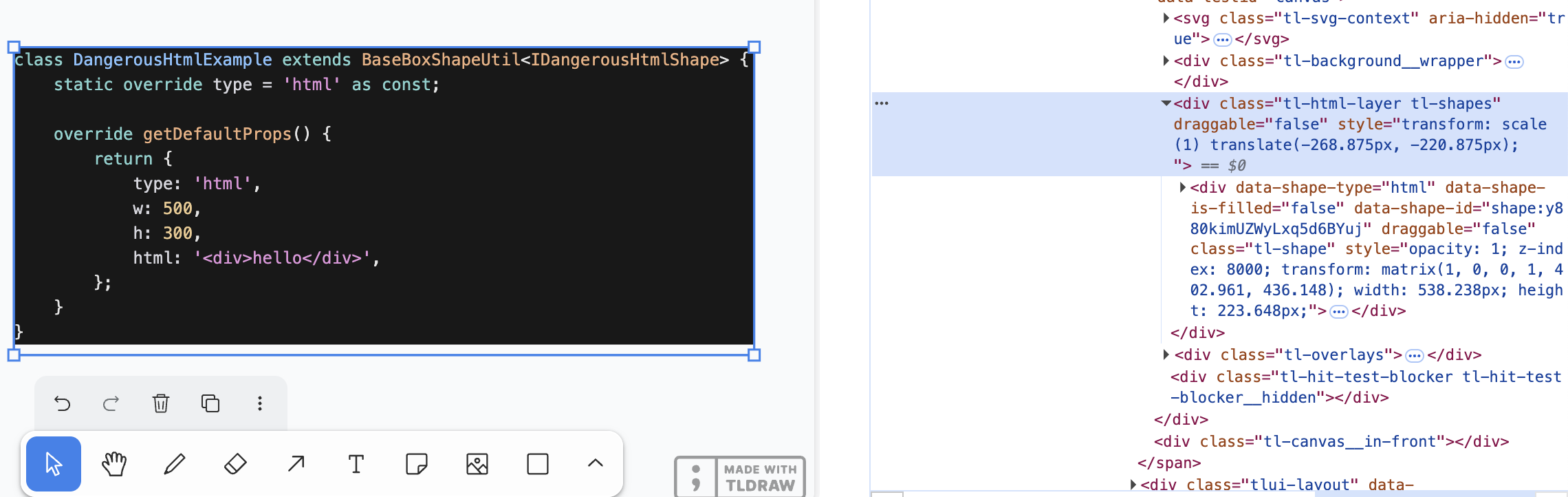
컨테이너는 두 층으로 나뉩니다.
- HTML 레이어는
<canvas>와 형제 노드로 나란히 있으며, 모든 HTML 컨테이너를 담고 카메라 동기화를 담당합니다. - HTML 컨테이너는 각
html/embed도형의 컨테이너이며, 개별 도형의 위치 지정을 담당합니다.
카메라 동기화
4강 - 카메라에서 일련의 중요한 카메라 매개변수를 소개했습니다. 이동, 회전, 확대·축소입니다. 이제 카메라 매개변수를 HTML 컨테이너의 CSS transform에 대응시켜, 캔버스와 HTML 컨테이너가 동기화되도록 해야 합니다.
const { cameraZoom, cameraX, cameraY } = this.appStateProvider.value;

$htmlLayer.style.transform = `scale(${toDomPrecision(
    cameraZoom,
)}) translate(${toDomPrecision(-cameraX)}px, ${toDomPrecision(-cameraY)}px)`;
HTML 레이어에서 position: absolute;를 사용하고, 루트 요소를 기준으로 둡니다.
$htmlLayer.style.position = 'absolute';
$htmlLayer.style.top = topbarVisible ? `${TOP_NAVBAR_HEIGHT}px` : '0px';
$htmlLayer.style.left = '0px';
HTML 도형
External content sources 예제에서 tldraw가 HTML 콘텐츠를 어떻게 지원하는지 볼 수 있습니다.
class DangerousHtmlExample extends BaseBoxShapeUtil<IDangerousHtmlShape> {
    static override type = 'html' as const;

    override getDefaultProps() {
        return {
            type: 'html',
            w: 500,
            h: 300,
            html: '<div>hello</div>',
        };
    }
}
직렬화할 수 있는 도형도 추가합니다. 공통 속성인 x/y/width/height 외에 가장 중요한 속성은 innerHTML 콘텐츠입니다.
export interface HtmlAttributes {
    html: string;
}
export interface HtmlSerializedNode
    extends BaseSerializeNode<'html'>,
        Partial<HtmlAttributes> {}
위치가 바뀌면 CSS transform으로 동기화해야 합니다.
const { matrix } = entity.read(GlobalTransform);

$child.style.transform = `matrix(${toDomPrecision(
    matrix.m00,
)}, ${toDomPrecision(matrix.m01)}, ${toDomPrecision(
    matrix.m10,
)}, ${toDomPrecision(matrix.m11)}, ${toDomPrecision(
    matrix.m20,
)}, ${toDomPrecision(matrix.m21)})`;
$child.style.width = `${toDomPrecision(width)}px`;
$child.style.height = `${toDomPrecision(height)}px`;
컬링
8강 - 컬링에서, 뷰포트 완전히 밖에 있는 HTML 콘텐츠는 숨겨야 한다고 다루었습니다. display: none;으로 할 수 있습니다. 18강 - ECS에서 소개한 방법을 사용해, HTML 컴포넌트를 가지고 Culled 컴포넌트가 바뀐 모든 엔티티를 System의 쿼리로 추적합니다.
export class RenderHTML extends System {
    private readonly culled = this.query(
        (q) => q.with(HTML).addedChangedOrRemoved.with(Culled).trackWrites,
    );

    execute() {
        this.culled.addedChangedOrRemoved.forEach((entity) => {
            entity.read(HTMLContainer).element.style.display = entity.has(
                Culled,
            )
                ? 'none'
                : 'block';
        });
    }
}
일부만 캔버스 밖에 있다면 어떻게 할까요? tldraw가 .tl-canvas 컨테이너에 다음 CSS 속성을 설정한다는 점이 중요합니다.
.tl-canvas {
    overflow: clip;
    content-visibility: auto;
    touch-action: none;
    contain: strict;
}| CSS 속성 | 해결하는 문제 |
|---|---|
| overflow: clip | 스크롤을 끄고 좌표계를 안정적으로 유지하여, 스크롤 오프셋이 렌더링을 망가뜨리지 않게 합니다. |
| content-visibility: auto | 뷰포트 밖에 있는 DOM 요소(선택 영역, 원격 커서 등)의 성능을 최적화합니다. |
| touch-action: none | 터치 조작을 완전히 맡아 브라우저 기본 제스처의 간섭을 피합니다. |
| contain: strict | 캔버스를 독립된 렌더링 섬으로 다루어 리플로우와 리페인트 비용을 줄입니다. |
HTML 콘텐츠를 어떻게 표시하는지 살펴보겠습니다.
URL 붙여넣기
24강 - 클립보드에서 읽기에서 클립보드의 이미지와 텍스트를 처리하는 방법을 다루었습니다.
URL은 특별한 텍스트입니다. tldraw에서는 다음과 같습니다.
- URL이 외부 링크로 인식되면, 기본 처리기가 페이지 메타데이터(og:image, title, favicon, description)를 가져옵니다. 그것을 북마크 에셋(TLBookmarkAsset)과 대응하는 도형으로 감싸고, 북마크 스타일로 렌더링합니다.
- URL이 임베드할 수 있는 콘텐츠이면(YouTube, Figma, Google Maps 등),
<iframe>으로 렌더링합니다. - URL이 이미지나 동영상 리소스를 가리키면, 미디어 에셋(TLImageAsset / TLVideoAsset)으로 불러와 ImageShapeUtil로 렌더링합니다.
// @see https://github.com/tldraw/tldraw/blob/main/packages/tldraw/src/lib/ui/hooks/clipboard/pasteUrl.ts#L12
export async function pasteUrl() {
    return await editor.putExternalContent({
        type: 'url',
        point,
        url,
        sources,
    });
}
북마크
// @see https://github.com/tldraw/tldraw/blob/ef0eba14c5a8baf4f36b3659ac9af98256d3b5dd/packages/tldraw/src/lib/defaultExternalContentHandlers.ts#L249
export async function defaultHandleExternalUrlAsset() {
    let meta: {
        image: string;
        favicon: string;
        title: string;
        description: string;
    };

    const resp = await fetch(url, {
        method: 'GET',
        mode: 'no-cors',
    });
    const html = await resp.text();
    const doc = new DOMParser().parseFromString(html, 'text/html');
    meta = {
        image:
            doc.head
                .querySelector('meta[property="og:image"]')
                ?.getAttribute('content') ?? '',
        // title, favicon, description
    };

    // Create bookmark asset
}
iframe으로 렌더링
많은 웹사이트가 웹 페이지에 콘텐츠를 넣는 공유 컨트롤을 제공합니다. YouTube를 예로 들면, 특정 규칙으로 재생 링크를 임베드용 링크로 바꾼 다음 <iframe>으로 표시할 수 있습니다.
// Input URL: https://www.youtube.com/watch?v=37fvFffAmf8
const embedUrl = `https://www.youtube.com/embed/${videoId}${search}`;

const $iframe = document.createElement('iframe');
$iframe.src = embedUrl;
이미지 URL
HTML 콘텐츠 붙여넣기
VS Code에서 복사한 코드 블록은 HTML 조각입니다.
<meta charset="utf-8" />
<div
    style="color: #e4e4e4;background-color: #181818;font-family: Menlo, Monaco, 'Courier New', monospace;font-weight: normal;font-size: 12px;line-height: 18px;white-space: pre;"
>
    <div><span style="color: #d6d6dd;">### iframe</span></div>
</div>
클립보드에서 읽어 볼 수 있습니다.
const html = event.clipboardData?.getData(MIME_TYPES.html); // text/html그다음 HTML을 바탕으로 콘텐츠를 만들 수 있습니다. 크기를 얻으려면 HTML을 숨겨진 요소에 넣고 브라우저가 레이아웃하게 한 뒤, offsetWidth / offsetHeight를 읽습니다.
function createHTML(
    api: ExtendedAPI,
    appState: AppState,
    html: string,
    position?: { x: number; y: number },
) {
    const { width, height } = measureHTML(html);

    updateAndSelectNodes(api, appState, [
        {
            id: uuidv4(),
            type: 'html',
            x: position?.x ?? 0,
            y: position?.y ?? 0,
            width,
            height,
            html,
        },
    ]);
}
HTML 콘텐츠와 상호작용
일부 HTML 콘텐츠는 상호작용할 수 있습니다. 예를 들어 YouTube 플레이어를 캔버스에 넣은 뒤에도 재생할 수 있어야 합니다. 그러나 HTML 컨테이너에 pointer-events: none;을 설정하면 동영상 재생이 막힙니다. 흔한 해법은 두 번 클릭으로 편집 모드에 들어가는 상호작용을 써서, 도형을 선택하는 캔버스의 기본 한 번 클릭과 구분하는 것입니다.
사실 16강 - 텍스트 입력에서도 Text 도형을 두 번 클릭해 편집 모드에 들어갔습니다. 여기서는 도형에 isEditing 속성을 정식으로 추가합니다.
export interface BaseSerializeNode<Type extends string> {
    editable? boolean;
    isEditing?: boolean;
}class RenderHTML extends System {
private readonly editables = this.query(
(q) => q.withAny(HTML, Embed).addedOrChanged.with(Editable).trackWrites,
);
execute() {
this.editables.addedOrChanged.forEach((entity) => {
const { element } = entity.read(HTMLContainer);
const { isEditing } = entity.read(Editable);
element.style.pointerEvents = isEditing ? 'auto' : 'none';
});
}
}선택한 도형을 두 번 클릭하면 편집 모드에 들어갑니다. 다른 곳을 클릭하면 편집 모드에서 나갑니다.
if (input.doubleClickTrigger) {
    selection.mode = SelectionMode.EDITING;
    api.updateNode(api.getNodeByEntity(selected), { isEditing: true });
}

if (input.pointerDownTrigger) {
    if (selection.mode === SelectionMode.EDITING) {
        const toSelect = this.getTopmostEntity(api, x, y, (e) => !e.has(UI));
        if (selection.editing && toSelect !== selection.editing) {
            api.updateNode(api.getNodeByEntity(selection.editing), {
                isEditing: false,
            });
            selection.editing = undefined;
            selection.mode = SelectionMode.SELECT;
        }
    }
}
위의 YouTube 플레이어 예제를 두 번 클릭하면 편집 모드에 들어가고, 거기서 동영상을 재생할 수 있습니다.
SVG 또는 이미지로 내보내기
10강 - 이미지 가져오기와 내보내기에서 캔버스 콘텐츠를 SVG나 PNG 이미지로 내보내는 방법을 보였습니다. HTML 콘텐츠는 html-to-image 같은 성숙한 커뮤니티 해법에 기댈 수 있습니다.
이 라이브러리는 <foreignObject> 태그 안에 임의의 HTML 콘텐츠를 넣을 수 있는 SVG의 기능을 사용합니다.