24강 - 컨텍스트 메뉴와 클립보드
이번 강의에서는 다음 내용을 소개합니다.
- 컨텍스트 메뉴를 구현하는 방법
- 앞으로 가져오기와 뒤로 보내기로 z-index를 조정하는 방법
- 클립보드 내용을 쓰고 읽으며, 직렬화된 그래픽, 비벡터 이미지, SVG, 일반 텍스트 붙여넣기를 지원하는 방법
- 파일 시스템과 페이지에서 이미지 파일을 드래그 앤 드롭으로 가져오는 방법
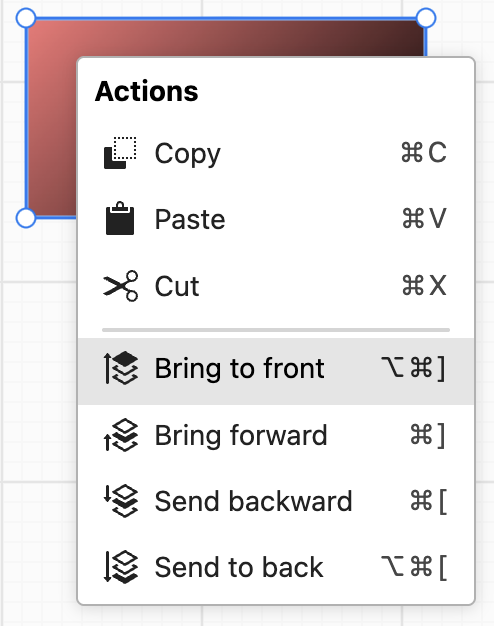
컨텍스트 메뉴 구현
컨텍스트 메뉴는 보통 오른쪽 클릭이나 길게 누르기로 열립니다. 브라우저는 기본 메뉴 내용을 자체적으로 제공하며, 예를 들어 <canvas>에서 열면 "Save as" 등의 항목이 나타납니다. 따라서 첫 단계는 contextmenu 이벤트를 수신하고 브라우저의 기본 동작을 막는 것입니다. 참고: radix - Context Menu.
private handleContextMenu = async (event: MouseEvent) => {
    event.preventDefault();
    event.stopPropagation();

    // ...show Overlay
};

this.api.element.addEventListener('contextmenu', this.handleContextMenu);
다음으로, 지정한 위치에 메뉴 UI 컴포넌트를 표시해야 합니다. 18강 - Spectrum으로 UI 구현에서는 Overlay의 명령형 API를 Using a virtual trigger와 함께 사용합니다.
import { html, render } from '@spectrum-web-components/base';
import { VirtualTrigger, openOverlay } from '@spectrum-web-components/overlay';

private handleContextMenu = async (event: MouseEvent) => {
    // ...prevent browser default behavior

    // Trigger at current position
    const trigger = event.target as LitElement;
    const virtualTrigger = new VirtualTrigger(event.clientX, event.clientY);

    // Render Lit template
    const fragment = document.createDocumentFragment();
    render(this.contextMenuTemplate(), fragment);

    // Show Overlay
    const popover = fragment.querySelector('sp-popover') as HTMLElement;
    const overlay = await openOverlay(popover, {
        trigger: virtualTrigger,
        placement: 'right-start',
        offset: 0,
        notImmediatelyClosable: true,
        type: 'auto',
    });
    trigger.insertAdjacentElement('afterend', overlay);
    this.renderRoot.appendChild(overlay);
}
아래 예제에서는 선택한 도형 위에서 컨텍스트 메뉴를 연 뒤 z-index를 조정할 수 있습니다. 키보드 단축키를 쓸 수도 있습니다. Figma에서는 [와 ]입니다. 여기서는 Photoshop Web을 참고해 ⌘[와 ⌘]를 사용했습니다.
클립보드에 쓰기
목표는 직렬화된 도형 목록을 클립보드에 쓰는 것입니다. 사용자는 두 가지 방법으로 이 동작을 일으킬 수 있습니다. copy 이벤트(예: Ctrl+C)로 일으키거나, 컨텍스트 메뉴로 일으키는 방법입니다. 먼저 첫 번째 경우인 copy 이벤트 수신을 살펴봅니다. 여기의 passive 옵션은 이벤트 핸들러에서 preventDefault를 호출할 수 있음을 브라우저에 알립니다.
document.addEventListener('copy', this.handleCopy, { passive: false });이때 activeElement로 캔버스가 현재 활성 상태인지 확인한 다음, 브라우저의 기본 동작을 끄고 이벤트 버블링을 막습니다.
private handleCopy = (event: ClipboardEvent) => {
    const { layersSelected } = this.appState;
    if (
        document.activeElement !== this.api.element ||
        layersSelected.length === 0
    ) {
        return;
    }

    this.executeCopy(event); // Pass ClipboardEvent

    event.preventDefault();
    event.stopPropagation();
};
컨텍스트 메뉴로 일으키는 경우에는 ClipboardEvent가 없습니다. excalidraw clipboard와 actionClipboard의 구현을 참고해, 브라우저 API를 최신 것부터 오래된 것 순으로 시도합니다.
export async function copyTextToClipboard(
    text: string,
    clipboardEvent?: ClipboardEvent,
) {
    // 1.
    await navigator.clipboard.writeText(text);
    // 2.
    if (clipboardEvent) {
        clipboardEvent.clipboardData?.setData(MIME_TYPES.text, text);
    }
    // 3.
    document.execCommand('copy');
}
클립보드에서 읽기
클립보드를 읽는 구현이 어떤 일반적인 파일 형식을 지원하는지를 결정합니다. MIME 타입으로 보면 이미지와 텍스트가 포함됩니다. 텍스트에는 직렬화된 도형, SVG, URL, 심지어 Mermaid 문법 등이 들어갈 수 있습니다. 가장 단순한 경우부터 시작합니다. 이전 절에서 직렬화한 도형 목록 텍스트를 받는 경우입니다.
document.addEventListener('paste', this.handlePaste, { passive: false });클립보드에 쓸 때와 같이, 먼저 read 메서드를 시도합니다. 이 메서드는 HTTPS에서만 동작하며, 이론상 일반 텍스트에 한정되지 않고 모든 종류의 데이터를 지원합니다. 거의 모든 최신 브라우저가 이 메서드를 지원하지만, 데이터 타입에는 제한이 있으며 보통 텍스트, HTML, 이미지를 포함합니다. 이 메서드를 사용할 수 없거나 요청이 거부되면 readText로 폴백합니다.
export const readSystemClipboard = async () => {
    const types: { [key in AllowedPasteMimeTypes]?: string | File } = {};
    try {
        // Prefer read() so HTML and images remain available.
        if (navigator.clipboard?.read) {
            const clipboardItems = await navigator.clipboard.read();
            for (const item of clipboardItems) {
                for (const type of item.types) {
                    try {
                        if (
                            type === MIME_TYPES.text ||
                            type === MIME_TYPES.html
                        ) {
                            types[type] = await (
                                await item.getType(type)
                            ).text();
                        }
                        // Supported image types are converted to File objects.
                    } catch {
                        // Another clipboard item may still be readable.
                    }
                }
            }
            return types;
        }
    } catch (error) {
        // read() may fail even when readText() is permitted.
        if (!navigator.clipboard?.readText) throw error;
    }
    const text = await navigator.clipboard?.readText?.();
    return text ? { [MIME_TYPES.text]: text } : types;
};
이 메서드로 지금 클립보드가 비어 있는지도 판단할 수 있으며, 비어 있으면 Paste 메뉴 항목을 비활성화합니다. 마지막으로 기억할 점은, 클립보드 읽기 메서드는 문서에 포커스가 있어야 한다는 것입니다. 실행 시점에 포커스가 브라우저 주소 표시줄이나 개발자 도구에 있으면 아래 오류가 보고됩니다. 따라서 읽기 전에 document.hasFocus()로 성공 여부를 확인할 수 있습니다.
CAUTION
Uncaught (in promise) NotAllowedError: Failed to execute 'read' on 'Clipboard': Document is not focused
도형 역직렬화
역직렬화한 뒤에는 id만 다시 만들면 됩니다.
if (data.elements) {
    const nodes = data.elements.map((node) => {
        node.id = uuidv4();
        return node;
    });

    this.api.runAtNextTick(() => {
        this.api.updateNodes(nodes);
        this.api.record();
    });
}
다만 이렇게 하면 복사한 도형이 겹칩니다. 다음 두 가지 전략을 쓸 수 있습니다.
- 마우스 위치를 따라 생성합니다. 이를 위해 마우스가 가장 최근에 움직인 위치를 기록해야 합니다
- 원래 도형 위치에 오프셋을 더합니다
두 번째 방법이 더 단순합니다.
const nodes = data.elements.map((node) => {
    node.id = uuidv4();
    node.x += 10;
    node.y += 10;
    return node;
});
첫 번째 방법은 컨텍스트 메뉴가 열릴 때의 위치나, 가장 최근의 마우스 이동 위치를 기록해야 합니다.
private handleContextMenu = async (event: MouseEvent) => {
    this.lastContextMenuPosition = { x: event.clientX, y: event.clientY };
}
private handlePointerMove = (event: PointerEvent) => {
    this.lastPointerMovePosition = { x: event.clientX, y: event.clientY };
};
6강 - 좌표에서 이미 다룬 대로, Client 좌표를 Canvas 좌표계로 변환합니다.
if (position) {
    const { x, y } = api.viewport2Canvas(api.client2Viewport(position));
    node.x = x;
    node.y = y;
} else {
    node.x += 10;
    node.y += 10;
}
비벡터 이미지
먼저 비벡터 이미지를 복사하는 경우를 살펴봅니다. 10강 - 이미지 렌더링에서 본 것처럼, @loaders.gl로 클립보드의 이미지 파일을 불러온 뒤 원본 너비와 높이, 그리고 dataURL을 얻습니다. 이어서 일련의 조정을 거쳐 최종 너비와 높이를 구하고, 마지막으로 사각형을 만든 뒤 그 fill을 dataURL로 설정합니다.
import { load } from '@loaders.gl/core';
import { ImageLoader } from '@loaders.gl/images';

async function createImage(api: ExtendedAPI, appState: AppState, file: File) {
    const [image, dataURL] = await Promise.all([
        load(file, ImageLoader),
        getDataURL(file),
    ]);

    // 省略计算宽高

    updateAndSelectNodes(api, appState, [
        {
            id: uuidv4(),
            type: 'rect',
            x: position?.x ?? 0,
            y: position?.y ?? 0,
            width,
            height,
            fill: dataURL,
            lockAspectRatio: true,
        },
    ]);
}
원본 이미지의 너비와 높이를 그대로 쓰면 안 되는 이유는 무엇일까요? 만들어지는 사각형의 너비와 높이는 월드 좌표계에 있으며, 캔버스 크기, 현재 카메라 확대/축소 수준, 원본 이미지 크기의 영향을 받아야 합니다. Excalidraw는 휴리스틱 알고리즘을 사용합니다.
// Heuristic to calculate the size of the image.
// @see https://github.com/excalidraw/excalidraw/blob/master/packages/excalidraw/components/App.tsx#L10059
const minHeight = Math.max(canvas.height - 120, 160);
// max 65% of canvas height, clamped to <300px, vh - 120px>
const maxHeight = Math.min(
    minHeight,
    Math.floor(canvas.height * 0.5) / canvas.zoom,
);
const height = Math.min(image.height, maxHeight);
const width = height * (image.width / image.height);
SVG
이미지를 붙여 넣을 때 Excalidraw는 SVG 타입 이미지를 특별히 처리하지 않습니다. 그 결과 내부 요소를 계속 편집할 가능성을 잃습니다.
Figma는 SVG 요소를 캔버스 그래픽으로 변환하고 그 요소를 편집할 수 있게 합니다. Convert SVG to frames를 참고하세요. 이 방법은 10강 - SVGElement에서 Serialized Node로에서 다뤘습니다. 그전에 DOMParser로 문자열을 SVGElement로 변환해야 합니다.
import {
    DOMAdapter,
    svgElementsToSerializedNodes,
} from '@infinite-canvas-tutorial/ecs';

if (data.text) {
    const string = data.text.trim();
    if (string.startsWith('<svg') && string.endsWith('</svg>')) {
        const doc = DOMAdapter.get()
            .getDOMParser()
            .parseFromString(string, 'image/svg+xml');
        const $svg = doc.documentElement;
        const nodes = svgElementsToSerializedNodes(
            Array.from($svg.children) as SVGElement[],
        );

        this.updateAndSelectNodes(nodes);
        return;
    }
}
물론 innerHTML 방식도 쓸 수 있지만, 복잡한 SVG에는 권하지 않습니다(네임스페이스를 잃을 수 있습니다).
const container = document.createElement('div');
container.innerHTML = svgString.trim();
const svgElement = container.firstChild;
마지막 경우이자 가장 단순한 경우입니다. 이때 클립보드의 내용이 일반 텍스트이면, 그에 해당하는 text를 만듭니다. Excalidraw에서는 현재 사용자가 설정한 글꼴, 색 등의 속성을 사용한다는 점도 짚어 둡니다.
function createText(
    api: ExtendedAPI,
    appState: AppState,
    text: string,
    position?: { x: number; y: number },
) {
    updateAndSelectNodes(api, appState, [
        {
            id: uuidv4(),
            type: 'text',
            anchorX: position?.x ?? 0,
            anchorY: position?.y ?? 0,
            content: text,
            fontSize: 16,
            fontFamily: 'system-ui',
            fill: 'black',
        },
    ]);
}
드래그 앤 드롭으로 이미지 가져오기
많은 파일 업로드 컴포넌트는 파일 관리자 등에서 지정한 영역으로 파일을 끌어다 놓아 업로드를 마칩니다. react-dropzone이 그런 예입니다. Excalidraw도 handleAppOnDrop을 지원하므로, 이미지, 내보낸 결과물, 심지어 동영상까지 캔버스로 끌어다 놓아 가져오기가 매우 쉽습니다.
<div onDrop={this.handleAppOnDrop} />drop 이벤트가 <canvas>에서 제대로 발생하게 하려면 dragover도 수신하고 브라우저의 기본 동작을 꺼야 합니다. 참고: HTML5/Canvas onDrop event isn't firing?와 Prevent the browser's default drag behavior.
this.api.element.addEventListener('dragover', this.handleDragOver);
this.api.element.addEventListener('drop', this.handleDrop);
그다음 files에서 파일 시스템으로부터 끌어온 파일을 읽어 볼 수 있습니다.
private handleDrop = async (event: DragEvent) => {
    for (const file of Array.from(event.dataTransfer.files)) {}
}
페이지에서 끌어온 텍스트와 이미지도 지원할 수 있습니다. 텍스트는 dataTransfer에서 바로 읽습니다. 이미지는 Dragging Images를 참고해, 이미지 URL을 dataTransfer에 넣는 방식을 권합니다. 아래 예제에서는 이미지의 dragstart에서 이 작업을 합니다.
const text = event.dataTransfer.getData('text/plain');
if (text) {
    createText(this.api, this.appState, text, canvasPosition);
}

img.addEventListener('dragstart', (ev) => {
    const dt = ev.dataTransfer;
    dt?.setData('text/uri-list', img.src);
    dt?.setData('text/plain', img.src);
});
아래 예제에서는 오른쪽 이미지나 이 페이지의 텍스트를 캔버스로 바로 끌어다 놓을 수 있습니다.

파일 시스템에서 업로드
물론 가장 전통적인 업로드 방법도 있습니다. 프론트엔드에서 가장 익숙한 <input type="file">입니다. 여기서는 Excalidraw의 filesystem 구현을 참고하고, browser-fs-access로 더 명령형인 File System API를 시도합니다. 브라우저가 지원하지 않으면 자동으로 폴백됩니다.
if (pen === Pen.IMAGE) {
    try {
        const file = await fileOpen({
            extensions: ['jpg', 'png', 'svg'],
            description: 'Image to upload',
        });
        if (file) {
            createImage(this.api, this.appState, file);
            this.api.setAppState({ penbarSelected: Pen.SELECT });
            this.api.record();
        }
    } catch (e) {
        // User cancels upload and returns to selection mode
        this.api.setAppState({ penbarSelected: Pen.SELECT });
    }
}
왼쪽 도구 모음의 “이미지” 버튼을 눌러 이 기능을 사용해 볼 수 있습니다.
선택한 도형 내보내기
10강 - 캔버스 내용을 이미지로 내보내기 외에, 더 자주 쓰는 내보내기는 선택한 그래픽을 대상으로 합니다. File System API를 계속 사용해 선택한 그래픽을 SVG와 PNG 형식의 이미지로 내보내고 로컬에 저장합니다.
SVG로 내보내기
캔버스 전체를 내보낼 때와 달리, 선택한 도형의 바운딩 박스를 계산해야 합니다. viewBox로 SVG의 뷰포트를 적절한 크기로 조정해, 선택한 도형이 모두 기본적으로 뷰포트 안에 들어가게 합니다.
import { serializeNodesToSVGElements } from '@infinite-canvas-tutorial/ecs';
import { fileSave } from './filesystem';

// 1. Calculate bounds of SVG
const bounds = api.getBounds(nodes);
const width = bounds.maxX - bounds.minX;
const height = bounds.maxY - bounds.minY;
const $svg = createSVGElement('svg');
$svg.setAttribute('width', `${width}`);
$svg.setAttribute('height', `${height}`);
$svg.setAttribute(
    'viewBox',
    `${bounds.minX - padding} ${bounds.minY - padding} ${width + padding * 2} ${
        height + padding * 2 // add padding with viewBox
    }`,
);

// 2. SerializedNodes -> SVGElement[]
serializeNodesToSVGElements(nodes).forEach((element) => {
    $svg.appendChild(element);
});

// 3. Create blob and save to filesystem
fileSave(
    new Blob([toSVG($svg)], {
        type: MIME_TYPES.svg,
    }),
);
PNG로 내보내기
비벡터 그래픽을 내보낼 때도 HTMLCanvasElement.toDataURL()을 사용하지만, 그리기는 임시 <canvas> 요소에서 해야 합니다.
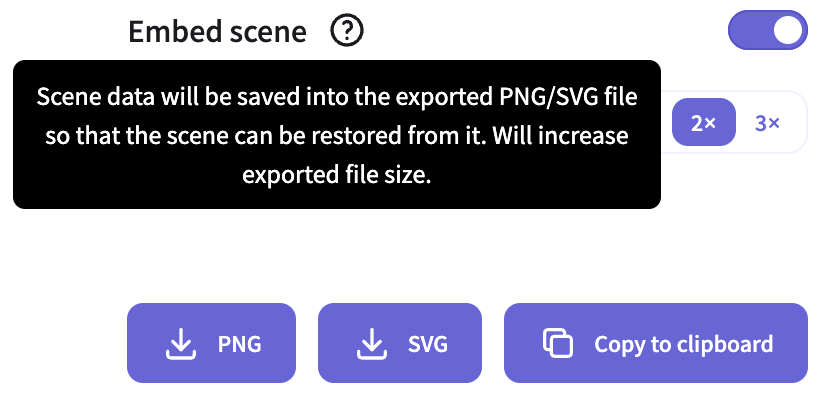
씬 메타데이터 삽입
그래픽 정보 외에, 씬 메타데이터도 내보낸 결과에 넣을 수 있습니다. 아래 이미지는 Excalidraw에서 가져온 것입니다.
// https://github.com/excalidraw/excalidraw/blob/master/packages/excalidraw/data/index.ts#L176-L178
encodePngMetadata({
    blob,
    metadata: serializeAsJSON(elements, appState, files, 'local'),
});