16강 - 텍스트 고급 기능
이전 강의에서는 SDF 기반 텍스트 렌더링의 원리를 소개하고, ESDT와 MSDF로 렌더링 품질을 높이는 실험을 했으며, CanvasKit이 Canvas보다 제공하는 고급 텍스트 렌더링 기능도 언급했습니다.
이번 강의에서는 먼저 SDF 이외의 렌더링 방법을 살펴본 다음, 장식선, 그림자, 경로를 따라가는 텍스트 같은 기능을 논의하고 구현해 봅니다. 마지막으로 텍스트는 그려지는 것만으로는 부족하고 상호작용도 좋아야 합니다. 입력 상자, 텍스트 선택, 접근성(A11y)을 다룹니다.
먼저 SDF 외에 어떤 텍스트 렌더링 방법이 있는지 살펴보겠습니다.
베지어 곡선으로 텍스트 렌더링
Figma의 SVG 내보내기를 보면 텍스트도 Path로 렌더링됩니다. 렌더링 성능과 CJK 문자를 고려하지 않는다면, 베지어 곡선으로 텍스트를 렌더링하는 것은 좋은 선택입니다. 브라우저 환경에서 문자의 벡터 정보를 얻으려면 다음을 사용할 수 있습니다.
- opentype.js
- use-gpu는 ab-glyph를 바탕으로 감싼 use-gpu-text를 사용합니다
- 점점 더 많은 애플리케이션이 harfbuzzjs를 사용합니다. State of Text Rendering 2024를 참고하세요. 예를 들어 font-mesh-pipeline은 간단한 시연입니다
아래에서는 opentype.js와 harfbuzzjs로 텍스트를 렌더링하는 예를 보여 줍니다. 둘 다 ttf 글꼴 형식을 지원합니다.
opentype.js
opentype.js는 getPath 메서드를 제공합니다. 텍스트 내용, 위치, 글꼴 크기가 주어지면 Shaping을 마치고 SVG path-commands를 얻습니다.
opentype.load('fonts/Roboto-Black.ttf', function (err, font) {
    const path = font.getPath('Hello, World!', 0, 0, 32); // x, y, fontSize
    // convert to svg path definition
});
harfbuzzjs
먼저 Vite의 ?init 문법으로 harfbuzzjs WASM을 초기화합니다. 그런 다음 글꼴 파일을 불러오고 font 객체를 만듭니다.
import init from 'harfbuzzjs/hb.wasm?init';
import hbjs from 'harfbuzzjs/hbjs.js';

const instance = await init();
hb = hbjs(instance);

const data = await (
    await window.fetch('/fonts/NotoSans-Regular.ttf')
).arrayBuffer();
blob = hb.createBlob(data);
face = hb.createFace(blob, 0);
font = hb.createFont(face);
font.setScale(32, 32); // Set font size
이어서 buffer 객체를 만들고 텍스트 내용을 넣습니다. 앞에서 말했듯이 harfbuzz는 BiDi를 처리하지 않으므로, 텍스트 방향을 직접 설정해야 합니다. 마지막으로 hb.shape 메서드를 호출해 Shaping 계산을 수행합니다.
buffer = hb.createBuffer();
buffer.addText('Hello, world!');
buffer.guessSegmentProperties();
// TODO: use BiDi
// buffer.setDirection(segment.direction);

hb.shape(font, buffer);
const result = buffer.json(font);
이제 글리프 데이터가 있으므로 Path로 그릴 수 있습니다.
result.forEach(function (x) {
    const d = font.glyphToPath(x.g);
    const path = new Path({
        d,
        fill: '#F67676',
    });
});
TeX 수식 렌더링
MathJax로 TeX 수학 공식을 렌더링하고 SVG로 변환한 다음 Path로 그릴 수 있습니다. 여기서는 LaTeX in motion-canvas의 방법을 따라 SVGElement를 얻습니다.
const JaxDocument = mathjax.document('', {
    InputJax: new TeX({ packages: AllPackages }),
    OutputJax: new SVG({ fontCache: 'local' }),
});

const svg = Adaptor.innerHTML(JaxDocument.convert(formula));
const parser = new DOMParser();
const doc = parser.parseFromString(svg, 'image/svg+xml');
const $svg = doc.documentElement;
그런 다음 10강 - SVGElement에서 직렬화된 노드로에서 소개한 방법으로 SVGElement를 그래픽으로 변환해 캔버스에 추가합니다.
const root = await deserializeNode(fromSVGElement($svg));텍스트 스트로크
Canvas의 strokeText와 CSS의 -webkit-text-stroke는 모두 텍스트 스트로크를 제공합니다. 다행히 스트로크는 SDF에서 자연스럽게 구현하기 쉽습니다.
if (strokeWidth > 0.0 && strokeColor.a > 0.0) {
    float fillAlpha = smoothstep(buff - gamma_scaled, buff + gamma_scaled, dist);
    float strokeThreshold = buff - strokeWidth / fontSize;
    float strokeAlpha = smoothstep(strokeThreshold - gamma_scaled, strokeThreshold + gamma_scaled, dist);

    vec4 finalColor = mix(strokeColor, fillColor, fillAlpha);
    outputColor = finalColor;
    opacity *= strokeAlpha;
}
아래는 SDF와 MSDF에 기반한 렌더링입니다. MSDF는 스트로크를 넣어도 선명하게 유지됩니다.
텍스트 장식
CSS에서 초기 브라우저의 text-decoration 구현은 거칠었습니다. underline이 그 예이며, 다음 이미지는 Crafting link underlines on Medium에서 가져왔습니다.
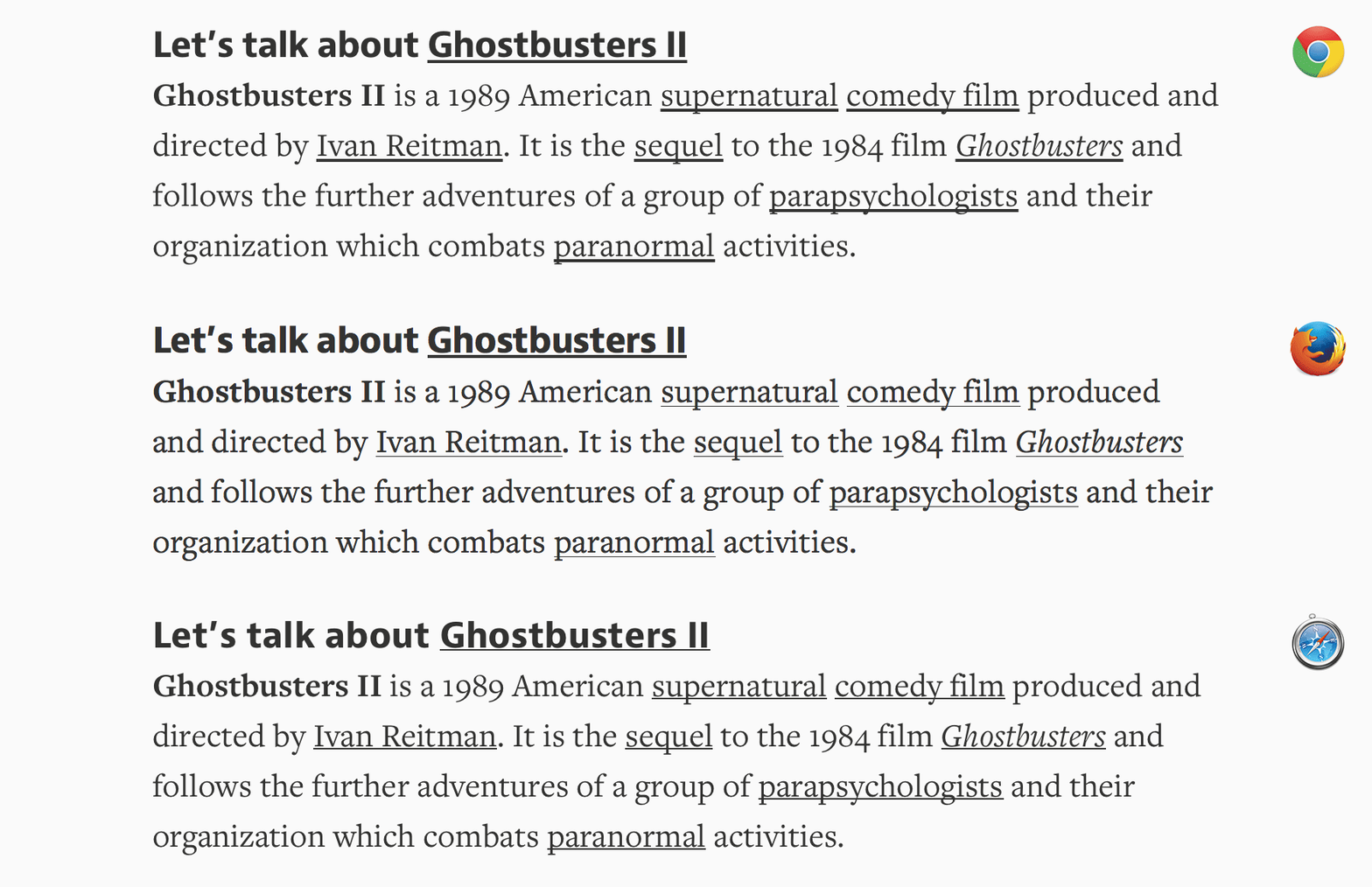
완벽한 밑줄은 보이되 거슬리지 않아야 합니다. 무엇이 클릭 가능한지 알아차리게 하면서도, 밑줄 자체가 너무 시선을 끌어서는 안 됩니다. 텍스트에서 딱 알맞은 거리에 두고, 디센더가 같은 공간을 차지하려 할 때는 그 뒤에 편안하게 놓여야 합니다.

현재 브라우저는 이 구현을 완성해 두었습니다. 한편 Canvas는 이 기능을 제공하지 않고, CanvasKit은 CSS text-decoration에 대응하는 속성 묶음으로 이를 보강합니다.
// @see https://developer.mozilla.org/en-US/docs/Web/CSS/text-decoration#constituent_properties
// @see https://skia.org/docs/dev/design/text_shaper/#principles
const paraStyle = new CanvasKit.ParagraphStyle({
    textStyle: {
        decoration: CanvasKit.UnderlineDecoration,
        decorationColor,
        decorationThickness,
        decorationStyle: CanvasKit.DecorationStyle.Solid,
    },
});
또 다른 흥미로운 구현인 underlineJS는 Canvas에 기반합니다.
폴리라인 사용
장식선 스타일은 decorationStyle 속성으로 제어합니다.
export type TextDecorationStyle =
  | 'solid'
  | 'double'
  | 'dotted'
  | 'dashed'
  | 'wavy';
: TextDecorationStyle;
가장 단순한 solid 스타일에서는 decorationColor와 decorationThickness를 strokeColor와 strokeWidth로 넘깁니다.
if (instance instanceof Text) {
    const {
        decorationColorRGB,
        decorationThickness,
        decorationStyle,
        metrics,
    } = instance;
    u_StrokeColor = [
        decorationColorRGB.r / 255,
        decorationColorRGB.g / 255,
        decorationColorRGB.b / 255,
        fo,
    ];
    u_ZIndexStrokeWidth[1] = decorationThickness;
}
장식 스타일
폴리라인 자체는 strokeDasharray를 지원하므로 dotted와 dashed를 모두 이것으로 구현할 수 있습니다. 여기서는 Skia 구현을 참고해 dash와 gap의 비율을 정합니다.
// @see https://github.com/google/skia/blob/main/modules/skparagraph/src/Decorations.cpp#L187
SkScalar scaleFactor = textStyle.getFontSize() / 14.f;
switch (textStyle.getDecorationStyle()) {
    case TextDecorationStyle::kDotted: {
        dashPathEffect.emplace(1.0f * scaleFactor, 1.5f * scaleFactor);
        break;
    }
    case TextDecorationStyle::kDashed: {
        dashPathEffect.emplace(4.0f * scaleFactor, 2.0f * scaleFactor);
        break;
    }
    default: break;
}wavy는 구체적으로 계산하고 샘플링해야 합니다. 여기서는 SVG Path를 생성한 다음 13강 - 곡선 위 샘플링에서 설명한 방법을 사용합니다.
// @see https://github.com/google/skia/blob/main/modules/skparagraph/src/Decorations.cpp#L215
let d = 'M 0 0';
while (x_start + quarterWave * 2 < line.width) {
    d += ` Q ${x_start + quarterWave} ${
        wave_count % 2 != 0 ? quarterWave : -quarterWave
    } ${x_start + quarterWave * 2} 0`;

    x_start += quarterWave * 2;
    ++wave_count;
}
효과는 다음과 같습니다.
위치 계산
위치는 decorationLine 속성으로 제어합니다.
export type TextDecorationLine =
    | 'underline'
    | 'overline'
    | 'line-through'
    | 'none';
Skia의 Decorations::calculatePosition 구현을 참고하며, underline을 예로 듭니다.
void Decorations::calculatePosition(TextDecoration decoration, SkScalar ascent) {
    switch (decoration) {
        case TextDecoration::kUnderline:
            if ((fFontMetrics.fFlags & SkFontMetrics::FontMetricsFlags::kUnderlinePositionIsValid_Flag) &&
                fFontMetrics.fUnderlinePosition > 0) {
                fPosition  = fFontMetrics.fUnderlinePosition;
            } else {
                fPosition = fThickness;
            }
            fPosition -= ascent;
            break;
    }
}
SVG 내보내기
안타깝게도 현재(2025.7.9) SVG는 text-decoration을 완전히 지원하지 않습니다. 아래 오른쪽 그림에서 text-decoration-color는 우리가 지정한 파란색을 따르지 않고 텍스트 색으로 덮이며, text-decoration-style은 전혀 지원되지 않습니다. Text decoration of a text svg in html을 참고하세요.
보아하니 text-decoration-color는 SVG text 요소에 적용되지 않습니다
Figma는 <path>로 내보내 이 문제를 피합니다. 우리는 <text>를 유지하고 싶으므로, SVG를 내보낼 때는 <foreignObject> 래퍼만 사용할 수 있습니다. 아래 왼쪽을 참고하세요.
<foreignObject width="50" height="20">
    <span style="text-decoration: underline; text-decoration-color: blue;">
        Text
    </span>
</foreignObject>그림자
Pixi.js는 DropShadowFilter를 제공하지만, 후처리를 쓰지 않고 SDF에서 직접 구현할 수 있습니다. shadowOffset과 shadowBlurRadius로 SDF 텍스처의 오프셋과 블러를 제어합니다.
// @see https://github.com/soimy/pixi-msdf-text/blob/master/src/msdf.frag#L49
vec3 shadowSample = texture2D(uSampler, vTextureCoord - shadowOffset).rgb;
float shadowDist = median(shadowSample.r, shadowSample.g, shadowSample.b);
float distAlpha = smoothstep(0.5 - shadowSmoothing, 0.5 + shadowSmoothing, shadowDist);
vec4 shadow = vec4(shadowColor, shadowAlpha * distAlpha);
gl_FragColor = mix(shadow, text, text.a);
경로를 따라가는 텍스트
Figma 커뮤니티에서는 많은 사용자가 이 기능을 기다려 왔습니다. 예를 들어 Make text follow a path or a circle이 있습니다. 최근 공식적으로 지원되었습니다. Type text on a path를 참고하세요.
SVG에서는 textPath로 구현할 수 있습니다. Curved Text Along a Path를 참고하세요.
<path
    id="curve"
    d="M73.2,148.6c4-6.1,65.5-96.8,178.6-95.6c111.3,1.2,170.8,90.3,175.1,97"
/>
<text width="500">
    <textPath xlink:href="#curve"> Dangerous Curves Ahead </textPath>
</text>
Skia는 MakeOnPath 메서드를 제공합니다. Draw text along a path를 참고하세요.
const textblob = CanvasKit.TextBlob.MakeOnPath(text, skPath, skFont);
canvas.drawTextBlob(textblob, 0, 0, textPaint);
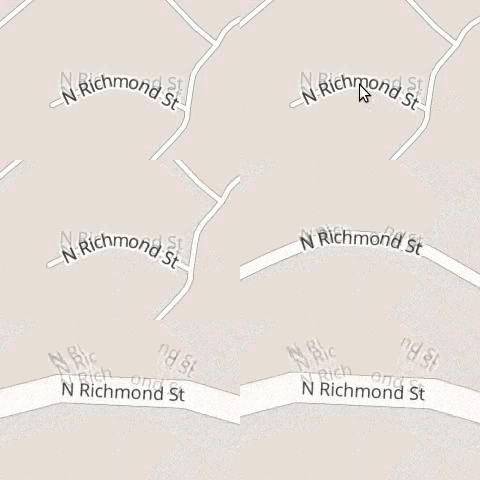
Mapbox에서는 도로와 강을 따라 라벨을 배치하는 일이 흔합니다. Map Label Placement in Mapbox GL을 참고하세요.
Kittl은 Easily Type Text On Any Path 도구를 제공합니다.
또 다른 구현은 fabricjs - text on path를 참고하세요. 각 글리프는 진행 폭 상자의 중심에서 호 길이로 배치한 다음, 같은 거리의 접선으로 방향을 정합니다. 베지어 매개변수 t는 일반적으로 길이의 비율이 아닙니다. 점과 접선을 샘플링할 때는 13강 - 곡선 위 샘플링에서 설명한 대로 같은 호 길이 매핑을 써야 합니다.
const centerDistance =
    startOffset + alignmentOffset + advanceBefore + advance / 2;
const ratio = centerDistance / totalPathLength;
const point = curve.getPointAt(ratio);
const tangent = curve.getTangentAt(ratio);
진행 폭이 다음 글리프의 위치를 정합니다. 이 값은 텍스처 너비, 잉크 베어링, SDF 패딩과는 다릅니다. letterSpacing은 인접한 글리프 사이에만 적용됩니다.
회전 조정
구현은 CPU에서 각 Quad를 글리프의 베이스라인 원점 기준으로 회전한 다음 SDF/MSDF로 렌더링합니다. 텍스처의 아래쪽 가장자리를 기준으로 회전하면 폰트와 크기에 따라 텍스트가 다르게 어긋납니다.
const rotation = Math.atan2(tangent[1], tangent[0]);
const x =
    point[0] -
    (Math.cos(rotation) * advance) / 2 -
    Math.sin(rotation) * pathOffset;
const y =
    point[1] -
    (Math.sin(rotation) * advance) / 2 +
    Math.cos(rotation) * pathOffset;
이 예제는 alphabetic 베이스라인을 사용합니다. 다른 textBaseline 조정도 국소 법선을 따릅니다. 바운드는 회전한 글리프 잉크 사각형의 합집합이므로, 내용, 크기, 경로, 오프셋을 바꾸면 선택 바운드도 함께 갱신됩니다.
| 속성 | 동작 |
|---|---|
textAlign | 사용 가능한 경로 길이를 기준으로 start / left, center, end / right |
startOffset | 정렬된 텍스트를 읽기 방향을 따라 문서 단위로 옮깁니다 |
side | left는 경로를 따라갑니다. right는 반대쪽 끝에서 진행하며, 읽기 순서를 유지한 채 글리프를 회전합니다 |
pathOffset | 베이스라인을 국소 법선을 따라 옮깁니다. 양수 값은 읽기 방향 접선에서 시계 방향으로 90°인 쪽에 있습니다 |
letterSpacing | 인접한 글리프 사이에 거리를 더합니다 |
열린 경로에서는 중심이 어느 한쪽 끝점을 벗어난 글리프를 생략합니다. 줄바꿈하거나 끝점에 쌓아 두지 않습니다. 닫힌 윤곽 하나에서는 오프셋이 양이든 음이든 이음새를 넘을 수 있으며, 한 줄당 최대 한 바퀴입니다. 서로 다른 서브패스는 길이를 이어 붙이며, M 간격 사이에 선을 만들어 넣지 않습니다. 이어지는 줄은 행 높이 간격으로 국소 법선을 따릅니다.
텍스트나 파란색 핸들을 경로를 따라 드래그하고, 주황색 제어점을 드래그해 곡선을 바꿀 수 있습니다. 곡선, 원, 직선을 전환하고, 측면과 정렬을 바꾸거나, 간격과 베이스라인 거리를 조절할 수 있습니다. 핸들은 화살표 키를 지원하고, Shift는 더 큰 단계, Esc는 취소입니다. 취소된 터치 제스처는 시작 상태로 되돌립니다.
Drag the text or blue handle along the path. Drag orange control points to reshape the curve. Handles support arrow keys; Esc cancels a drag.
이 예제는 core SDF 텍스트 렌더러를 사용합니다. 경로 배치와 편집 개선은 기존 그래핌 파이프라인을 유지하며, 완전한 OpenType 셰이핑이나 합자 지원은 더하지 않습니다.
ECS도 이 경로 속성을 지원하며, 트랜스포머 제스처, 글리프 피킹, 실행 취소/다시 실행, 텍스트 편집이 함께 있습니다. ECS 경로 텍스트 예제를 사용해 보세요. 편집할 때는 곧은 텍스트 상자를 쓰고, 확정하면 곡선 배치가 돌아옵니다.
SVG 내보내기
네이티브 SVG는 아래처럼 textPath를 지원합니다. Curved Text Along a Path를 참고하세요. 익스포터는 캔버스 배치를 공유하고, 위치가 지정된 <tspan> 요소에 x, y, rotate를 넣어 내보냅니다. textPath side 지원이 브라우저마다 달라도 측면 변경, 넘침 클리핑, 닫힌 이음새를 유지하기 위해서입니다. JSON 직렬화는 가져온 뒤에도 이어서 편집할 수 있도록 경로, 측면, 정렬, 오프셋을 보존합니다.
<path
    id="MyPath"
    fill="none"
    stroke="red"
    d="M10,90 Q90,90 90,45 Q90,10 50,10 Q10,10 10,40 Q10,70 45,70 Q70,70 75,50"
></path>
<text>
    <textPath href="#MyPath">Quick brown fox jumps over the lazy dog.</textPath>
</text>더 친화적인 상호작용
브라우저 네이티브 <textarea>는 깜빡이는 커서, 선택 영역, 키보드 제어, 복사와 붙여넣기 같은 편리한 기능을 제공합니다. <canvas>를 기반으로 이 기능들을 처음부터 구현하는 일은 매우 번거롭습니다. 예를 들어 fabricjs - loading custom fonts와 Google Docs가 있습니다. 그래서 그 방법은 선택하지 않습니다.
텍스트 입력
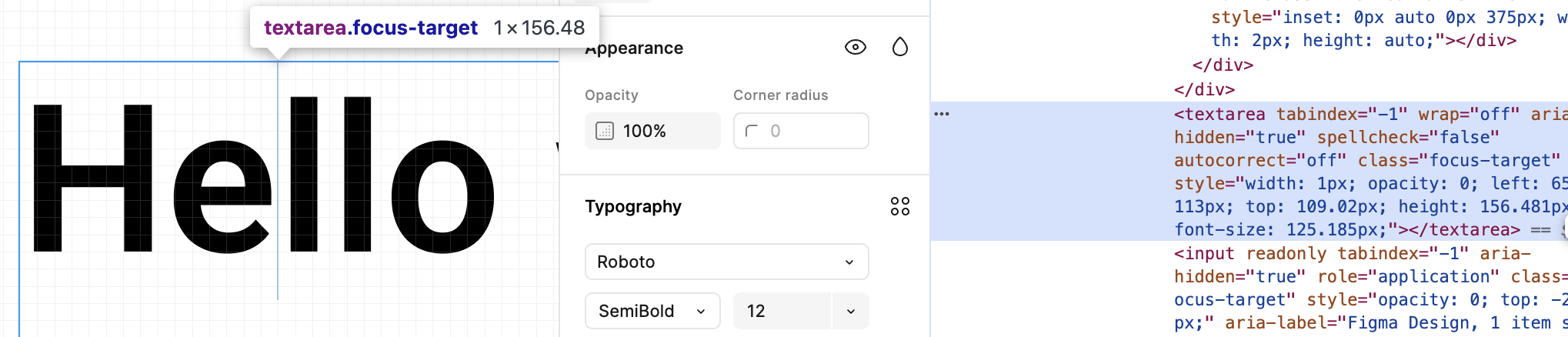
아래 Figma 화면에서는 네이티브 <textarea> 요소가 캔버스 위에 자신을 배치하고, Text를 두 번 클릭하면 입력 상자가 나타납니다.
excalidraw도 이 방식을 씁니다. textWysiwyg.tsx를 참고하세요.
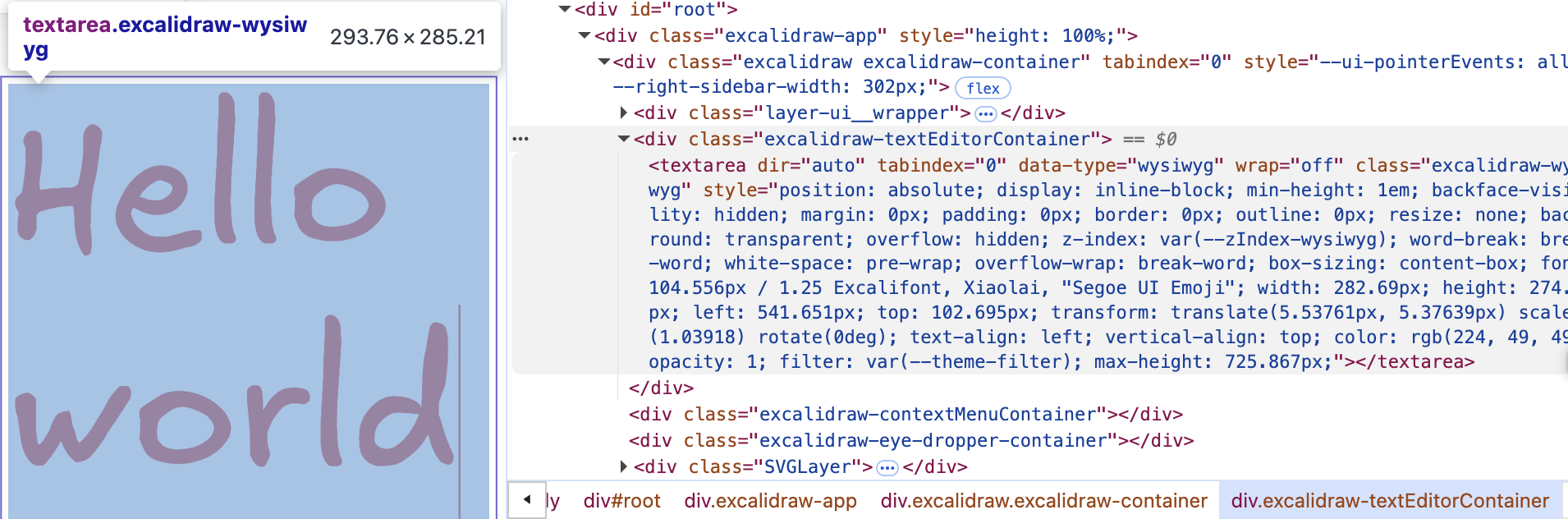
우리도 <ic-text-editor> 요소를 추가해 캔버스의 Text 렌더링에 최대한 맞춥니다. 네이티브 <textarea> 요소의 스타일을 재설정합니다. 예를 들어 테두리와 배경을 보이지 않게 합니다. fontFamily, fontSize, color 속성은 대응하는 CSS 속성이 있어 직접 설정할 수 있지만, 절대 위치로 배치할 때는 여러 요인을 고려해야 합니다.
@customElement('ic-text-editor')
export class TextEditor extends LitElement {
    static styles = css`
        :host {
            position: absolute;
        }
        textarea {
            position: absolute;
            display: none;
            margin: 0;
            padding: 0;
            border: 0;
            outline: 0;
            resize: none;
            background: transparent;
        }
    `;

    @query('textarea')
    editable: HTMLTextAreaElement;

    render() {
        return html`<textarea></textarea>`;
    }
}
먼저 두 번 클릭한 마우스 이벤트 위치 좌표를 뷰포트 좌표계로 변환해야 합니다.
const { x, y } = this.api.canvas2Viewport({
    x: this.node.x,
    y: this.node.y,
});

this.editable.style.left = `${x}px`;
this.editable.style.top = `${y}px`;
그다음 카메라의 현재 줌 수준을 고려해야 합니다.
const { zoom } = this.api.getCamera().read(ComputedCamera);
this.editable.style.transform = `scale(${zoom})`;
this.editable.style.transformOrigin = `left top`;
마지막으로 <textarea> 요소 위의 스크롤이 브라우저 기본 동작을 일으키지 않고, 그 요소를 통과해 <canvas> 요소에서 일어나 카메라 팬과 줌을 수행하게 합니다.
handleWheel = (event: WheelEvent) => {
    event.preventDefault();
    event.stopPropagation();

    const newWheelEvent = new WheelEvent('wheel', {});
    $canvas.dispatchEvent(newWheelEvent);
};
효과는 다음과 같습니다.
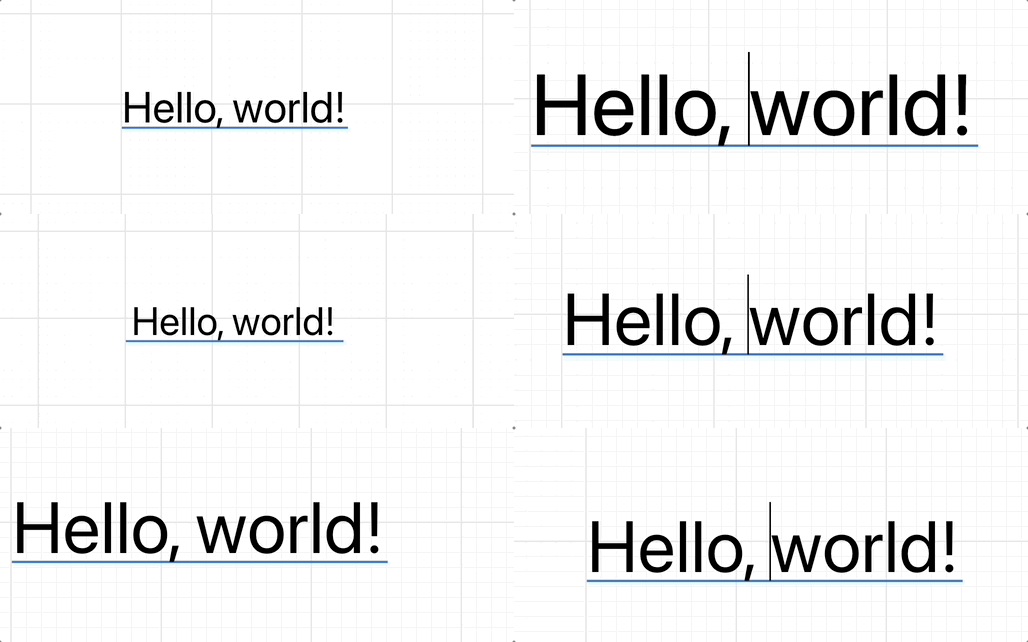
텍스트가 바뀔 때 크기 계산
입력하고 텍스트를 붙여 넣는 동안 <textarea>의 너비와 높이를 실시간으로 다시 계산해 설정해야 합니다.
Tab 처리
<textarea>에서 Tab 키를 누르는 기본 동작은 초점을 다음 요소로 옮기는 것입니다. 코드 편집기와 같게 만들고 싶습니다.
텍스트 선택
Text 위에 textarea를 겹치는 기능을 지원하면, 이 기능은 쉽게 구현할 수 있습니다.
특수 효과
웹 폰트 불러오기
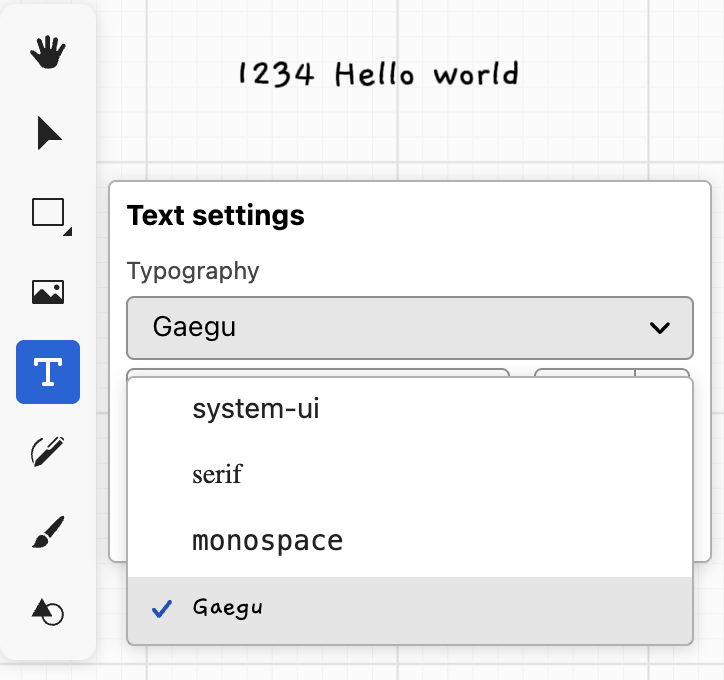
Canvas2D API로 SDF를 생성하는 방식에서는 webfontloader로 글꼴을 먼저 불러온 다음 fontFamily로 글꼴을 지정하면 됩니다.
import WebFont from 'webfontloader';
WebFont.load({
    google: {
        families: ['Gaegu'], // specify font
    },
    active: () => {
        const text = new Text({
            x: 150,
            y: 150,
            content: 'Hello, world',
            fontFamily: 'Gaegu', // specify font
            fontSize: 55,
            fill: '#F67676',
        });
    },
});
홈페이지 예제에서 Text 모드로 전환한 뒤 Gaegu 사용자 정의 글꼴을 선택할 수도 있습니다.
Material Design on the GPU
Material Design on the GPU는 SDF 텍스트에 기반한 재질 효과를 소개합니다. 노멀 맵과 조명을 써서 종이에 잉크가 번지는 모습을 시뮬레이션합니다. 조명은 고려하지 않고, simplex noise만으로 구현한 다음 여러 흡수 효과를 더합니다.
import { simplex_2d } from './simplex-2d';
import { aastep } from './aastep';
export const absorb = /* wgsl */ `
  ${aastep}
  ${simplex_2d}
  float absorb(float sdf, vec2 uv, float scale, float falloff) {
    float distort = sdf + snoise(uv * scale) * falloff;
    return aastep(0.5, distort);
  }
`;