12강 - 폴리라인 그리기
기본 도형에 폴리라인을 이어서 추가합니다. 이번 강의에서는 다음 내용을 다룹니다.
gl.LINES를 그대로 쓰지 않는 이유- CPU 또는 셰이더에서 메시 구성
- 셰이더 세부 구현 분석:
- 정점과 조인트 늘리기
- 안티앨리어싱
- 파선 그리기
- 폴리라인의 바운딩 박스를 계산하는 방법
$icCanvas = call(() => {
    return document.createElement('ic-canvas-lesson12');
});call(() => {
const { Canvas, Polyline, Rect } = Lesson12;
const stats = new Stats();
stats.showPanel(0);
const $stats = stats.dom;
$stats.style.position = 'absolute';
$stats.style.left = '0px';
$stats.style.top = '0px';
$icCanvas.parentElement.style.position = 'relative';
$icCanvas.parentElement.appendChild($stats);
$icCanvas.addEventListener('ic-ready', (e) => {
const canvas = e.detail;
const polyline1 = new Polyline({
points: [
[100, 100],
[100, 200],
[200, 100],
],
stroke: 'red',
strokeWidth: 20,
fill: 'none',
});
canvas.appendChild(polyline1);
const polyline2 = new Polyline({
points: [
[220, 100],
[220, 200],
[320, 100],
],
stroke: 'red',
strokeWidth: 20,
strokeLinejoin: 'bevel',
fill: 'none',
});
canvas.appendChild(polyline2);
const polyline3 = new Polyline({
points: [
[340, 100],
[340, 200],
[440, 100],
],
stroke: 'red',
strokeWidth: 20,
strokeLinejoin: 'round',
strokeLinecap: 'round',
fill: 'none',
});
canvas.appendChild(polyline3);
const polyline4 = new Polyline({
points: [
[100, 300],
[200, 300],
[300, 210],
[400, 300],
[500, 300],
],
stroke: 'red',
strokeWidth: 20,
strokeLinejoin: 'round',
strokeLinecap: 'round',
strokeDasharray: [10, 5],
fill: 'none',
});
canvas.appendChild(polyline4);
const rect2 = new Rect({
x: 500,
y: 100,
fill: 'black',
fillOpacity: 0.5,
stroke: 'red',
strokeWidth: 10,
dropShadowBlurRadius: 10,
dropShadowColor: 'black',
dropShadowOffsetX: 10,
dropShadowOffsetY: 10,
strokeDasharray: [5, 5],
});
rect2.width = 100;
rect2.height = 100;
canvas.appendChild(rect2);
});
$icCanvas.addEventListener('ic-frame', (e) => {
stats.update();
});
});gl.LINES의 한계
WebGL이 제공하는 gl.LINES와 gl.LINE_STRIP은 실제 상황에서 쓰기 어려운 경우가 많습니다.
- 너비를 지원하지 않습니다. lineWidth를 써 보면 Chrome 같은 흔한 브라우저가 경고를 던집니다.
WARNING
2017년 1월 기준으로, 대부분의 WebGL 구현은 기반 기술이 같은 제한을 갖기 때문에 최솟값 1과 최댓값 1만 지원합니다.
5강 - 직선 그리드의 방법은 임의의 선분을 그리는 데 맞지 않습니다. 선분의 두 끝점을 임의로 정하는 것조차 되지 않습니다. 또한 선분과 폴리라인의 가장 큰 차이는 조인트 처리이며, deck.gl은 이를 위해 LineLayer와 PathLayer를 각각 제공합니다.
이제 폴리라인에서 구현하려는 기능을 분명히 합니다.
- 임의의 선 너비
- 임의의 개수의 끝점. SVG의 points 속성과 비슷합니다.
- 인접한 선분 사이의 연결 모양 stroke-linejoin과 끝점 모양 stroke-linecap
- 파선. stroke-dashoffset과 stroke-dasharray
- 좋은 안티앨리어싱
- 인스턴스 드로잉. 앞에서 다룬 인스턴스 드로잉을 참고합니다.
설계한 API는 다음과 같습니다.
const line = new Polyline({
  points: [
    [0, 0],
    [100, 100]
  ],
  strokeWidth: 100,
  strokeLinejoin: 'round'
  strokeLinecap: 'round',
  strokeMiterlimit: 4,
  strokeDasharray: [4, 1],
  strokeDashoffset: 10
});
먼저 첫 질문을 봅니다. strokeWidth의 임의의 값을 어떻게 구현하는지입니다.
메시 구성
다음 그림은 Pixi.js가 WebGL meetup에서 공유한 How 2 draw lines in WebGL에서 가져왔습니다. 이 글은 그 자료의 스크린샷을 많이 인용하며, PPT의 쪽 번호를 표시합니다. 네이티브 방법을 쓸 수 없으므로, 메시를 만드는 전통적인 그리기 방식으로 돌아갑니다.

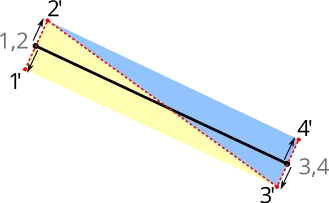
흔한 방법은 선분의 법선 방향으로 늘린 뒤 삼각화하는 것입니다. 다음 그림은 Drawing Antialiased Lines with OpenGL에서 가져왔습니다. 선분의 두 끝점을 빨간 점선 법선을 따라 양쪽으로 늘리면 정점 4개가 되고, 이를 삼각형 2개로 삼각화합니다. 그러면 strokeWidth는 어떤 값이든 될 수 있습니다.
CPU에서 구성
선분을 늘리는 일과 strokeLinejoin, strokeLinecap의 메시 구성은 CPU에서 할 수도 있고 셰이더에서 할 수도 있습니다. 전자를 따르는 구현은 다음과 같습니다.
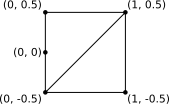
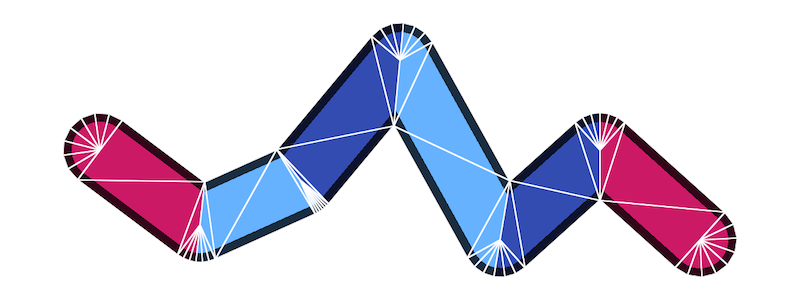
strokeLinejoin과 strokeLinecap이 round일 때, 둥근 모서리를 매끄럽게 보이도록 하려면 메시 구성에 정점이 가장 많이 필요합니다. regl-gpu-lines에서는 각 구간마다 최대 32 * 4 + 6 = 134개의 정점이 필요합니다.
// @see https://github.com/rreusser/regl-gpu-lines/blob/main/src/index.js#L81
cache.indexBuffer = regl.buffer(
    new Uint8Array([...Array(MAX_ROUND_JOIN_RESOLUTION * 4 + 6).keys()]), // MAX_ROUND_JOIN_RESOLUTION = 32
);strokeLinecap과 선분은 서로 다른 드로우 콜로 그려야 합니다. 여전히 regl-gpu-lines의 instanced example을 예로 들면, 프로그램 2개를 컴파일하고 드로우 콜 3개로 그립니다. 그중에는 다음이 있습니다.
- 두 끝점은 같은 프로그램을 쓰지만, 유니폼
orientation이 다릅니다. 정점 수는cap + join입니다. - 중간의 모든 선분은 드로우 콜 하나로 그립니다. 정점 수는
join + join이고, 인스턴스 수는 선분 수입니다.
const computeCount = isEndpoints
    ? // Draw a cap
      (props) => [props.capRes2, props.joinRes2]
    : // Draw two joins
      (props) => [props.joinRes2, props.joinRes2];
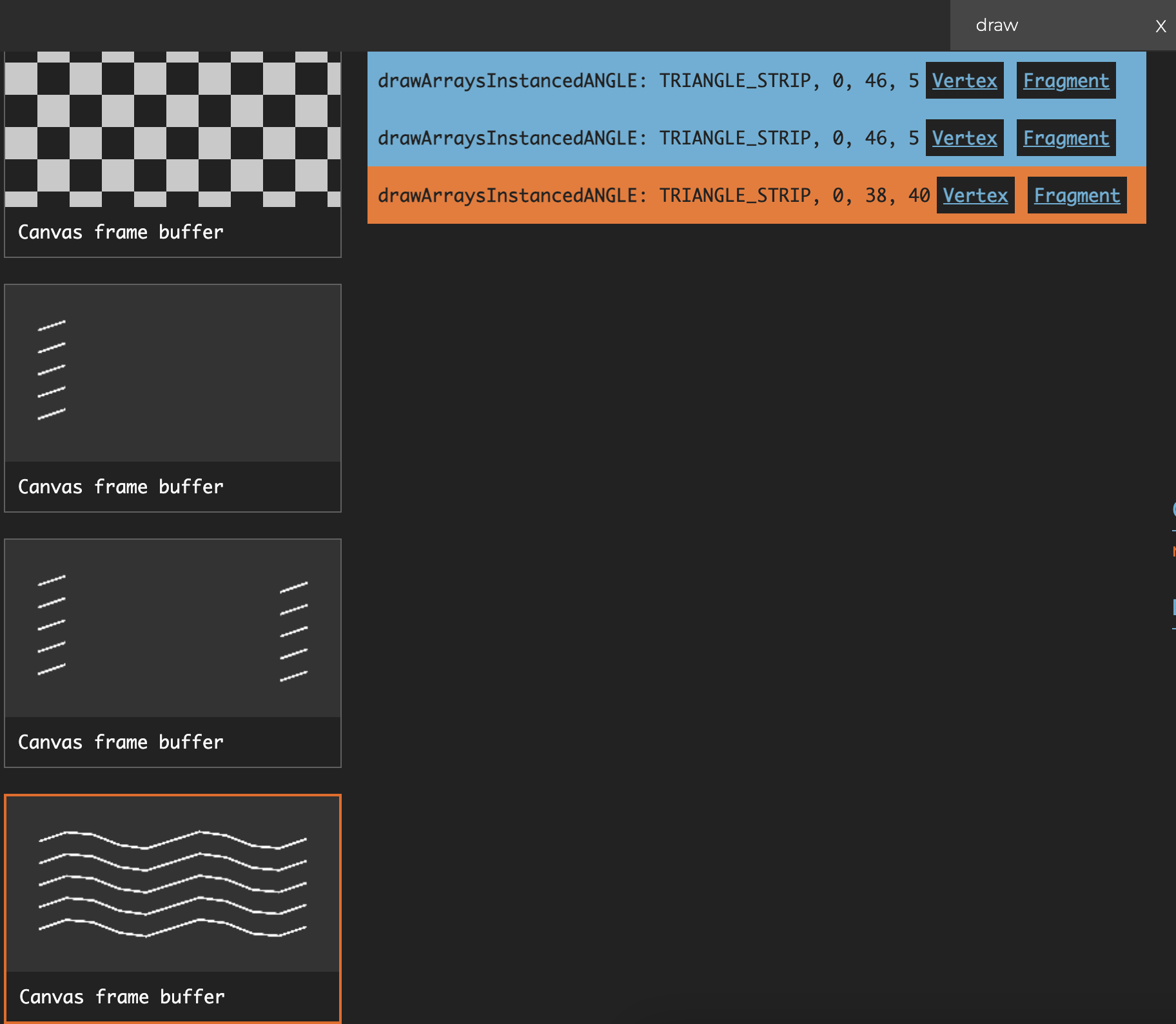
폴리라인이 여러 개이면, 합칠 수 있는 조건은 strokeLinecap과 strokeLinejoin의 값이 같고 선분 수가 같은 것입니다. 다음 그림은 폴리라인 5개를 그리는 경우입니다. 각 폴리라인의 중간 선분 부분이 instance 8개를 가지므로, instance 총수는 40입니다.
셰이더에서 구성
Pixi.js가 WebGL meetup에서 공유한 자료에서는 셰이더에서 메시를 구성합니다.
CPU에서 구성하는 방식과 비교하면 장점은 다음과 같습니다.
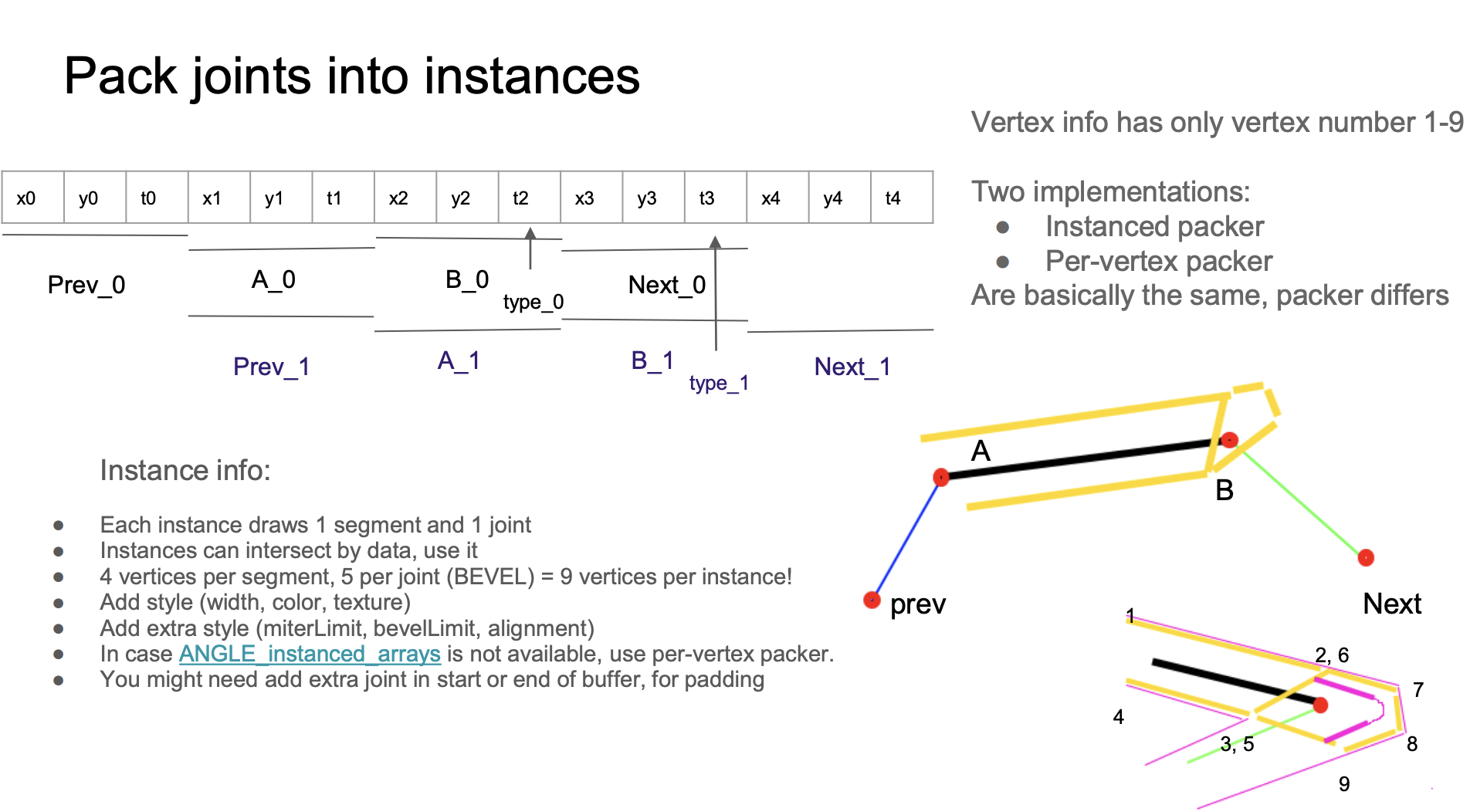
strokeLinecap,strokeLineJoin, 중간 선분을 드로우 콜 하나로 그립니다.- 정점 수는 9개로 고정됩니다. 1, 2, 3, 4번 정점이 이루는 삼각형 2개로 선분 부분을 그리고, 5, 6, 7, 8, 9번 정점이 이루는 삼각형 3개로 조인트 부분을 그립니다.
strokeLinecap과strokeLinejoin이round이면 더 매끄럽습니다. 프래그먼트 셰이더에서 SDF로 원을 그리는 것과 비슷한 방법을 쓰기 때문입니다.- 안티앨리어싱 효과가 좋습니다.
layout(location = ${Location.PREV}) in vec2 a_Prev;
layout(location = ${Location.POINTA}) in vec2 a_PointA;
layout(location = ${Location.POINTB}) in vec2 a_PointB;
layout(location = ${Location.NEXT}) in vec2 a_Next;
layout(location = ${Location.VERTEX_JOINT}) in float a_VertexJoint;
layout(location = ${Location.VERTEX_NUM}) in float a_VertexNum;
버퍼 레이아웃은 다음과 같고, 각 스트라이드 크기는 4 * 3입니다. 버퍼 안에서 x1 y1 t1처럼 이어진 동일한 데이터는 첫 인스턴스에서는 A_0으로, 둘째 인스턴스에서는 Prev_1으로 읽힙니다. 이렇게 서로 겹치는 배치로 버퍼 크기를 최대한 줄일 수 있습니다.
const vertexBufferDescriptors: InputLayoutBufferDescriptor[] = [
    {
        arrayStride: 4 * 3,
        stepMode: VertexStepMode.INSTANCE,
        attributes: [
            {
                format: Format.F32_RG,
                offset: 4 * 0,
                shaderLocation: Location.PREV,
            },
            {
                format: Format.F32_RG,
                offset: 4 * 3,
                shaderLocation: Location.POINTA,
            },
            {
                format: Format.F32_R,
                offset: 4 * 5,
                shaderLocation: Location.VERTEX_JOINT,
            },
            {
                format: Format.F32_RG,
                offset: 4 * 6,
                shaderLocation: Location.POINTB,
            },
            {
                format: Format.F32_RG,
                offset: 4 * 9,
                shaderLocation: Location.NEXT,
            },
        ],
    },
];
다만 WebGPU 렌더러로 바꾸면 다음 오류가 납니다.
WARNING
어트리뷰트 오프셋(12)과 포맷 VertexFormat::Float32x2(크기 8)가 정점 버퍼 스트라이드(12)에 들어맞지 않습니다.
이유는 WebGPU가 VertexBufferLayout에 다음 검증 규칙을 두고, arrayStride가 4 * 3이기 때문입니다. WebGPU instancing problem과 spec: It is useful to allow GPUVertexBufferLayout.arrayStride to be less than offset + sizeof(attrib.format)도 이 점을 언급합니다.
attrib.offset + byteSize(attrib.format) ≤ descriptor.arrayStride.
4 * 3 + 4 * 2 ≤ 4 * 3 // 성립하지 않습니다
그래서 버퍼 레이아웃을 바꿔야 합니다. 먼저 레이아웃에서, 하나의 버퍼가 여러 어트리뷰트를 담던 배치를 여러 버퍼로 나누고, 각 버퍼에는 어트리뷰트를 하나만 둡니다.
const vertexBufferDescriptors: InputLayoutBufferDescriptor[] = [
    {
        arrayStride: 4 * 3,
        stepMode: VertexStepMode.INSTANCE,
        attributes: [
            {
                format: Format.F32_RG,
                offset: 4 * 0,
                shaderLocation: Location.PREV,
            },
        ],
    },
    {
        arrayStride: 4 * 3,
        stepMode: VertexStepMode.INSTANCE,
        attributes: [
            {
                format: Format.F32_RG,
                offset: 4 * 0,
                shaderLocation: Location.POINTA,
            },
        ],
    },
    // Omit VERTEX_JOINT
    // Omit POINTB
    // Omit NEXT
];
BufferLayout 선언은 여러 개로 나뉘지만, 실제로 가리키는 버퍼는 같고 offset으로 해당 어트리뷰트만 읽습니다. 자세한 내용은 Offset in bytes into buffer where the vertex data begins를 참고합니다.
const buffers = [
    {
        buffer: this.#segmentsBuffer, // PREV
    },
    {
        buffer: this.#segmentsBuffer, // POINTA
        offset: 4 * 3,
    },
    {
        buffer: this.#segmentsBuffer, // VERTEX_JOINT
        offset: 4 * 5,
    },
    {
        buffer: this.#segmentsBuffer, // POINTB
        offset: 4 * 6,
    },
    {
        buffer: this.#segmentsBuffer, // NEXT
        offset: 4 * 9,
    },
];
renderPass.setVertexInput(this.#inputLayout, buffers, {
    buffer: this.#indexBuffer,
});
이후의 다른 기능도 이 방식을 바탕으로 구현합니다.
셰이더 구현 분석
먼저 선분의 본체와 조인트에서 정점을 어떻게 늘리는지 봅니다.
선분 돌출
1번부터 4번 정점, 곧 선분의 본체에 주목합니다. 이 선분과 인접한 선분이 이루는 각을 보면 /-\, \-/, /-/, \-\의 네 형태가 있습니다.
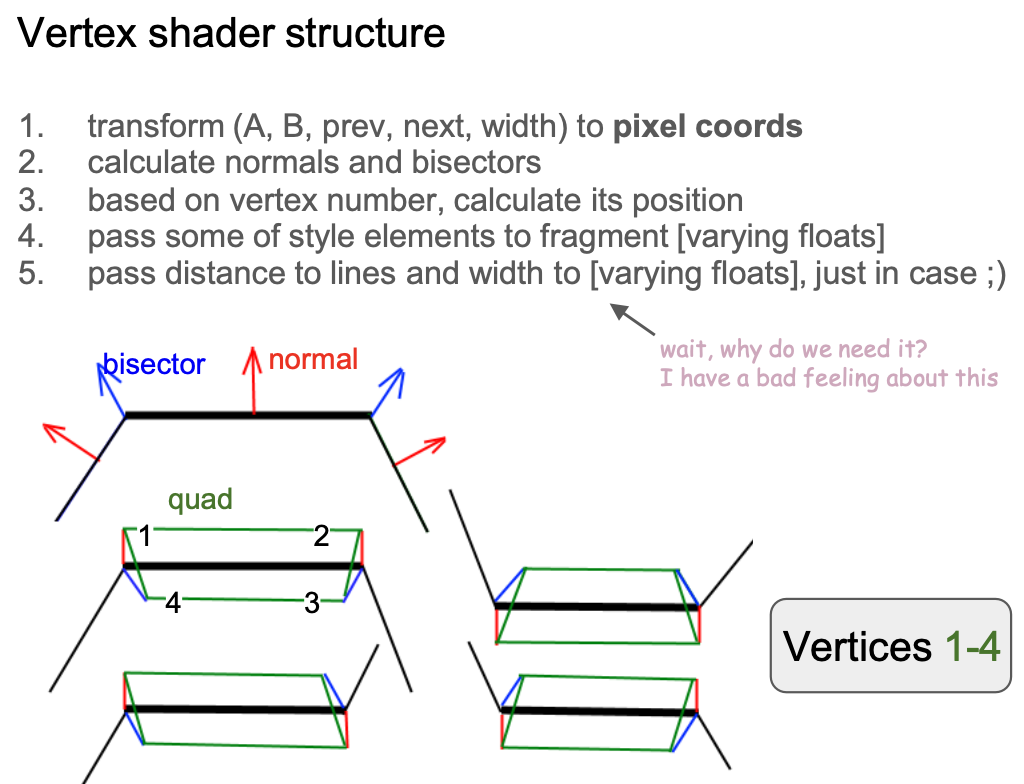
단위 법선 벡터를 계산하기 전에, 각 정점의 위치를 모델 좌표계로 바꿉니다.
vec2 pointA = (model * vec3(a_PointA, 1.0)).xy;
vec2 pointB = (model * vec3(a_PointB, 1.0)).xy;

vec2 xBasis = pointB - pointA;
float len = length(xBasis);
vec2 forward = xBasis / len;
vec2 norm = vec2(forward.y, -forward.x);

xBasis2 = next - base;
float len2 = length(xBasis2);
vec2 norm2 = vec2(xBasis2.y, -xBasis2.x) / len2;
float D = norm.x * norm2.y - norm.y * norm2.x;
예를 들어 첫 형태에서는 1번과 2번 정점을 법선을 따라 바깥으로 늘리고, 3번과 4번 정점은 조인트의 각 이등분선(doBisect())을 따라 안쪽으로 늘립니다.
if (vertexNum < 3.5) { // Vertex #1 ~ 4
    if (abs(D) < 0.01) {
        pos = dy * norm;
    } else {
        if (flag < 0.5 && inner < 0.5) { // Vertex #1, 2
            pos = dy * norm;
        } else { // Vertex #3, 4
            pos = doBisect(norm, len, norm2, len2, dy, inner);
        }
    }
}
조인트 돌출
이어서 조인트의 5~9번 정점을 봅니다. 조인트 모양에 따라 늘리는 방향과 거리가 달라지고, 원저자의 구현은 매우 복잡합니다. 그중 bevel과 round는 같은 늘리기 방법을 공유하고, 후자는 프래그먼트 셰이더에서 SDF로 둥근 모서리를 마저 그립니다.
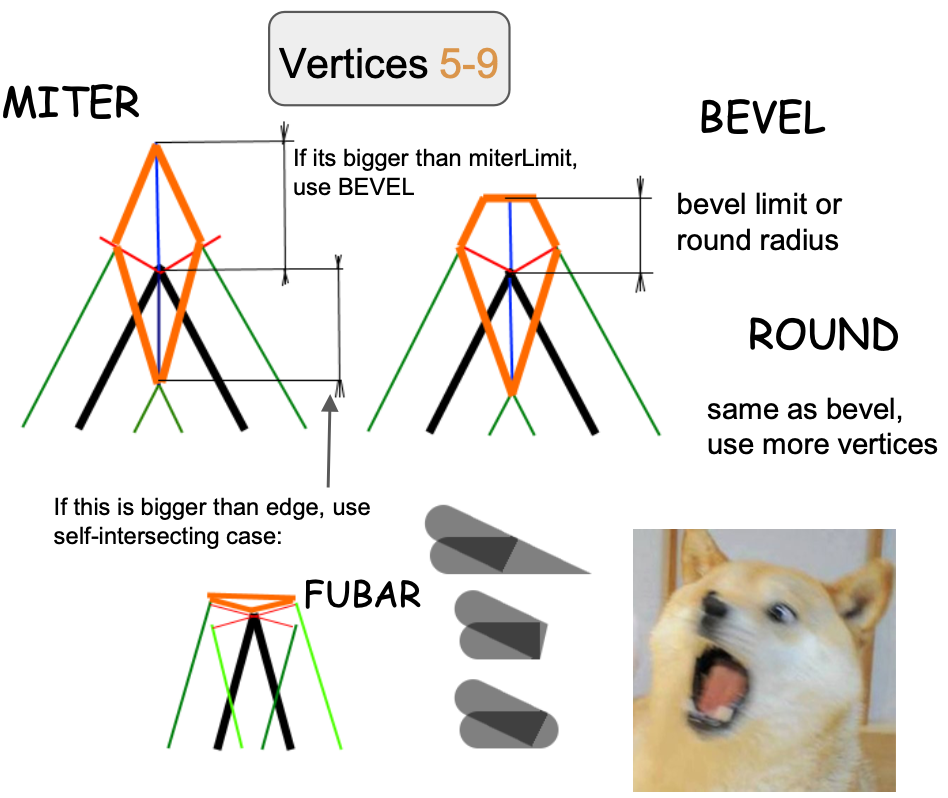
가장 단순한 miter부터 분석합니다. 정의상 strokeMiterlimit를 넘으면 bevel로 바뀝니다.
if (length(pos) > abs(dy) * strokeMiterlimit) {
    type = BEVEL;
} else {
    if (vertexNum < 4.5) {
        dy = -dy;
        pos = doBisect(norm, len, norm2, len2, dy, 1.0);
    } else if (vertexNum < 5.5) {
        pos = dy * norm;
    } else if (vertexNum > 6.5) {
        pos = dy * norm2;
    }
    v_Type = 1.0;
    dy = -sign * dot(pos, norm);
    dy2 = -sign * dot(pos, norm2);
    hit = 1.0;
}
Cairo에서는 round 조인트를 쓸지 bevel 조인트를 쓸지를 arc height로 판단해야 합니다. 다음 그림의 출처는 Cairo - Fix for round joins입니다.

안티앨리어싱
마지막으로 선분 가장자리의 안티앨리어싱을 봅니다. 앞에서 SDF의 안티앨리어싱을 소개했고, 여기서도 비슷한 방법을 씁니다.
- 정점 셰이더에서 정점에서 선분으로 향하는 수직 단위 벡터를 계산하고,
varying으로 프래그먼트 셰이더에 넘겨 자동으로 보간합니다. - 보간된 벡터는 더 이상 단위 벡터가 아닙니다. 그 길이를 계산하면 현재 픽셀에서 선분까지의 수직 거리이며, 범위는
[0, 1]입니다. - 이 값으로 픽셀의 최종 투명도를 계산해 안티앨리어싱을 마칩니다.
smoothstep은 선분 가장자리, 즉[linewidth - feather, linewidth + feather]구간에서 일어납니다. 다음 그림은 Drawing Antialiased Lines with OpenGL에서 가져왔으며, 구체적인 계산은 뒤에서 다룹니다.
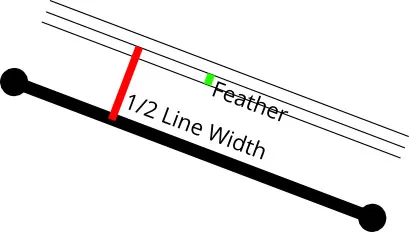
이 "feather"는 얼마가 적당합니까? 앞의 사각형 바깥 그림자 그리기에서는 사각형의 원래 크기를 3 * dropShadowBlurRadius만큼 바깥으로 늘렸습니다. 다음 그림도 How 2 draw lines in WebGL에서 가져왔으며, 바깥으로 1픽셀 늘리는 것(w에서 w+1)이면 충분합니다. 반대쪽 두 정점(#3과 #4)의 거리는 음수입니다.
const float expand = 1.0;
lineWidth *= 0.5;

float dy = lineWidth + expand; // w + 1
if (vertexNum >= 1.5) { // Vertex #3 & #4
  dy = -dy; // -w - 1
}
오른쪽 아래 그림에서도 알 수 있듯이, 프래그먼트 셰이더의 픽셀 하나하나를 확대해 보면 이 방향이 있는 거리 d로 선분과 현재 픽셀의 커버리지(다음 그림에서 삼각형의 넓이)를 계산해 안티앨리어싱을 얻을 수 있습니다.
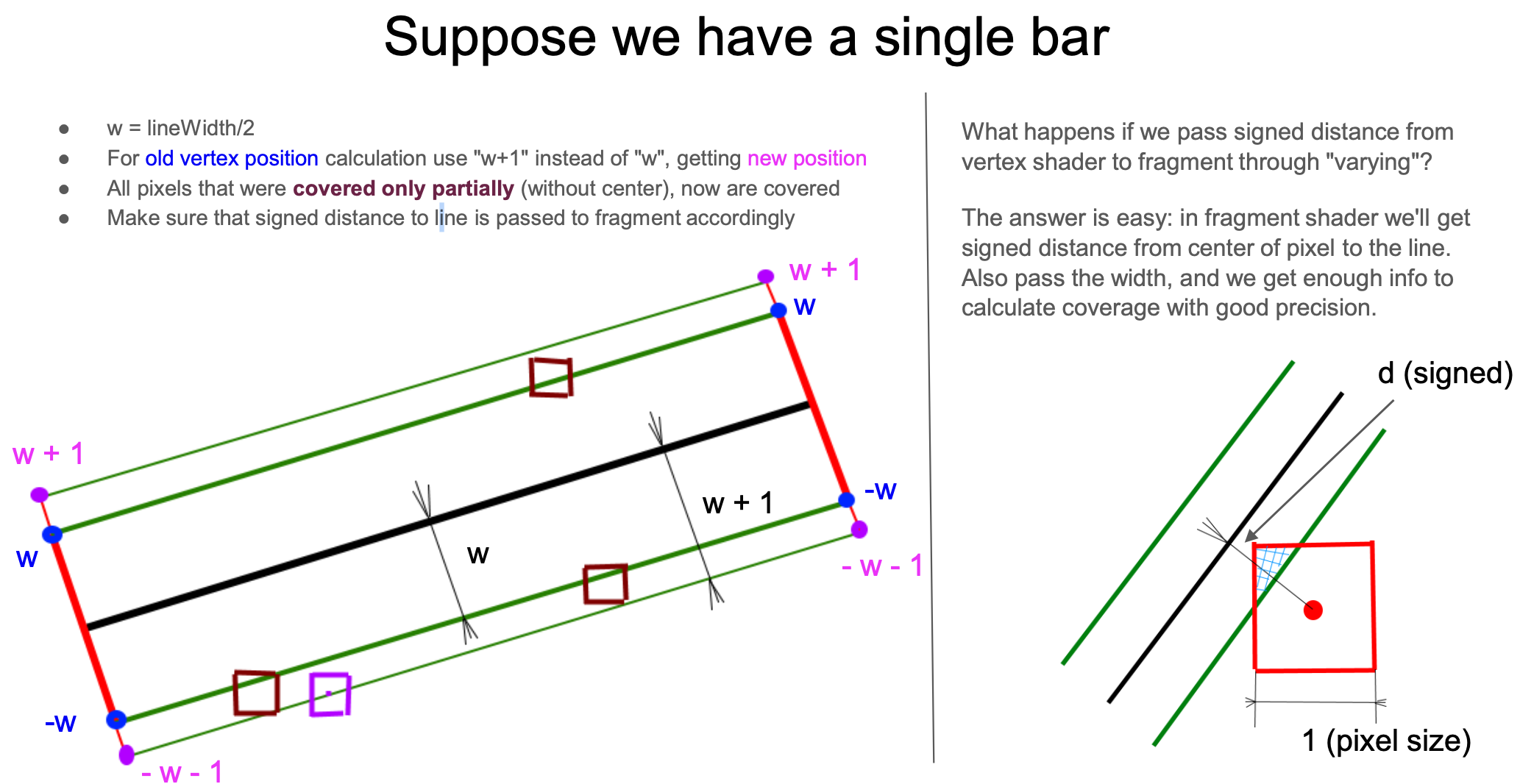
이 거리로 커버리지를 어떻게 계산합니까? 선분 본체와 조인트를 나눠 봐야 합니다.
먼저 선분 본체입니다. 수직 선분인 경우로 더 단순화할 수 있고, 원저자도 회전을 고려한 계산을 제시했는데 단순 추정과 크게 다르지 않습니다. clamp로 한쪽의 커버리지를 계산하고, 선 너비가 매우 얇은 경우도 고려하여 오른쪽에서 왼쪽을 빼 최종 커버리지를 구합니다. 이 값이 최종 색의 투명도 계수가 됩니다.
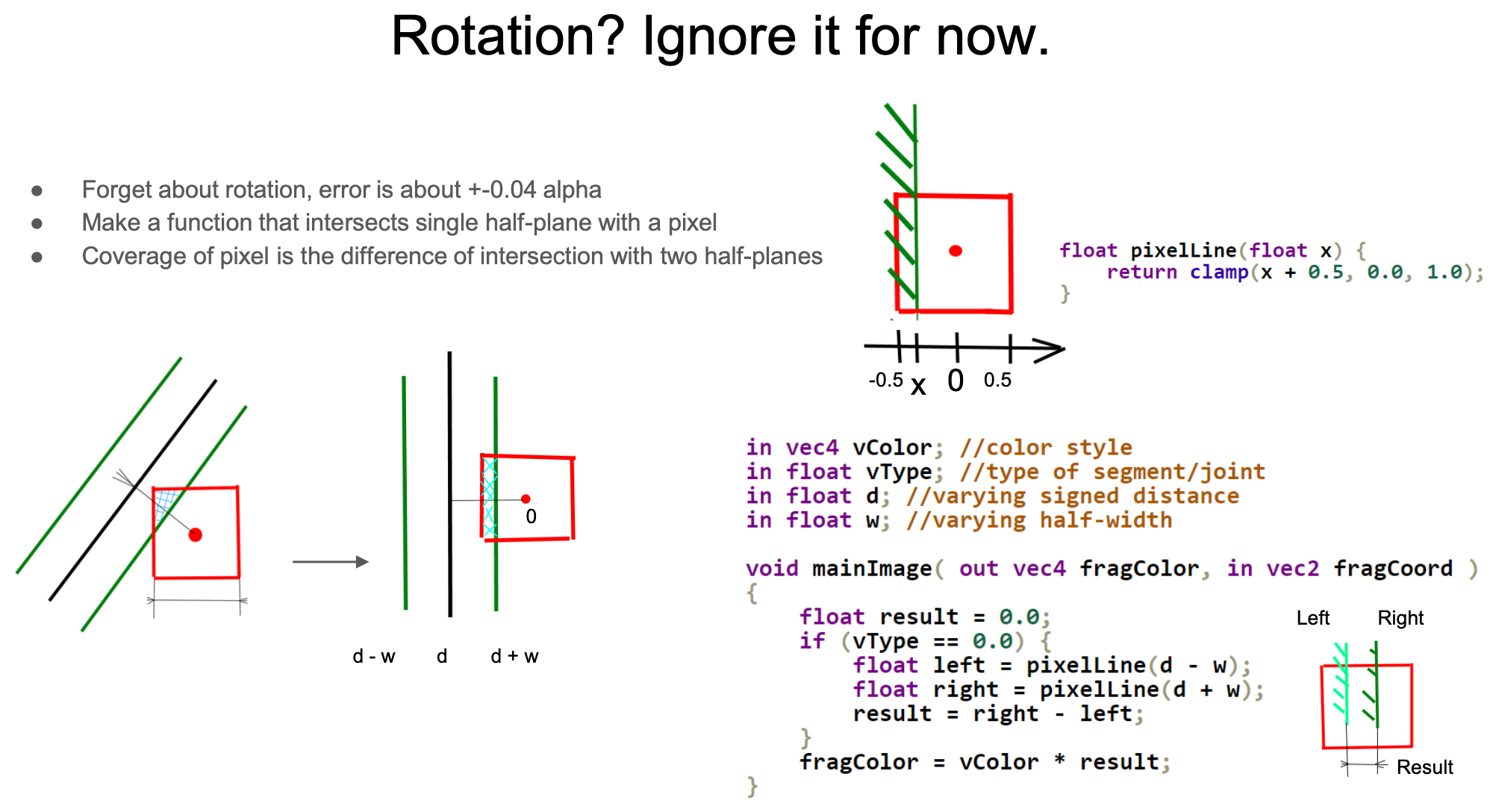
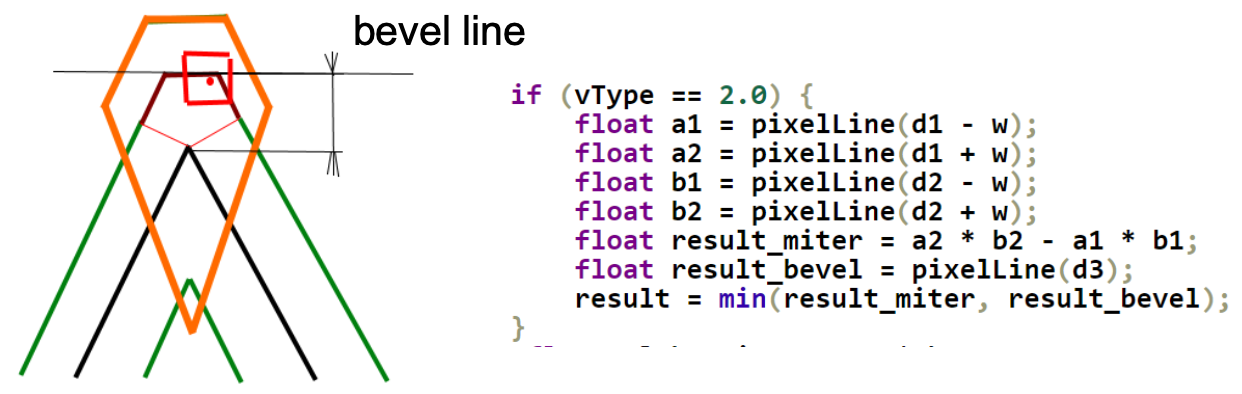
선분 부분과 직선의 교차 넓이를 계산하는 것이 가장 단순한 경우입니다. 조인트와 끝점의 처리는 매우 복잡합니다. Miter 조인트를 예로 들면, 회전은 여전히 무시하고 인접 선분이 수직인 경우만 봅니다(다음 그림 오른쪽의 빨간 상자). 위의 선분에는 방향이 있는 거리 d 하나만 있지만, 여기서는 조인트 앞뒤 두 선분을 나타내는 d1과 d2가 있습니다. 마찬가지로 한 픽셀 안의 매우 얇은 선을 생각하면, 커버리지 넓이는 두 정사각형의 넓이 차(a2 * b2 - a1 * b1)입니다.
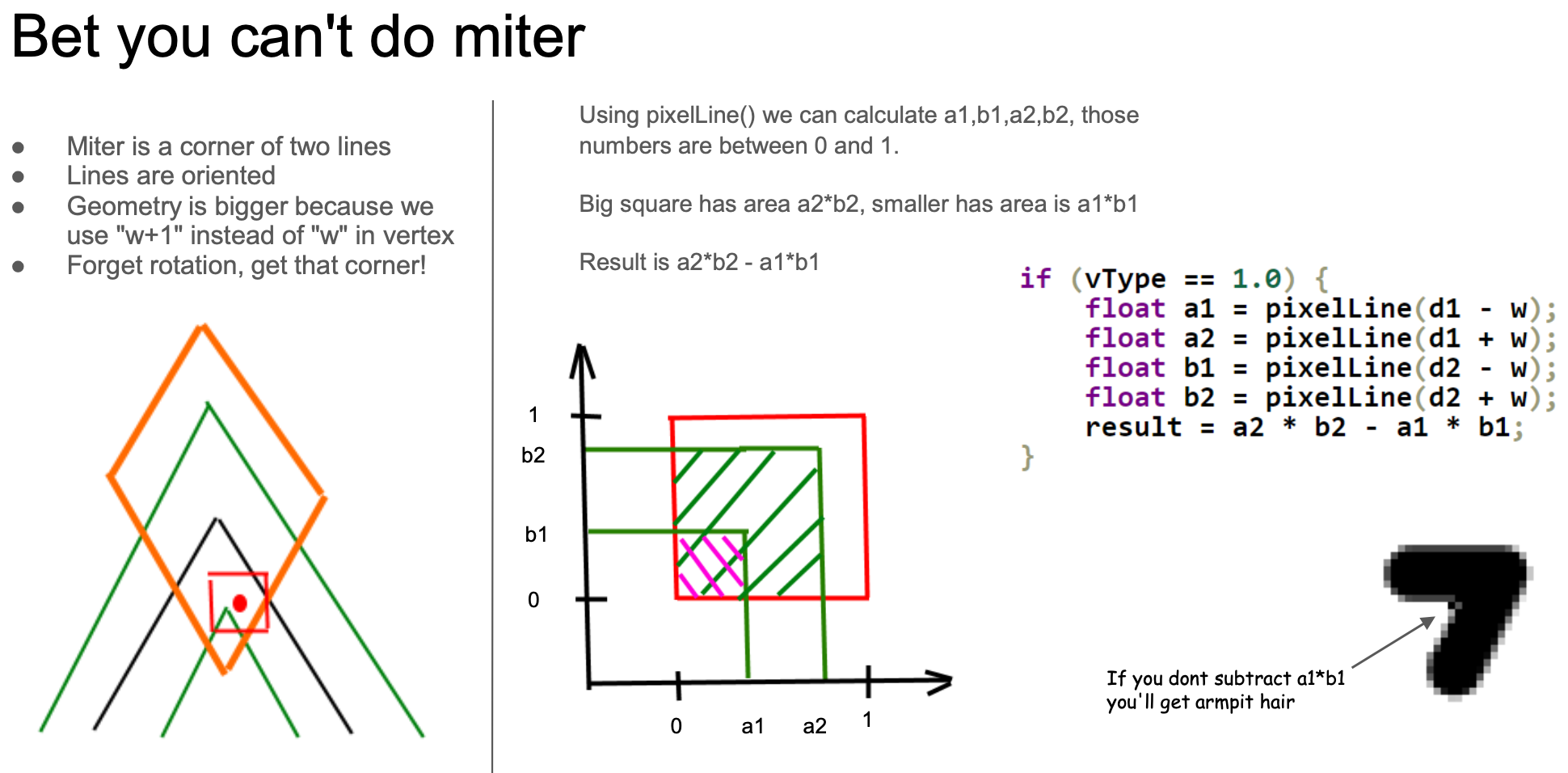
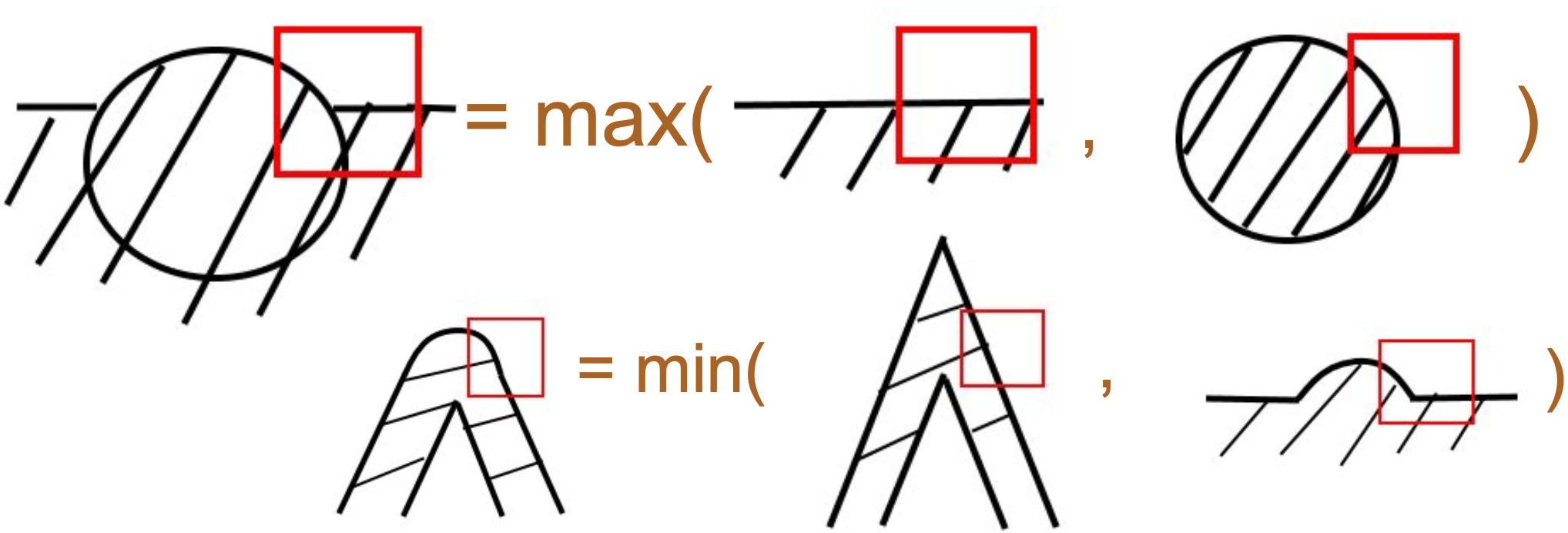
Bevel 조인트의 계산은 Miter와 거의 같습니다(다음 그림의 가운데 경우). d3는 픽셀 중심에서 "bevel line"까지의 거리이며, 이것으로 다음 그림 오른쪽의 커버리지를 계산할 수 있습니다. 두 경우의 최솟값을 취하면 근사 결과를 얻습니다.
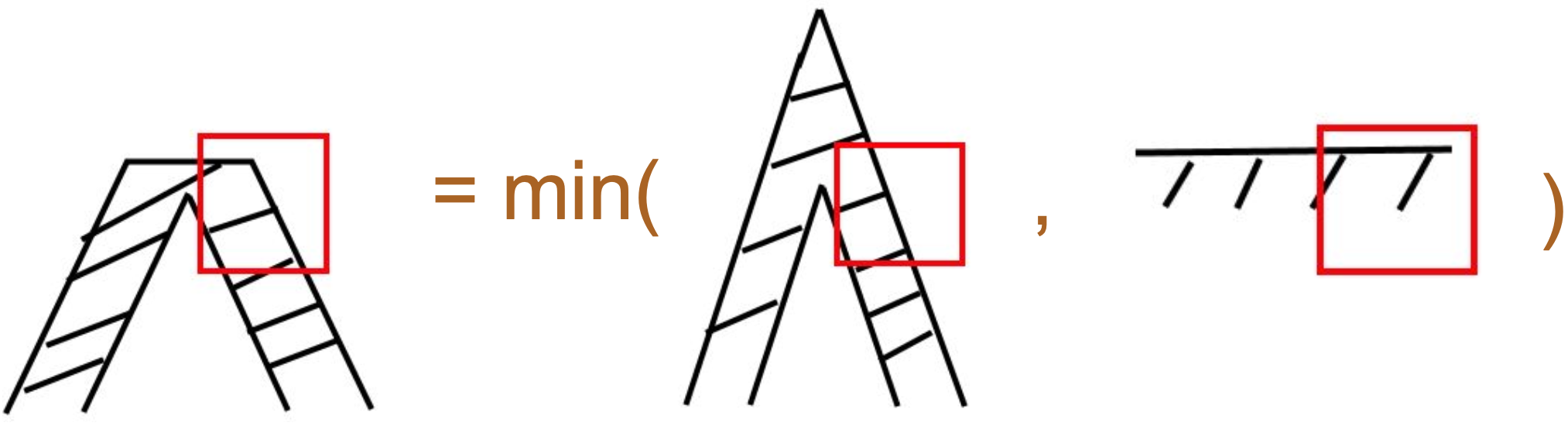
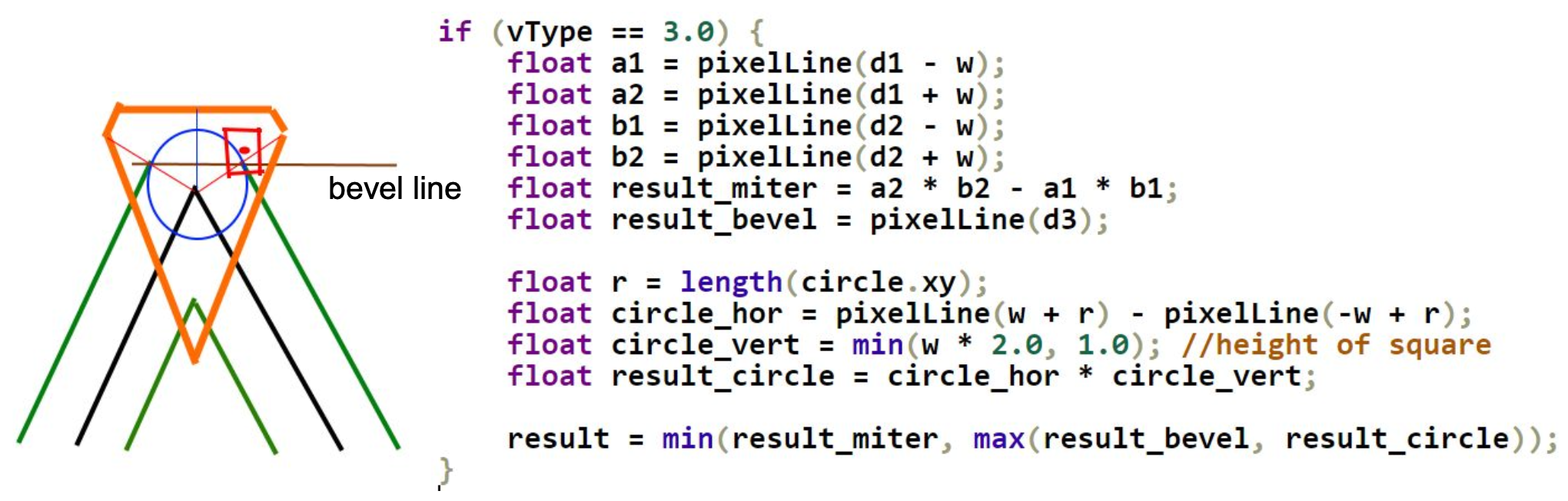
마지막으로 둥근 조인트입니다. 정점 셰이더에서 원의 중심에서 픽셀까지의 거리 d3를 추가로 넘겨야 합니다. SDF로 원을 그리는 것과 비슷합니다.
원저자는 pixelLine의 정확한 구현도 제시했지만, 지면 관계상 펼치지 않습니다.
stroke-alignment 지원
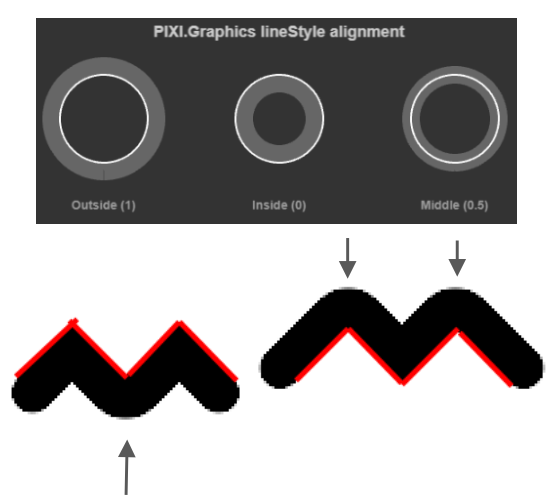
이전에 SDF로 그린 Circle, Ellipse, Rect에 확장 SVG: 스트로크 정렬을 구현했습니다. 이제 폴리라인에도 이 속성을 넣습니다. 다음 그림은 Pixi.js의 lineStyle.alignment 효과입니다. 빨간 선은 폴리라인의 기하학적 위치이고, 값에 따라 그 위아래로 떠 있습니다.
ECS 폴리라인에서는 스트로크 정렬이 계산된 기하 바운드에도 영향을 줍니다. strokeWidth나 strokeAlignment을 바꾸거나, 스트로크 기하를 제거하거나, 그 편집을 실행 취소하거나 다시 실행하면 오프셋된 점과 그 바운드가 갱신됩니다. 스트로크가 없는 폴리라인은 원래 점을 유지합니다. 연속된 중복 샘플은 공통 정점의 오프셋을 공유하고, 샘플이 전부 겹친 폴리라인은 유한한 좌표를 유지합니다. SVG로 내보낼 때는 원래 점의 순서와 개수를 유지합니다.
셰이더에서는 이 속성을 법선 방향으로 늘릴 때의 오프셋에 반영합니다. strokeAlignment이 center이면 오프셋은 0입니다.
float shift = strokeWidth * strokeAlignment;
pointA += norm * shift;
pointB += norm * shift;
왼쪽부터 outer, center, inner의 효과입니다.
$icCanvas2 = call(() => {
    return document.createElement('ic-canvas-lesson12');
});call(() => {
const { Canvas, Polyline } = Lesson12;
const stats = new Stats();
stats.showPanel(0);
const $stats = stats.dom;
$stats.style.position = 'absolute';
$stats.style.left = '0px';
$stats.style.top = '0px';
$icCanvas2.parentElement.style.position = 'relative';
$icCanvas2.parentElement.appendChild($stats);
$icCanvas2.addEventListener('ic-ready', (e) => {
const canvas = e.detail;
const polyline1 = new Polyline({
points: [
[100, 100],
[100, 200],
[200, 200],
[200, 100],
],
stroke: 'black',
strokeWidth: 20,
strokeAlignment: 'outer',
fill: 'none',
cursor: 'pointer',
});
canvas.appendChild(polyline1);
const polyline4 = new Polyline({
points: [
[100, 100],
[100, 200],
[200, 200],
[200, 100],
],
stroke: 'red',
strokeWidth: 2,
// strokeAlignment: 'outer',
fill: 'none',
});
canvas.appendChild(polyline4);
const polyline2 = new Polyline({
points: [
[220, 100],
[220, 200],
[320, 200],
[320, 100],
],
stroke: 'black',
strokeWidth: 20,
cursor: 'pointer',
fill: 'none',
});
canvas.appendChild(polyline2);
const polyline5 = new Polyline({
points: [
[220, 100],
[220, 200],
[320, 200],
[320, 100],
],
stroke: 'red',
strokeWidth: 2,
fill: 'none',
});
canvas.appendChild(polyline5);
const polyline3 = new Polyline({
points: [
[360, 100],
[360, 200],
[460, 200],
[460, 100],
],
stroke: 'black',
strokeWidth: 20,
strokeAlignment: 'inner',
fill: 'none',
cursor: 'pointer',
});
canvas.appendChild(polyline3);
const polyline6 = new Polyline({
points: [
[360, 100],
[360, 200],
[460, 200],
[460, 100],
],
stroke: 'red',
strokeWidth: 2,
fill: 'none',
});
canvas.appendChild(polyline6);
polyline1.addEventListener('pointerenter', () => {
polyline1.stroke = 'green';
});
polyline1.addEventListener('pointerleave', () => {
polyline1.stroke = 'black';
});
polyline2.addEventListener('pointerenter', () => {
polyline2.stroke = 'green';
});
polyline2.addEventListener('pointerleave', () => {
polyline2.stroke = 'black';
});
polyline3.addEventListener('pointerenter', () => {
polyline3.stroke = 'green';
});
polyline3.addEventListener('pointerleave', () => {
polyline3.stroke = 'black';
});
});
$icCanvas2.addEventListener('ic-frame', (e) => {
stats.update();
});
});마지막으로 두 가지를 주의합니다.
stroke-alignment는 표준 SVG 속성이 아니므로, SVG로 내보낼 때points를 다시 계산해야 합니다. 이는 셰이더에서 법선과 각 이등분선을 따라 늘리는 논리와 같으며, 지면 관계상 펼치지 않습니다.- 피킹 판정, 즉
containsPoint도points를 오프셋한 정점을 기준으로 계산해야 합니다. 위 예제에서 마우스를 넣었다 빼며 폴리라인 색이 바뀌는지 확인해 볼 수 있습니다.
파선
파선의 각 조각에는 양 끝이 있습니다. 실선 스트로크에 주기적인 알파 마스크를 씌우면 직선 구간에서는 평평하게 잘린 단면을 만들 수 있지만, 둥근 캡은 만들 수 없습니다. 모서리를 들어오는 선분에만 투영하면 위치가 어긋난 쐐기가 생깁니다.
먼저, 중심선을 따라 누적한 거리를 올바른 선분 인스턴스와 대응시킵니다. [[0, 0], [100, 0], [200, 0]]에서 인스턴스는 선택적인 시작 캡과 선분 두 개이고, 시작 거리는 [0, 0, 100]입니다. 각 인스턴스는 이전 선분과 다음 선분의 시작 거리도 가집니다. -1은 그 이웃이 없다는 뜻입니다.
layout(location = ${Location.TRAVEL}) in vec3 a_Travel;
// x: current segment start; y: previous start; z: next start
프래그먼트 셰이더에서는 period = dash + gap으로 가장 가까운 칠해지는 구간을 찾고, 그 구간을 해당 중심선 선분 안으로 자릅니다. 칠해지는 길이는 dash이며 gap이 아닙니다. 이번 강의는 여전히 숫자 두 개의 패턴만 지원합니다. 주기가 양수이면 모두 유효하며, 1픽셀보다 작은 값도 포함됩니다. gap이 0이면 실선이 됩니다.
strokeLinecap: 'round'이면 칠해지는 각 구간은 캡슐입니다. 여기서 p.x는 그 구간을 따른 월드 단위 거리, p.y는 중심선으로부터의 수직 거리, dashLength는 같은 단위로 자른 뒤의 길이입니다.
float radius = strokeWidth * 0.5;
float alongOutside = max(max(-p.x, p.x - dashLength), 0.0);
float distance = length(vec2(alongOutside, p.y)) - radius;
float coverage = clamp(
    0.5 - distance / max(fwidth(distance), 0.0001),
    0.0, 1.0
);
반지름에는 선 너비의 절반 전체를 씁니다. 이미 스케일된 수직 거리와 섞으면 캡과 본체가 너무 가늘어집니다. butt는 직사각형을 쓰고, square는 양 끝에서 그 직사각형을 절반 너비만큼 늘립니다. 둥근 캡과 사각 캡은 명목상의 gap 안으로 들어가므로, gap이 스트로크 너비보다 좁으면 이웃한 파선이 맞닿을 수 있습니다.
모서리에서는 두 선분의 방향이 모두 필요합니다.
- 현재, 이전, 다음 선분의 보이는 파선 구간을 계산하고 그 합집합을 취합니다. 이웃한 주기 칸도 살펴, 끝점의 불완전한 파선과 음의 오프셋이 동작하게 합니다.
- 하나의 파선이 정점을 지나 이어지면, 그 선분 경계의 인위적인 캡을 억제하고 바깥 모서리에는
strokeLinejoin을 씁니다. - 파선이 거기서 끝나거나 정점이 gap 안에 있으면, 실선 조인트 쐐기를 추가하지 않습니다. 실제 파선 캡은 여전히 모서리와 겹칠 수 있으며, 실선 스트로크의 round 또는 bevel 조인트로 그 캡을 자르지 않습니다.
- 닫힌 패스는 첫 선분과 마지막 선분을 실제 누적 거리로 연결합니다. 독립된 서브패스는 0부터 다시 셉니다.
strokeDashoffset이 바뀌어도 기하는 고정이고, 바뀌는 것은 유니폼뿐입니다. 부호 있는 거리 안티앨리어싱의 분모는 0에서 떨어지도록 제한하며, 커버리지가 일정한 프래그먼트도 예외가 아닙니다.
stroke-dashoffset을 실시간으로 바꾸어(증가시켜) 개미선 효과를 낼 수도 있습니다. 이런 애니메이션은 보통 같은 이름의 SVG 속성으로 구현합니다. 참고: How to animate along an SVG path at the same time the path animates?
$icCanvas3 = call(() => {
    return document.createElement('ic-canvas-lesson12');
});call(() => {
const { Canvas, Polyline } = Lesson12;
const stats = new Stats();
stats.showPanel(0);
const $stats = stats.dom;
$stats.style.position = 'absolute';
$stats.style.left = '0px';
$stats.style.top = '0px';
$icCanvas3.parentElement.style.position = 'relative';
$icCanvas3.parentElement.appendChild($stats);
let polyline1;
$icCanvas3.addEventListener('ic-ready', (e) => {
const canvas = e.detail;
polyline1 = new Polyline({
points: [
[100, 100],
[100, 200],
[200, 200],
[200, 100],
],
stroke: 'black',
strokeWidth: 20,
strokeDasharray: [10, 10],
strokeDashoffset: 0,
fill: 'none',
cursor: 'pointer',
});
canvas.appendChild(polyline1);
const polyline2 = new Polyline({
points: [
[300, 100],
[300, 200],
[500, 200],
[500, 100],
],
stroke: 'black',
strokeWidth: 10,
strokeDasharray: [20, 20],
strokeDashoffset: 0,
strokeLinecap: 'round',
strokeLinejoin: 'round',
fill: 'none',
cursor: 'pointer',
});
canvas.appendChild(polyline2);
polyline1.addEventListener('pointerenter', () => {
polyline1.stroke = 'green';
});
polyline1.addEventListener('pointerleave', () => {
polyline1.stroke = 'black';
});
});
$icCanvas3.addEventListener('ic-frame', (e) => {
stats.update();
polyline1.strokeDashoffset += 0.1;
});
});또 다른 구현은 fract()를 씁니다. 참고: Pure WebGL Dashed Line.
SVG 명세에 따르면 stroke-dasharray와 stroke-dashoffset은 Circle / Ellipse / Rect 같은 다른 도형에도 적용할 수 있습니다. 따라서 이 두 속성에 타당한 값이 있으면, 원래 SDF로 그리던 윤곽을 Polyline 구현으로 바꿔야 합니다. Rect를 예로 들면, 바깥 그림자, 사각형 본체, 파선 윤곽을 그리기 위해 드로우 콜이 최대 3개까지 필요할 수 있습니다.
SHAPE_DRAWCALL_CTORS.set(Rect, [ShadowRect, SDF, SmoothPolyline]);Rect에서는 점 다섯 개를 만듭니다. 네 모서리와, 반복한 첫 점입니다. GPU 인스턴스를 준비할 때 첫 선분의 이전 점을 마지막 선분에 연결하고, 마지막 선분의 다음 점을 첫 선분에 연결합니다. 그러면 길이가 엡실론인 추가 선분이나 끝 캡 없이 조인트가 닫힙니다. Circle과 Ellipse도 같은 방식으로 닫으며, 샘플만 더 많습니다(여기서는 64).
if (object instanceof Polyline) {
    points = object.points.reduce((prev, cur) => {
        prev.push(cur[0], cur[1]);
        return prev;
    }, [] as number[]);
} else if (object instanceof Rect) {
    const { x, y, width, height } = object;
    points = [x, y, x + width, y, x + width, y + height, x, y + height, x, y];
}$icCanvas5 = call(() => {
return document.createElement('ic-canvas-lesson12');
});call(() => {
const { Canvas, Rect, Circle, Ellipse } = Lesson12;
const stats = new Stats();
stats.showPanel(0);
const $stats = stats.dom;
$stats.style.position = 'absolute';
$stats.style.left = '0px';
$stats.style.top = '0px';
$icCanvas5.parentElement.style.position = 'relative';
$icCanvas5.parentElement.appendChild($stats);
$icCanvas5.addEventListener('ic-ready', (e) => {
const canvas = e.detail;
const rect = new Rect({
x: 50,
y: 50,
fill: 'black',
fillOpacity: 0.5,
dropShadowBlurRadius: 10,
dropShadowColor: 'black',
dropShadowOffsetX: 10,
dropShadowOffsetY: 10,
stroke: 'red',
strokeWidth: 10,
});
rect.width = 100;
rect.height = 100;
canvas.appendChild(rect);
const rect2 = new Rect({
x: 200,
y: 50,
fill: 'black',
fillOpacity: 0.5,
stroke: 'red',
strokeWidth: 10,
dropShadowBlurRadius: 10,
dropShadowColor: 'black',
dropShadowOffsetX: 10,
dropShadowOffsetY: 10,
strokeDasharray: [5, 5],
});
rect2.width = 100;
rect2.height = 100;
canvas.appendChild(rect2);
const circle = new Circle({
cx: 400,
cy: 100,
r: 50,
fill: 'black',
stroke: 'red',
strokeWidth: 20,
strokeDasharray: [5, 5],
});
canvas.appendChild(circle);
const circle2 = new Circle({
cx: 550,
cy: 100,
r: 50,
fill: 'black',
stroke: 'red',
strokeWidth: 20,
strokeDasharray: [5, 20],
strokeAlignment: 'inner',
});
canvas.appendChild(circle2);
const ellipse = new Ellipse({
cx: 150,
cy: 250,
rx: 100,
ry: 50,
fill: 'black',
stroke: 'red',
strokeWidth: 20,
strokeDasharray: [5, 5],
});
canvas.appendChild(ellipse);
});
$icCanvas5.addEventListener('ic-frame', (e) => {
stats.update();
});
});바운딩 박스 계산
렌더링에서 잠시 벗어나 기하 계산을 합니다. 앞 강의에서 소개한 대로, 바운딩 박스는 피킹과 컬링 양쪽에서 계산해야 합니다.
선 너비 같은 그리기 속성을 무시하면, 기하 바운딩 박스 계산은 매우 단순합니다. 폴리라인의 모든 정점에서 최소 좌표와 최대 좌표를 구하면 됩니다.
const minX = Math.min(...points.map((point) => point[0]));
const maxX = Math.max(...points.map((point) => point[0]));
const minY = Math.min(...points.map((point) => point[1]));
const maxY = Math.max(...points.map((point) => point[1]));

return new AABB(minX, minY, maxX, maxY);
선 너비, 끝점, 조인트가 들어가면 폴리라인의 바운딩 박스 계산은 더 복잡해집니다. 정밀한 결과가 필요하지 않다면, 앞에서 구한 바운딩 박스를 선 너비의 절반만큼 바깥으로 늘리면 됩니다. Calculate bounding box of line with thickness는 Cairo가 제공하는 cairo-stroke-extents 방법을 씁니다. 선 너비가 0이면 cairo-path-extents로 퇴화합니다.
사용자 좌표에서, 영향을 받는 영역(즉 “잉크가 묻는” 영역)을 덮는 바운딩 박스를 계산합니다.
Cairo 소스 코드를 더 살펴보면, 스트로크 바운딩 박스에도 두 가지 방법을 제공합니다(여기서는 많은 매개변수를 생략합니다). 앞의 방법은 추정이라 더 빠르고, 뒤의 방법은 끝점과 조인트의 구체적인 모양을 반영해 정밀하게 계산합니다.
cairo_private void
_cairo_path_fixed_approximate_stroke_extents ();

cairo_private cairo_status_t
_cairo_path_fixed_stroke_extents ();
빠른 추정
이 추정은 기하 바운딩 박스를 기준으로 수평·수직 방향으로 일정 거리만큼 바깥으로 늘리는 것입니다. 거리는 style_expansion * strokeWidth입니다.
/*
 * For a stroke in the given style, compute the maximum distance
 * from the path that vertices could be generated.  In the case
 * of rotation in the ctm, the distance will not be exact.
 */
void
_cairo_stroke_style_max_distance_from_path (const cairo_stroke_style_t *style,
         const cairo_path_fixed_t *path,
                                            const cairo_matrix_t *ctm,
                                            double *dx, double *dy)
{
    double style_expansion = 0.5;

    if (style->line_cap == CAIRO_LINE_CAP_SQUARE)
 style_expansion = M_SQRT1_2;

    if (style->line_join == CAIRO_LINE_JOIN_MITER &&
 ! path->stroke_is_rectilinear &&
 style_expansion < M_SQRT2 * style->miter_limit)
    {
 style_expansion = M_SQRT2 * style->miter_limit;
    }

    style_expansion *= style->line_width;
}stroke-linecap="square"인 경우를 보면, 다음 그림은 가장 이상적인 상황에서 style_expansion이 0.5임을 보여 줍니다. 즉 빨간 본체에서 0.5 * strokeWidth만큼 늘리고, 검은 영역이 <polyline>의 바운딩 박스입니다.
다만 폴리라인이 45도로 약간 기울면, 이때 바깥으로 늘리는 거리는 sqrt(2) / 2 * strokeWidth입니다.
마찬가지로 stroke-linejoin="miter"인 경우도 고려해야 합니다. 이 추정은 정점과 조인트 하나하나를 정밀하게 다루지 않고, 바운딩 박스가 폴리라인을 담을 수 있도록 가장 낙관적인 추정만 합니다.
아래에서는 폴리라인의 바운딩 박스를 실시간으로 그리며, 왼쪽부터 strokeLinecap의 서로 다른 값을 보여 줍니다.
$icCanvas6 = call(() => {
    return document.createElement('ic-canvas-lesson12');
});call(() => {
const { Canvas, Polyline, Rect } = Lesson12;
const stats = new Stats();
stats.showPanel(0);
const $stats = stats.dom;
$stats.style.position = 'absolute';
$stats.style.left = '0px';
$stats.style.top = '0px';
$icCanvas6.parentElement.style.position = 'relative';
$icCanvas6.parentElement.appendChild($stats);
function drawBounds(canvas, polyline) {
const { minX, minY, maxX, maxY } = polyline.getBounds();
const bounds = new Rect({
x: minX,
y: minY,
stroke: 'red',
fill: 'none',
});
bounds.width = maxX - minX;
bounds.height = maxY - minY;
canvas.appendChild(bounds);
}
$icCanvas6.addEventListener('ic-ready', (e) => {
const canvas = e.detail;
const polyline1 = new Polyline({
points: [
[100, 100],
[200, 200],
],
stroke: 'black',
strokeWidth: 20,
fill: 'none',
cursor: 'pointer',
});
canvas.appendChild(polyline1);
drawBounds(canvas, polyline1);
const polyline2 = new Polyline({
points: [
[300, 100],
[400, 200],
],
stroke: 'black',
strokeWidth: 20,
strokeLinecap: 'round',
fill: 'none',
cursor: 'pointer',
});
canvas.appendChild(polyline2);
drawBounds(canvas, polyline2);
const polyline3 = new Polyline({
points: [
[500, 100],
[600, 200],
],
stroke: 'black',
strokeWidth: 20,
strokeLinecap: 'square',
fill: 'none',
cursor: 'pointer',
});
canvas.appendChild(polyline3);
drawBounds(canvas, polyline3);
});
$icCanvas6.addEventListener('ic-frame', (e) => {
stats.update();
});
});정밀 계산
정말로 정밀하게 계산하려면 어떻게 합니까? Cairo의 생각은 먼저 Polygon으로 바꾼 다음 그 바운딩 박스를 계산하는 것입니다.
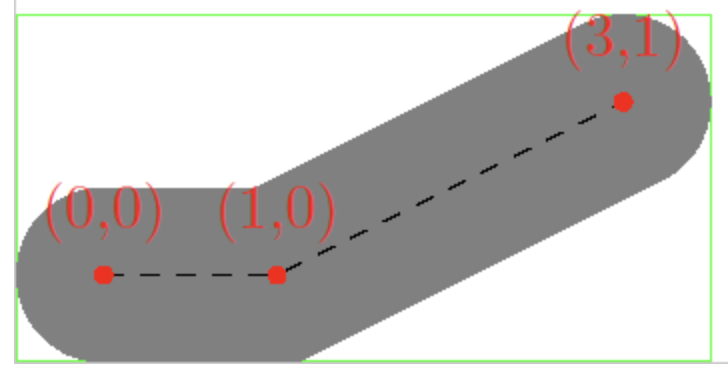
cairo_status_t
_cairo_path_fixed_stroke_extents (const cairo_path_fixed_t *path,
      const cairo_stroke_style_t *stroke_style,
      const cairo_matrix_t  *ctm,
      const cairo_matrix_t  *ctm_inverse,
      double    tolerance,
      cairo_rectangle_int_t  *extents)
{
    cairo_polygon_t polygon;
    cairo_status_t status;
    cairo_stroke_style_t style;

    _cairo_polygon_init (&polygon, NULL, 0);
    status = _cairo_path_fixed_stroke_to_polygon (path,
        stroke_style,
        ctm, ctm_inverse,
        tolerance,
        &polygon);
    _cairo_box_round_to_rectangle (&polygon.extents, extents);
    _cairo_polygon_fini (&polygon);

    return status;
}
성능 테스트
성능을 시험합니다. 점이 각각 20,000개인 폴리라인 몇 개를 보여 줍니다.
$icCanvas4 = call(() => {
    return document.createElement('ic-canvas-lesson12');
});call(() => {
const { Canvas, Polyline } = Lesson12;
const stats = new Stats();
stats.showPanel(0);
const $stats = stats.dom;
$stats.style.position = 'absolute';
$stats.style.left = '0px';
$stats.style.top = '0px';
$icCanvas4.parentElement.style.position = 'relative';
$icCanvas4.parentElement.appendChild($stats);
let polyline1;
$icCanvas4.addEventListener('ic-ready', (e) => {
const canvas = e.detail;
const data = new Array(20000)
.fill(undefined)
.map((_, i) => [i, Math.random() * 50]);
polyline1 = new Polyline({
points: data,
stroke: 'black',
strokeWidth: 2,
fill: 'none',
cursor: 'pointer',
});
canvas.appendChild(polyline1);
const data2 = new Array(20000)
.fill(undefined)
.map((_, i) => [i, Math.random() * 50 + 100]);
polyline2 = new Polyline({
points: data2,
stroke: 'black',
strokeWidth: 2,
strokeLinejoin: 'round',
fill: 'none',
cursor: 'pointer',
});
canvas.appendChild(polyline2);
const data3 = new Array(20000)
.fill(undefined)
.map((_, i) => [i, Math.random() * 50 + 200]);
polyline3 = new Polyline({
points: data3,
stroke: 'black',
strokeWidth: 2,
strokeDasharray: [4, 4],
fill: 'none',
cursor: 'pointer',
});
canvas.appendChild(polyline3);
});
$icCanvas4.addEventListener('ic-frame', (e) => {
stats.update();
});
});나빠 보이지는 않지만, 자세히 보면 아직 다음 문제가 있으며 이후의 개선 방향으로 볼 수 있습니다.
- 각 인스턴스가 정점 15개를 쓰고 버퍼에도 크기 제한이 있어, 폴리라인 하나에 넣을 수 있는 정점 수는 실제로 제한됩니다.
- 지금은 폴리라인 하나가 드로우 콜 하나에 대응합니다. 비슷하게 반복되는 폴리라인이 매우 많으면 어떻게 합니까? regl-gpu-lines는 두 가지 생각을 제시합니다.
- 드로우 콜 하나로 폴리라인을 여러 개 그릴 수도 있습니다.
[NaN, NaN]으로 끊긴 지점을 표시합니다. 예: Multiple lines - 여러 폴리라인의 정점 데이터가 같고 오프셋만 다르면, 각 폴리라인을 하나의 인스턴스로 볼 수 있습니다. 물론 각 폴리라인 안의 정점은 펼쳐야 합니다. 예: Fake instancing
- 드로우 콜 하나로 폴리라인을 여러 개 그릴 수도 있습니다.
- 현재 카메라 확대 수준에 따라 정점을 단순화합니다.
아래에서는 이 방향을 따라 계속 최적화합니다.
여러 구간이 있는 폴리라인
드로우 콜 수를 줄이려는 앞의 최적화와 같은 방향으로, 여러 폴리라인을 이어 붙일 수 있습니다. 물론 어떤 구분자가 필요하며, regl-gpu-lines를 참고해 [NaN, NaN]을 사용합니다. 이후 패스를 그릴 때에도 곧 이것을 씁니다. 하나의 패스에 여러 서브패스가 들어 있을 수 있기 때문입니다.
Polyline1: [[0, 0], [100, 100]]
Polyline2: [[100, 0], [200, 100]]
MultiPolyline: [[0, 0], [100, 100], [NaN, NaN], [100, 0], [200, 100]]
구분자로 나눈 뒤에도, 각 구간의 정점 배열은 위와 같은 방식으로 구성합니다.
const subPaths = [];
let lastNaNIndex = 0;
for (let i = 0; i < points.length; i += stridePoints) {
    if (isNaN(points[i]) || isNaN(points[i + 1])) {
        subPaths.push(points.slice(lastNaNIndex, i));
        lastNaNIndex = i + 2;
    }
}
subPaths.push(points.slice(lastNaNIndex));
subPaths.forEach((points) => {
    // Omit constructing each segments
});
효과는 다음과 같으며, 주의할 점은 다음과 같습니다.
- 여러 폴리라인이 하나로 합쳐지므로, 피킹도 전체를 하나로 따라갑니다. 아래 세 묶음 위에 마우스를 올려 보세요.
- SVG로 내보낼 때, 대응하는
<polyline>요소로 직접 내보낼 수 없습니다.
$icCanvas7 = call(() => {
    return document.createElement('ic-canvas-lesson12');
});call(() => {
const { Canvas, Polyline } = Lesson12;
const stats = new Stats();
stats.showPanel(0);
const $stats = stats.dom;
$stats.style.position = 'absolute';
$stats.style.left = '0px';
$stats.style.top = '0px';
$icCanvas7.parentElement.style.position = 'relative';
$icCanvas7.parentElement.appendChild($stats);
$icCanvas7.addEventListener('ic-ready', (e) => {
const canvas = e.detail;
const data = new Array(200).fill(undefined).map((_, i) => [
[Math.random() * 200, Math.random() * 200],
[Math.random() * 200, Math.random() * 200],
[NaN, NaN],
]);
const polyline = new Polyline({
points: data.flat(1),
stroke: 'black',
strokeWidth: 2,
strokeLinecap: 'round',
cursor: 'pointer',
});
canvas.appendChild(polyline);
polyline.addEventListener(
'pointerenter',
() => (polyline.stroke = 'red'),
);
polyline.addEventListener(
'pointerleave',
() => (polyline.stroke = 'black'),
);
const data2 = new Array(200).fill(undefined).map((_, i) => [
[Math.random() * 200 + 200, Math.random() * 200],
[Math.random() * 200 + 200, Math.random() * 200],
[NaN, NaN],
]);
const polyline2 = new Polyline({
points: data2.flat(1),
stroke: 'black',
strokeWidth: 2,
strokeLinecap: 'round',
cursor: 'pointer',
});
canvas.appendChild(polyline2);
polyline2.addEventListener(
'pointerenter',
() => (polyline2.stroke = 'green'),
);
polyline2.addEventListener(
'pointerleave',
() => (polyline2.stroke = 'black'),
);
const data3 = new Array(200).fill(undefined).map((_, i) => [
[Math.random() * 200 + 400, Math.random() * 200],
[Math.random() * 200 + 400, Math.random() * 200],
[NaN, NaN],
]);
const polyline3 = new Polyline({
points: data3.flat(1),
stroke: 'black',
strokeWidth: 2,
strokeLinecap: 'round',
cursor: 'pointer',
});
canvas.appendChild(polyline3);
polyline3.addEventListener(
'pointerenter',
() => (polyline3.stroke = 'blue'),
);
polyline3.addEventListener(
'pointerleave',
() => (polyline3.stroke = 'black'),
);
});
$icCanvas7.addEventListener('ic-frame', (e) => {
stats.update();
});
});[WIP] 비슷한 폴리라인 합치기
폴리라인 단순화
정점이 많은 폴리라인(그리고 이후의 Path와 Polygon)에서 중요한 최적화는, 현재 확대 수준에 따라 단순화해 렌더링 데이터량을 최대한 줄이는 것입니다. 단순화의 근거는 두 가지입니다.
- 너무 짧은 선분과 너무 작은 폴리곤은 걸러 낼 수 있습니다.
- 폴리라인 안에서 전체 모양에 영향이 작은 정점은 걸러 낼 수 있습니다.
선분 정점 단순화의 기본 알고리즘은 Ramer–Douglas–Peucker algorithm이며, 동작은 다음과 같습니다.
- 먼저 폴리라인의 첫 정점과 마지막 정점을 남기고 연결합니다.
- 남은 정점 중에서 그 선분에서 가장 먼 정점을 찾고, 그 거리를 유지합니다.
- 거리가 임계값보다 작으면 버립니다.
- 거리가 임계값보다 크면 그 정점을 유지하고, 첫 정점·끝 정점과 함께 두 개의 하위 선분으로 나눕니다.
- 분할 정복으로 두 하위 선분을 처리하고, 1로 돌아갑니다.
아래 그림(위키 출처)이 이 과정을 보여 줍니다. 빨간 점은 버리고 초록 점은 남깁니다.

임계값(ε)을 크게 잡을수록 최종 단순화 뒤에 남는 정점 수(n)는 줄고, 폴리라인은 덜 매끄러워집니다.

이 알고리즘을 바탕으로 한 JS 구현은 많습니다. simplify-js, turf-simplify, geojson-vt 등이 있습니다. geojson-vt 구현을 예로 듭니다.
export default function simplify(coords, first, last, sqTolerance) {
    let maxSqDist = sqTolerance;
    const mid = (last - first) >> 1;
    let minPosToMid = last - first;
    let index; // index of maximum distance

    const ax = coords[first];
    const ay = coords[first + 1];
    const bx = coords[last];
    const by = coords[last + 1];

    // Find the point with the greatest distance from the line segment
    for (let i = first + 3; i < last; i += 3) {
        const d = getSqSegDist(coords[i], coords[i + 1], ax, ay, bx, by);
        if (d > maxSqDist) {
            index = i;
            maxSqDist = d;
        }
    }

    if (maxSqDist > sqTolerance) {
        // Recursively process the first half of the line segment
        if (index - first > 3) simplify(coords, first, index, sqTolerance);
        // Preserving the maximum distance indicates that this vertex needs to be preserved
        coords[index + 2] = maxSqDist;
        // Half of the line segments after recursive processing
        if (last - index > 3) simplify(coords, index, last, sqTolerance);
    }
}
이 방법은 이후 25강 - 브러시 모드에서 폴리라인 사용에서도 씁니다.
그 밖의 문제
여기까지 폴리라인의 기본 그리기를 마쳤습니다. 마지막으로 관련된 다른 문제를 살펴봅니다. 지면 관계상 일부는 이후 강의에서 자세히 다룹니다.
SizeAttenuation
어떤 상황에서는 도형이 카메라 확대·축소에 따라 크기가 바뀌지 않기를 원합니다. 예를 들어 Figma에서 도형을 선택했을 때 보이는 바운딩 박스 와이어프레임과 그 아래의 크기 레이블입니다.

Three.js에서는 이것을 sizeAttenuation이라고 합니다. 원근 투영에서 Sprite는 카메라 깊이가 커질수록 작아집니다. 선택 UI를 구현할 때 이것을 넣겠습니다.
선, 패스, 폴리곤
SVG에는 아직 <line>, <path>, <polygon> 세 요소가 있습니다.
<line>은strokeLinejoin을 고려하지 않아도 되므로, 사용하는 정점 수를 줄일 수 있습니다.<polygon>의 채우기는 earcut 같은 알고리즘으로 삼각화한 뒤 그릴 수 있고, 윤곽은 폴리라인과 완전히 같습니다.<path>도<rect>,<circle>과 비슷하게 패스 위를 샘플링한 뒤 폴리라인으로 그릴 수 있지만, 다음과 같은 문제가 있습니다. Draw arcs, arcs are not smooth ISSUE
다음 강의에서 이들을 그리는 방법을 자세히 소개합니다.